
Customer Profile: Servicing Section - Projects Tab
The Projects tab on the Customer Profile screen displays all projects associated with the customer record, including key details such as the project owner, status, start and end dates, and hours logged against the total budgeted hours. See the View Project: Details article for more information on projects in Rev.io.
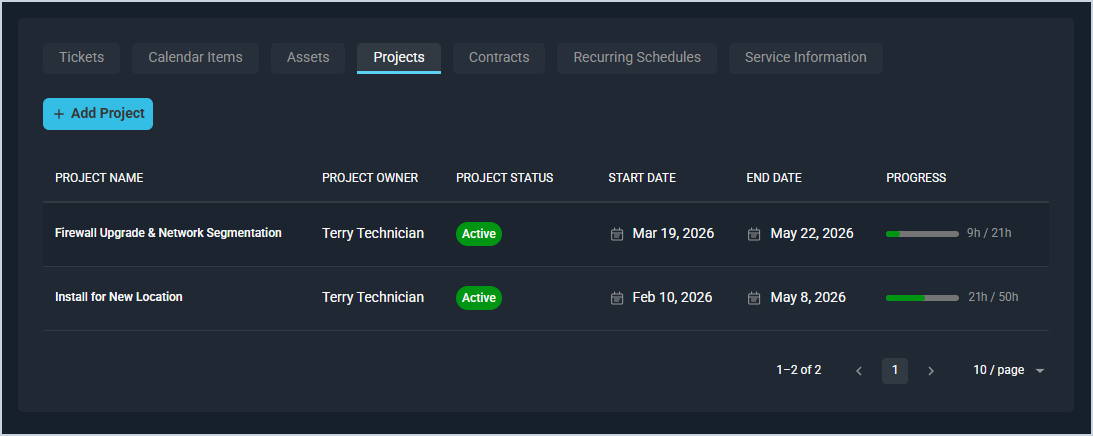
Each field on the Projects tab is defined below.
| No. | Label | Definition |
| 1 | Project Name | Name of the project. |
| 2 | Project Owner | User assigned as the owner of the project. |
| 3 | Project Status | Current status of the project, displayed as a badge. Status options include Active, Pending, and Inactive. |
| 4 | Start Date | Start date of the project. |
| 5 | End Date | End date of the project. |
| 6 | Progress | Visual progress bar showing the number of hours logged against the total hours budgeted for the project. |
The following actions are available on the Projects tab.
- Add a new project to the customer record by clicking the + Add Project button. See the Add/Edit Projects article for more information.
- Sort the results in the table by clicking the column label in the table header.
- View more details for a project by clicking the project name. See the View Project: Details article for more information.
Tabs in the Servicing Section
For information on other tabs in the Servicing section of the Customer Profile screen, see the related articles.
- Customer Profile: Servicing Section - Tickets Tab
- Customer Profile: Servicing Section - Calendar Items Tab
- Customer Profile: Servicing Section - Assets Tab
- Customer Profile: Servicing Section - Contracts Tab
- Customer Profile: Servicing Section - Recurring Services Tab
- Customer Profile: Servicing Section - Service Information Tab