
View Quote Details
The quote detail view is the single screen used to create, manage, and view all information associated with a quote. Unlike other areas of the system, there is no separate creation screen. When you create a new quote, you are taken directly to this screen to add products and services, proposals, addresses, contacts, and other key details. You can open this screen by clicking on a quote from the Quotes tab on a customer profile or the Quotes List, or by clicking the New Quote button from either location.
| NOTE: This article covers the various sections and fields available on the quote detail screen. For more information about the process of creating and editing quotes in Rev.io, see the Managing Quotes article. |
Header
The header identifies the quote and provides a high-level summary of its value, along with actions for managing its status.

The header displays the following information for the selected quote.
| No. | Label | Definition |
| Header | ||
| 1 | Quote Number | System-assigned number for the quote. |
| 2 | Status | Current status of the quote, displayed as a badge next to the quote number. |
| 3 | Customer | Customer account associated with the quote. Click the link to open the customer profile. |
| 4 | Date | Date the quote was created. |
| Summary Cards | ||
| 5 | Revenue | The total amount charged on the quote, not including tax, with the MRR and One-Time amounts shown beneath the total. |
| 6 | Cost | The total cost of the products on the quote, with the MRR and One-Time amounts shown beneath the total. |
| 7 | Tax | Total tax applied to the quote. |
| 8 | Profit | The revenue minus the cost, with the MRR and One-Time amounts shown beneath the total. |
| 9 | Margin % | The profit as a percentage of the revenue, with the MRR and One-Time margins shown beneath the total. |
The following actions are available in the header:
- Return to the previous screen by clicking the Back button.
- Deactivate the quote by clicking the Deactivate Quote button.
- Approve the quote by clicking the Approve Quote button.
- Create a copy of the quote by clicking the Duplicate Quote button.
Products and Services
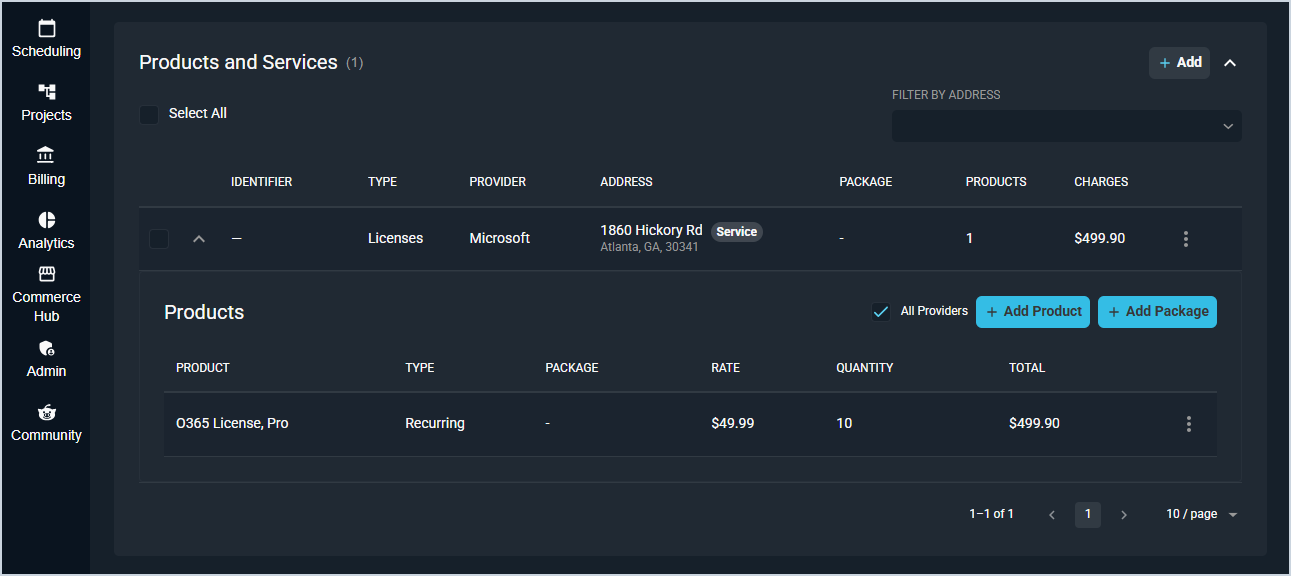
The Products and Services section displays all products and services included in the quote. Click the + Add button to add a new product or service, or click + Add Your First Service if no products have been added yet. See the Adding Services, Products, and Packages to Quotes article for more information. Click the Adjust Pricing button to apply a markup or markdown to the price or cost of products on the quote. See the Adjusting Quote Pricing article for more information.
Proposals
The Proposals section displays all signable proposal documents associated with the quote. Click the + Add button to add a new proposal to the quote. See the Adding Proposals to Quotes article for more information.

Addresses and Contacts
The Addresses and Contacts sections display the addresses and contacts associated with the quote. You can add existing records from the customer profile or create new ones.
The following actions are available in the Addresses and Contacts sections.
- Add an existing address or contact from the customer record by clicking the Existing button.
- Add a new address or contact by clicking the + New button.
- Remove or update an address or contact by clicking the ellipsis at the end of the row and selecting from the available menu options.

Details
The Details tab displays key information about the quote and allows you to edit that information.
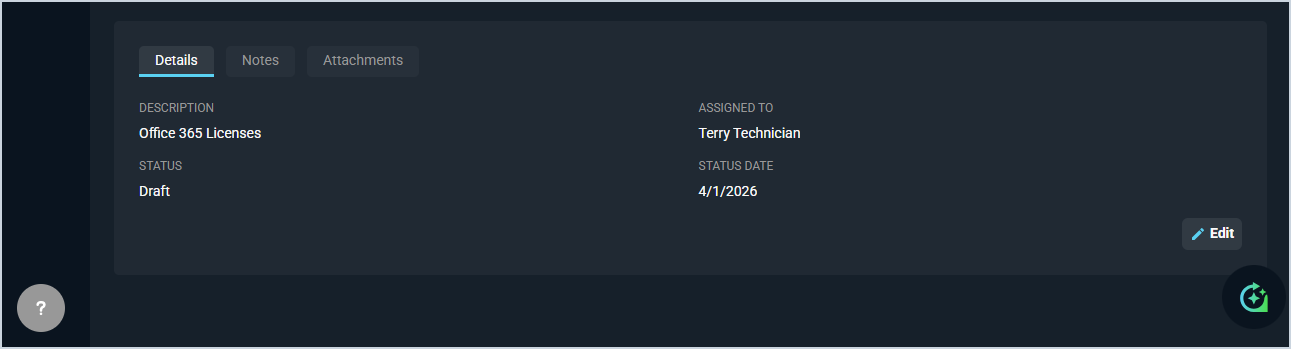
Each field on the Details tab is defined below.
| No. | Label | Definition |
| 1 | Description | Description of the quote. |
| 2 | Assigned To | The user responsible for managing and following up on the quote. |
| 3 | Status | Status of the quote. Status options include Draft, Sent, Viewed, and Complete. The Status updates automatically once a quote has been sent to a customer, viewed by a recipient, and signed by all signers. NOTE: The Status does not update from Viewed to Completed until all signers have added their signatures. |
| 4 | Status Date | Date the current status was applied to the quote. |
The following actions are available on the Details tab.
- Edit the quote details by clicking the Edit button at the bottom right of the Details tab.
Notes
The Notes tab displays all notes associated with the quote and allows you to add new ones.
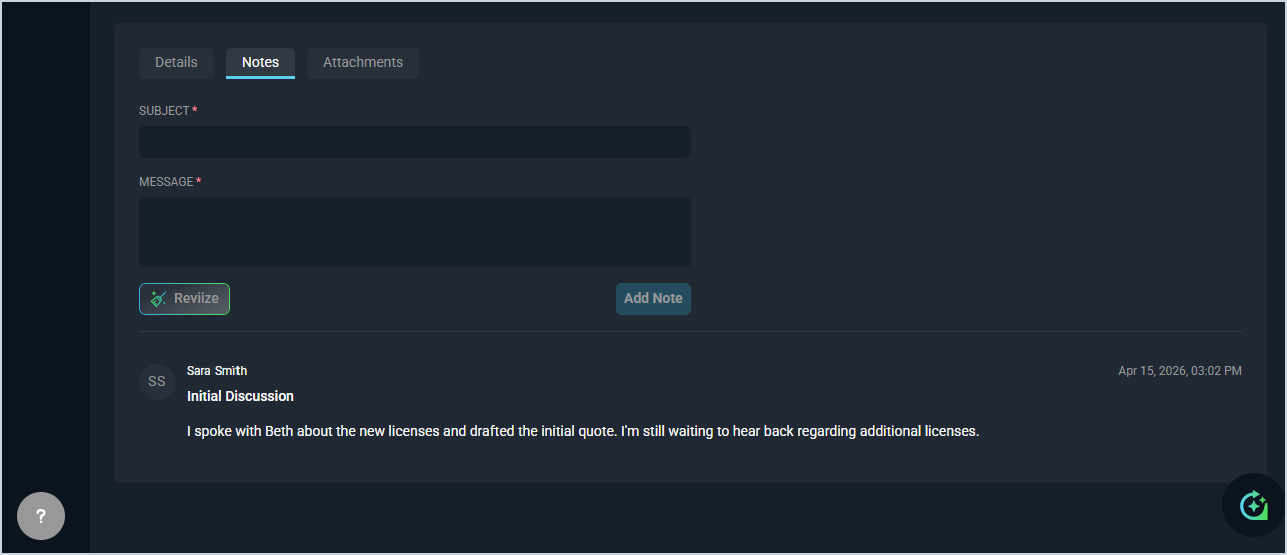
Each field on the Notes tab is defined below.
| No. | Label | Definition |
| 1 | Subject | Subject or title of the note. |
| 2 | Message | Body of the note. |
The following actions are available on the Notes tab.
- Add a new quote by entering the Subject and Message for the note and clicking the Add Note button.
- Review existing notes on the quote by scrolling down to see note entries added on the Notes tab.
Attachments
The Attachments tab displays all files associated with the quote and allows you to upload new ones.
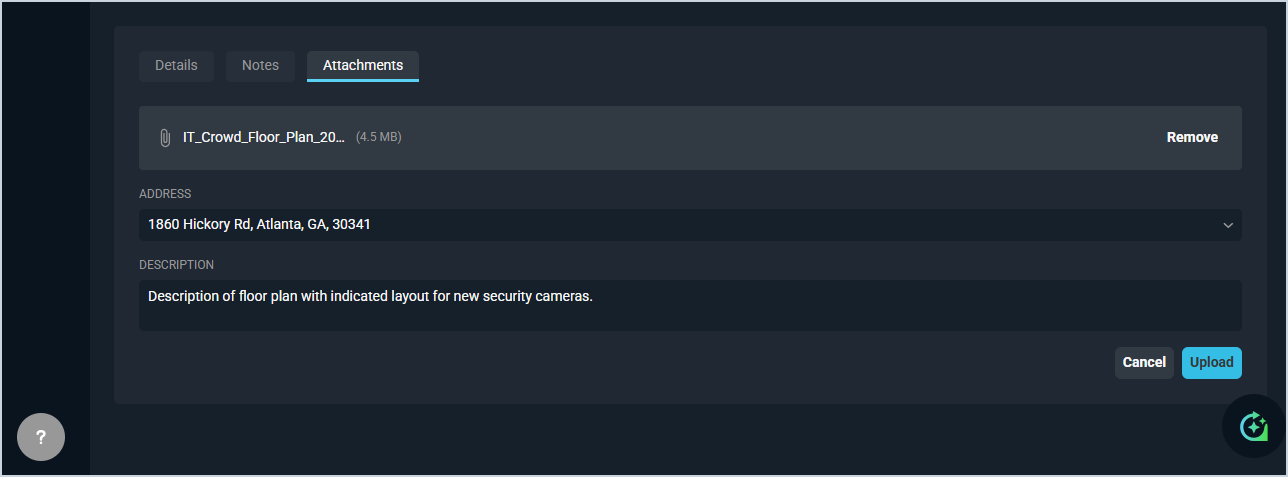
Each field on the Attachments tab is defined below.
| No. | Label | Definition |
| 1 | Click to Browse | Click to browse for an attachment on your computer or drag and drop to upload a file. |
| 2 | Address | Address associated with the attachment. |
| 3 | Description | Description of the attachment. |
The following actions are available on the Attachments tab.
- Add a new attachment to the quote by clicking to browse or dragging and dropping a file.
- View file attachments associated with the quote by clicking the attachment in the list.
- Delete file attachments associated with the quote by clicking the ellipsis and selecting Delete from the menu.