
Managing Quotes
Quotes in Rev.io give you a structured way to build and present service offerings to your customers. Each quote holds the products, services, pricing, and contact details that make up the offer, and can be paired with a proposal document that you send to your customer for review and signing. This article walks through the full quoting process from start to finish.
Understanding the Quote Structure
Rev.io separates the quoting process into two distinct components: quotes and proposals. A quote is the record created and managed inside Rev.io, containing the services, products, pricing, and customer details that make up the offer. A proposal is the customer-facing document generated from that quote, which is sent to the customer for review and signing.
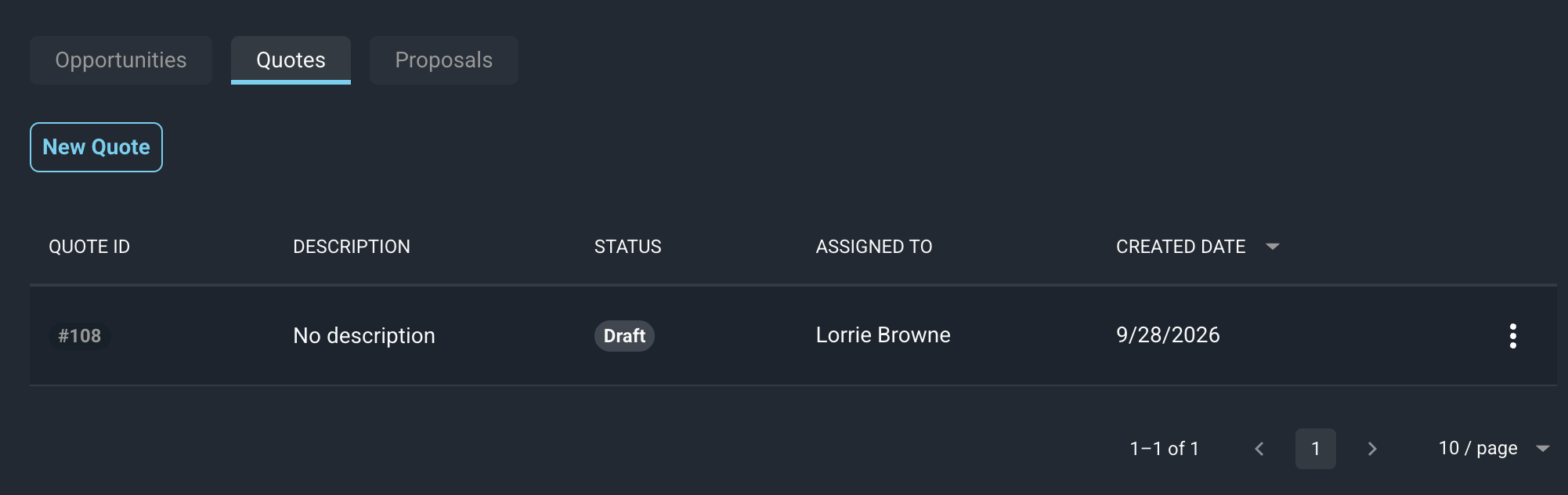
This distinction is reflected in the interface. The Quotes tab is where all new and active quotes are created and managed. The Proposals tab displays inactive quotes from the previous quoting process, as well as proposal documents associated with quotes going forward.
Step 1: Create a New Quote
Quotes can be created from either the relevant customer record or directly from the Quotes List view. In either location, click the New Quote button to begin. From here you will configure the services, products, address, and contact information that make up the quote.
See the View Quote Details article for a full overview of the fields available on the quote record.
Step 2: Add Services, Products, and Packages
Every quote requires at least one service, which defines the type of offering being provided. Once a service is in place, you can add individual products or apply a package to bundle multiple products together.
See the Adding Services, Products, and Packages to Quotes article for a full walkthrough.
Step 3: Add a Proposal
Once the quote is built out, attach a proposal document to send to your customer for review and signing. A proposal is generated from a pre-configured template and includes the products and services from the quote, along with any variables and signature fields you configure.
See the Adding Proposals to Quotes article for a full walkthrough.
Step 4: Add Recipients and Assign Signature Fields
Before sending, make sure all signers are added as recipients on the proposal and that all signature and date fields are assigned. Recipient information is automatically populated from the contact on the quote, but can be edited before finalizing.
See the Adding Proposal Recipients article for a full walkthrough.
Step 5: Send the Proposal
Once recipients and signature fields are configured, send the proposal directly to your customer from within the proposal editor. Your customer will receive an email with a link to review and sign the document.
See the Sending Proposals to Recipients article for a full walkthrough.
| NOTE: Once a quote is in a Completed Status (signed by all signers), the system creates a new ticket with all one-time products on the quote and a new recurring service with all recurring products on the quote. The new ticket uses the default status, type, and priority set in the Default Values section of the System Settings: Service article. See the View Ticket: Details and Customer Profile: Billing Section - Recurring Services Tab articles for more information. |