How To Guide: Cancelling an Agreement
1. Introduction
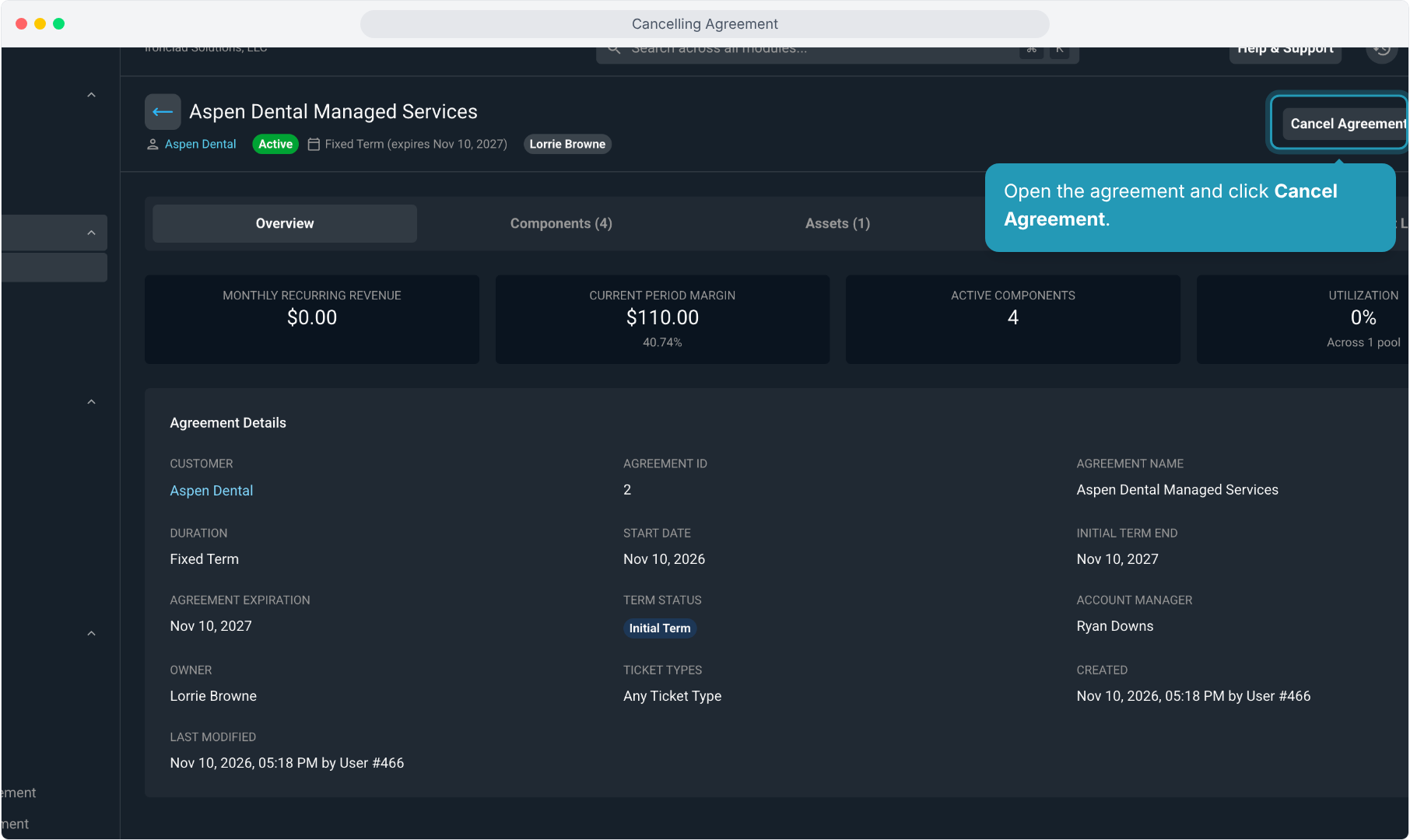
2. Open the agreement and click Cancel Agreement.
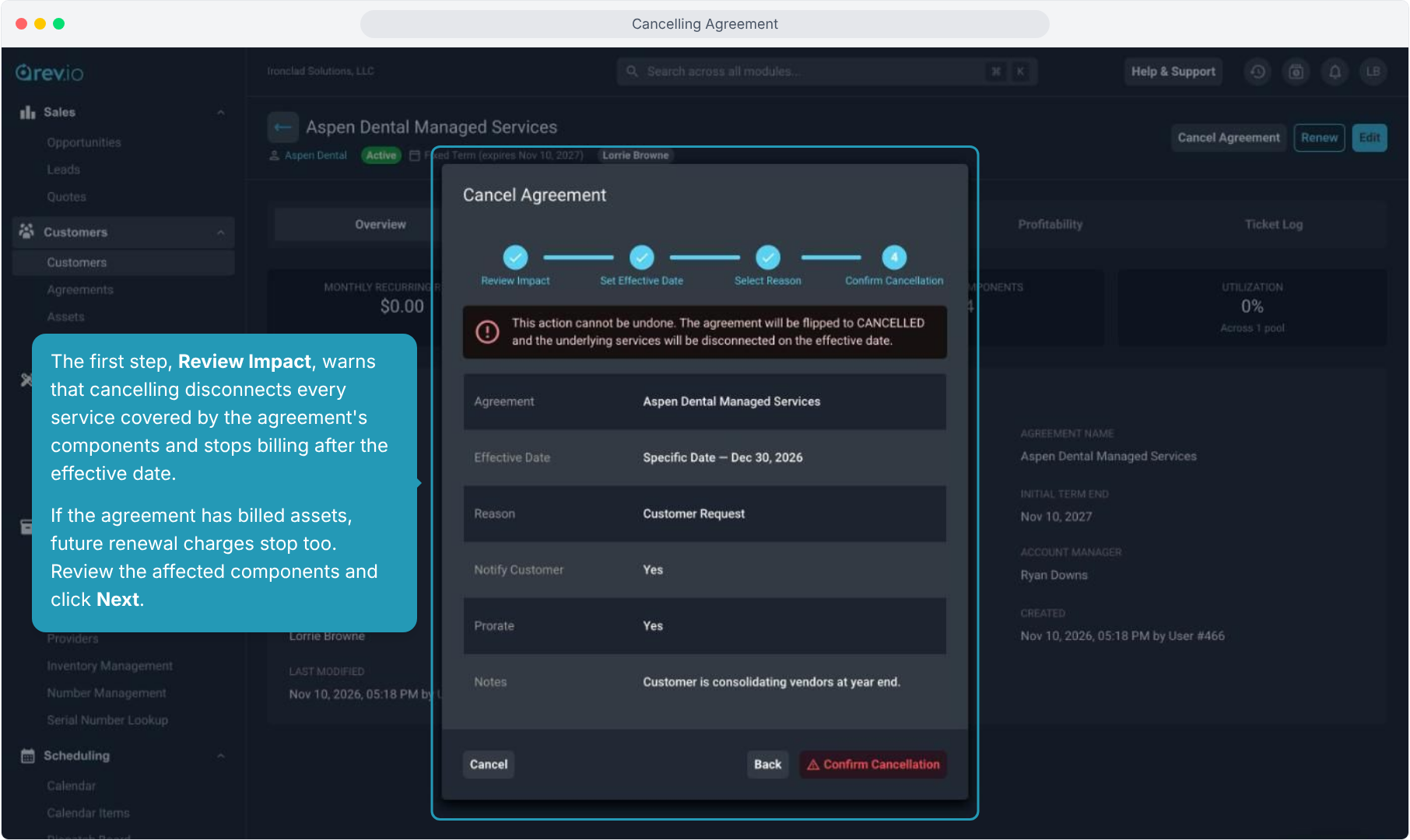
3. The first step, Review Impact, warns that cancelling disconnects every service covered by the agreement's components and stops billing after the effective date.
If the agreement has billed assets, future renewal charges stop too. Review the affected components and click Next.
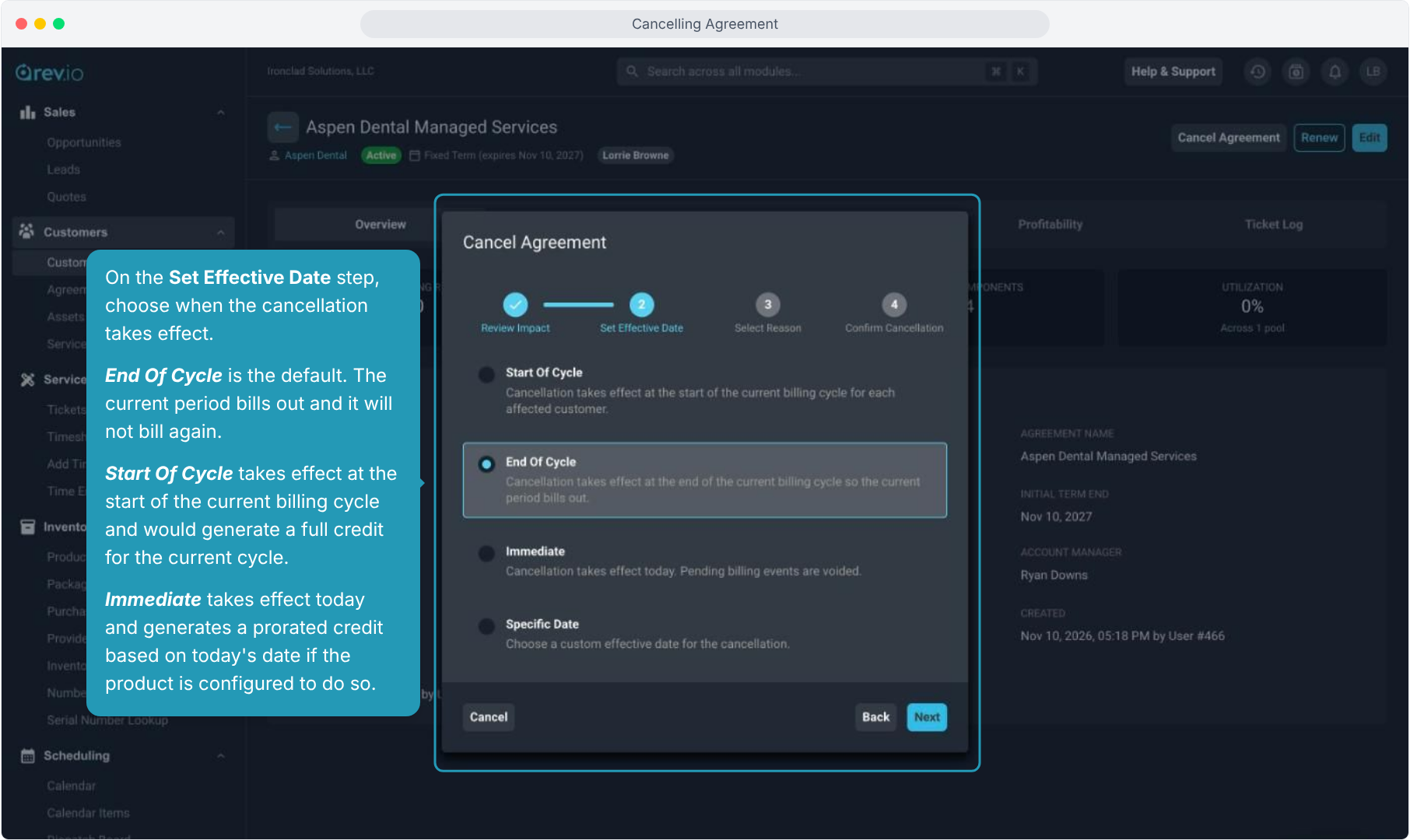
4. On the Set Effective Date step, choose when the cancellation takes effect.
End Of Cycle is the default. The current period bills out and it will not bill again.
Start Of Cycle takes effect at the start of the current billing cycle and would generate a full credit for the current cycle.
Immediate takes effect today and generates a prorated credit based on today's date if the product is configured to do so.
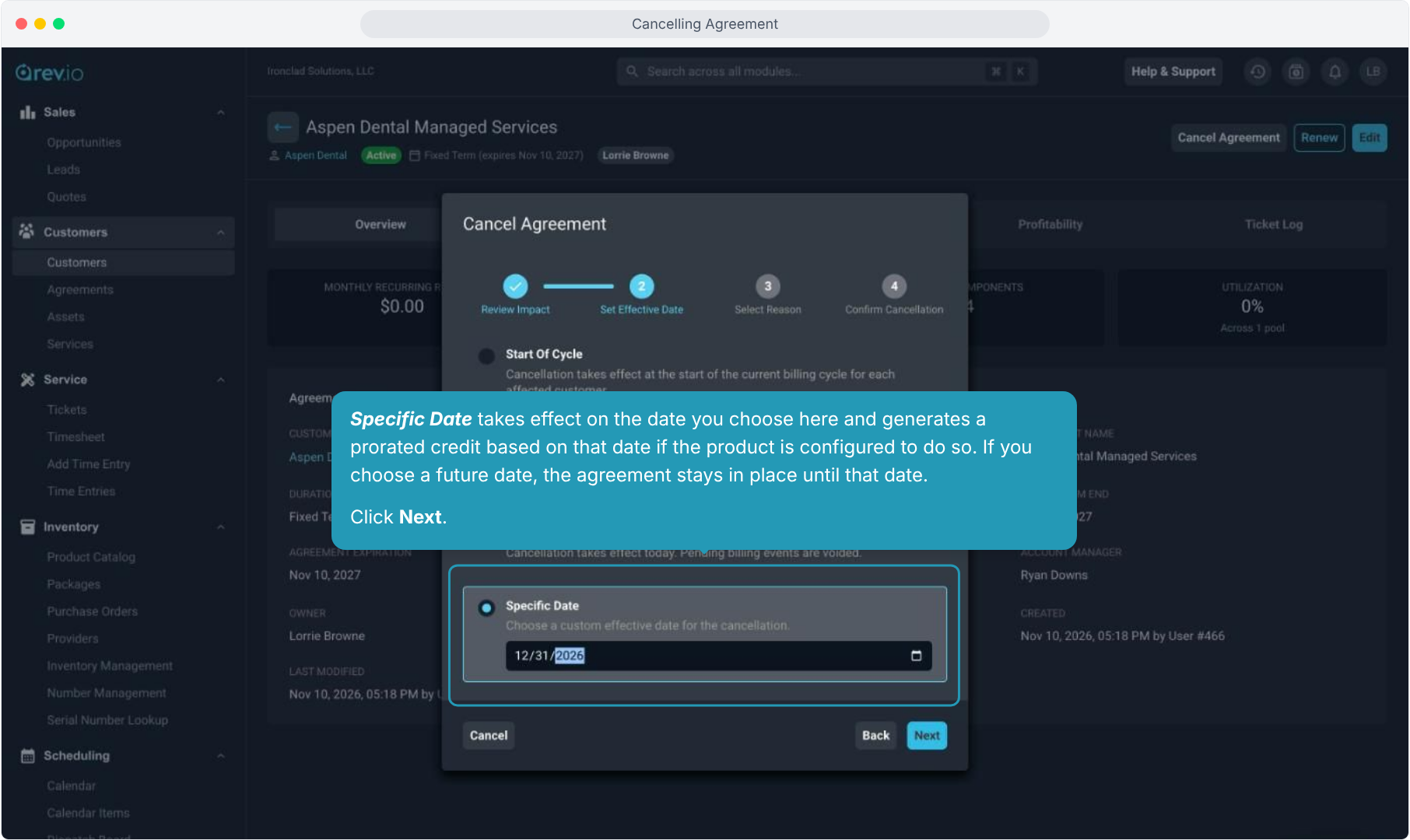
5. Specific Date takes effect on the date you choose here and generates a prorated credit based on that date if the product is configured to do so. If you choose a future date, the agreement stays in place until that date.
Click Next.
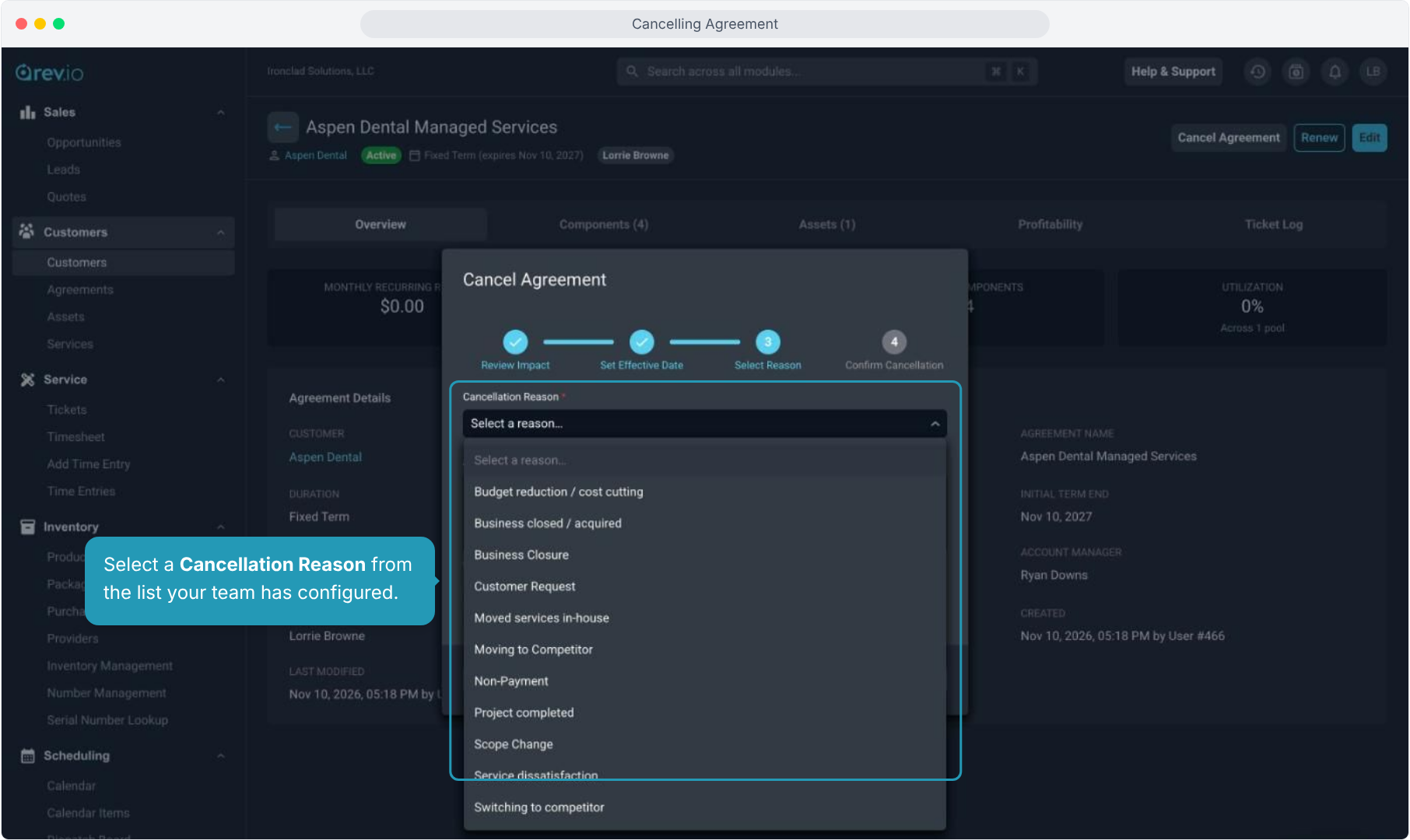
6. Select a Cancellation Reason from the list your team has configured.
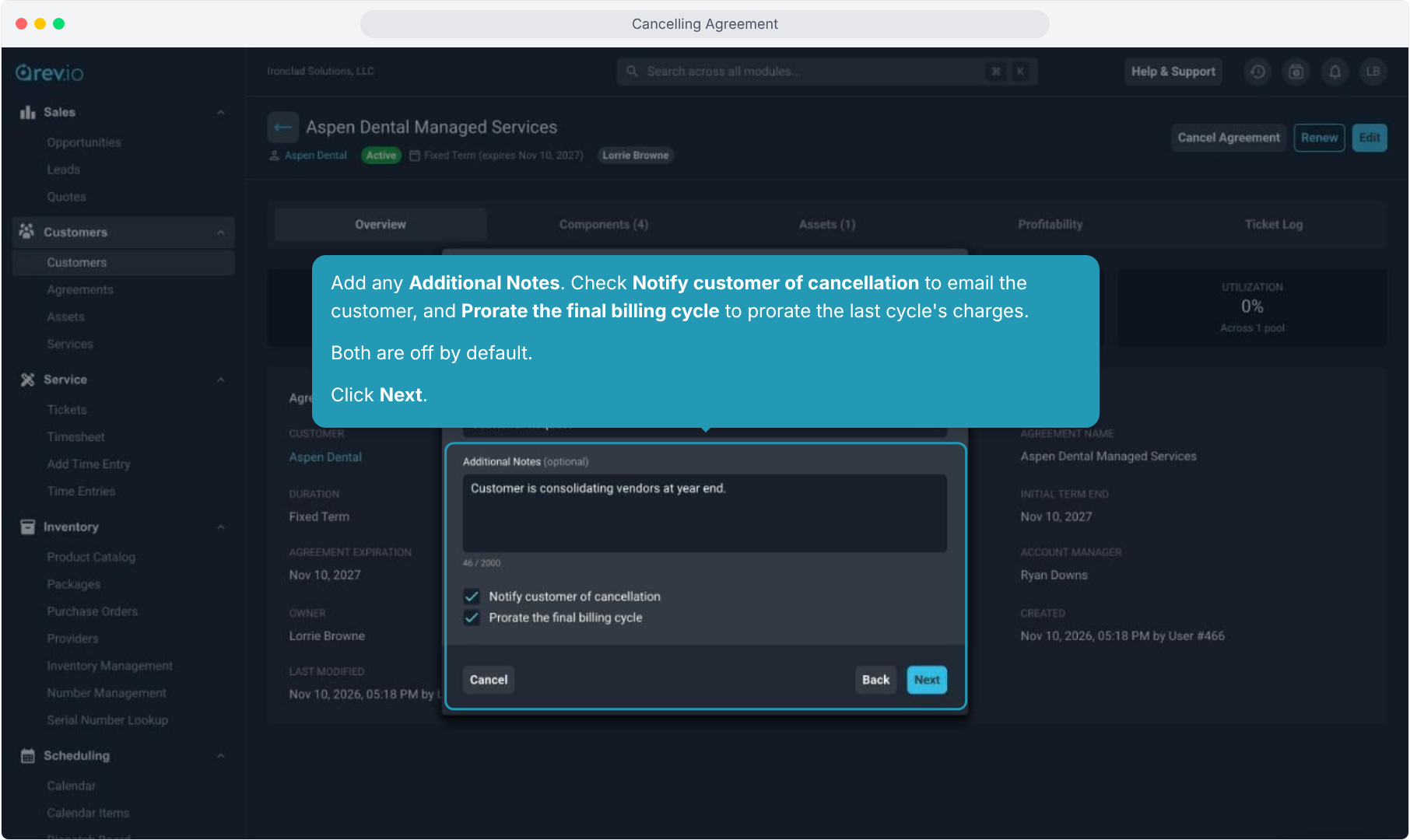
7. Add any Additional Notes. Check Notify customer of cancellation to email the customer, and Prorate the final billing cycle to prorate the last cycle's charges.
Both are off by default. Click Next.
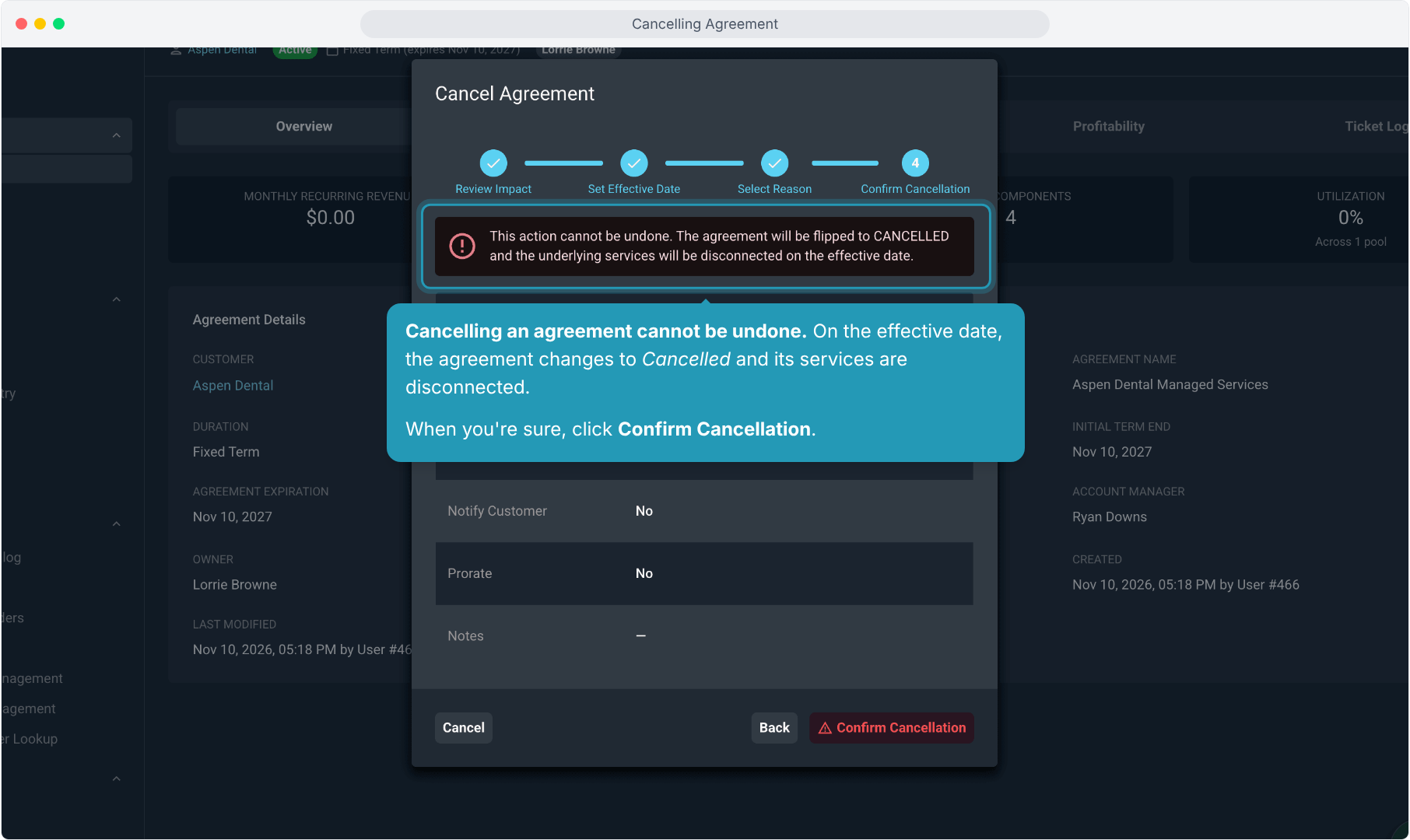
8. Cancelling an agreement cannot be undone. On the effective date, the agreement changes to Cancelled and its services are disconnected.
When you're sure, click Confirm Cancellation.