
QuickBooks Desktop Web Connector: Posting Payments
The Payment Queue tab sends Rev.io payments to QuickBooks Desktop as received payments, applied to the same invoices they paid in Rev.io. Because of this, post the invoices first. See the QuickBooks Desktop Web Connector: Posting Invoices article. To open a connection, click Admin, then Bulk Tools, click Set up on the QuickBooks Desktop Web Connector card, and click the connection name.
Choose a deposit account
On the Overview tab, use the Payment deposit account card to choose the QuickBooks bank account that payments deposit into, and click Save. Only bank accounts from the last sync can be chosen. If you don't choose one, payments still post, but QuickBooks puts them in Undeposited Funds, which means an extra step for your bookkeeper.

Post payments
Follow these steps to post payments.
- Open the Payment Queue tab.
- Under Build payment queue, choose a date range and click Build queue.
- In QuickBooks Web Connector, check the box next to the connection and click Update Selected, or wait for Auto-Run. Each payment takes two passes. The first finds its invoice in QuickBooks, and the second posts the payment. With Auto-Run on, both happen on their own.
- Return to the Payment Queue tab and confirm each payment changes to Posted.
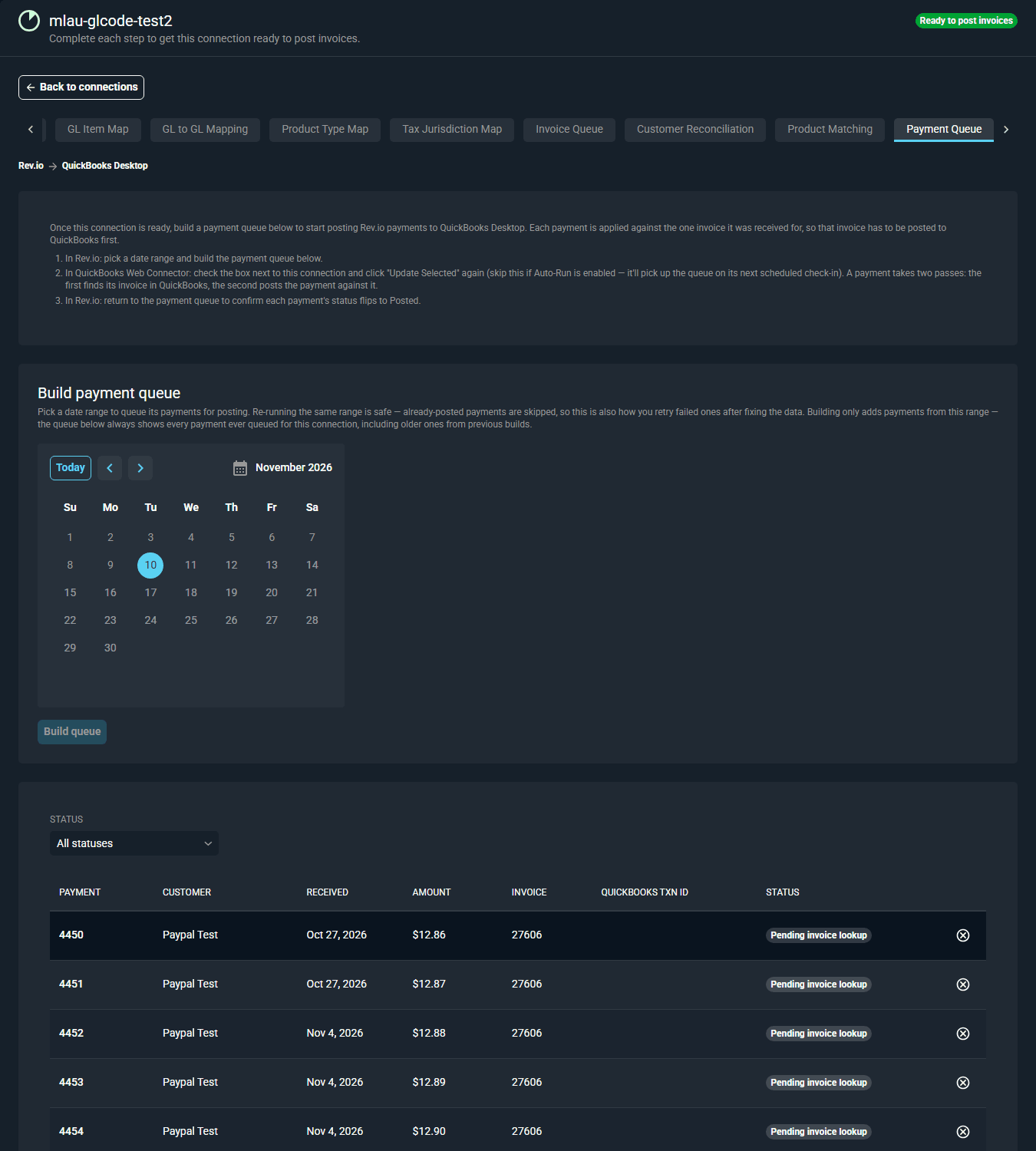
Rev.io posts one QuickBooks payment for each Rev.io payment, applied to every invoice it was applied to in Rev.io. The Rev.io payment ID becomes the reference number in QuickBooks. A payment posts all at once or not at all. If any of its invoices can't take the payment, nothing posts, so QuickBooks always matches Rev.io.
If a payment's invoice isn't in QuickBooks yet, the payment waits until the invoice is posted. Post the invoice, then build the payment date range again. Building the same range again is always safe, and payments that were already posted are skipped.
| NOTE: QuickBooks rounds tax its own way, so a payment can be a few cents more than the invoice balance in QuickBooks. If the difference is under $1.00, the balance is paid and the extra cents stay with the customer as a small credit, with the reason noted on the row. A difference of $1.00 or more is held for your review instead of posting. Fix the cause and build the date range again. |
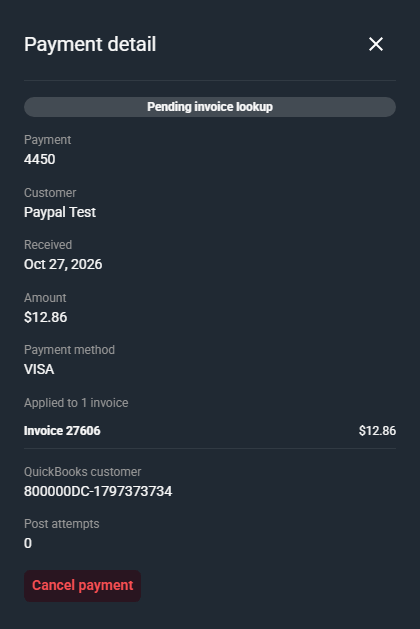
Click any payment in the queue to open the Payment detail panel. It shows the customer, amount, payment method, and the invoices the payment applies to. To keep a payment from posting, click Cancel payment.
Item cost sync
Item cost sync is optional. When it is on, Rev.io also writes each product's cost to its matched QuickBooks item as invoices post, so QuickBooks margin reports use real costs. Rev.io's cost always wins. If someone changes the cost in QuickBooks, the next sync puts the Rev.io cost back. Only matched items are updated.
See the following articles for more information.
QuickBooks Desktop Web Connector: Posting Invoices
QuickBooks Desktop Web Connector: Overview
QuickBooks Desktop Web Connector: Troubleshooting