NOTE: An authorized user account is required to run this integration. To support better security and audit visibility, we recommend creating a dedicated "service account" user. When configuring this integration, sign in using the service account rather than your personal user account to ensure that audit logs reflect the service account running the integration instead of the user who originally installed it.
Complete the steps below to configure the ConnectWise integration.
NOTE: Before starting the configuration steps below, be sure you have completed the required prerequisite steps. See the ConnectWise RMM Integration: Prerequisites article for more information.
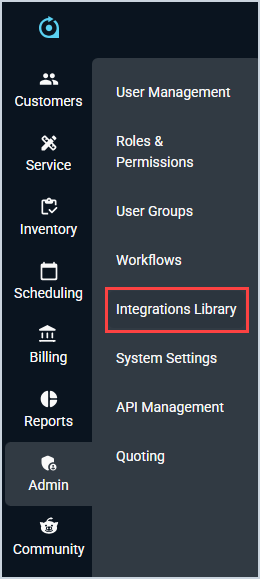
Click Admin on the sidebar menu and select Integrations Library.
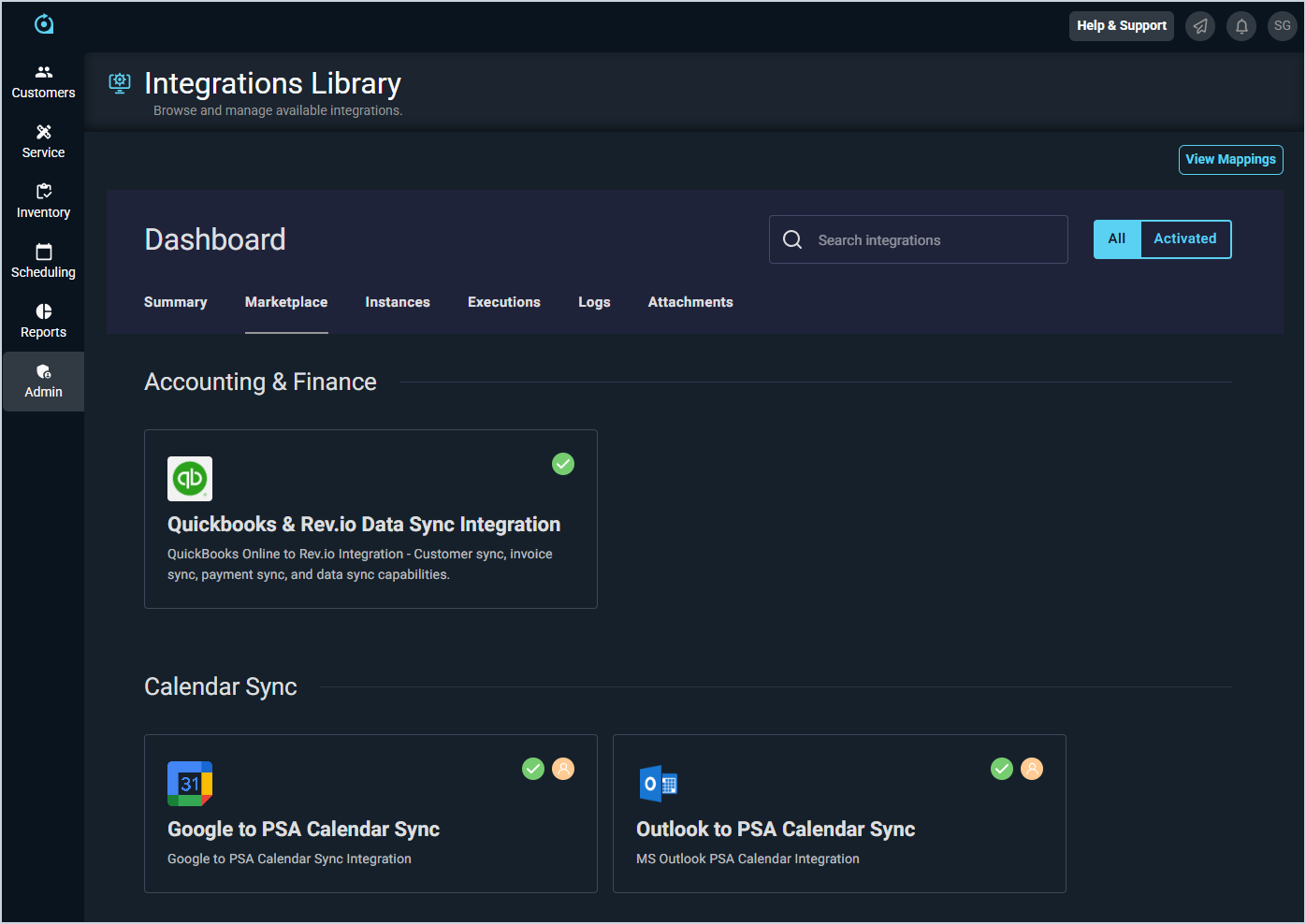
Click the Marketplace tab.
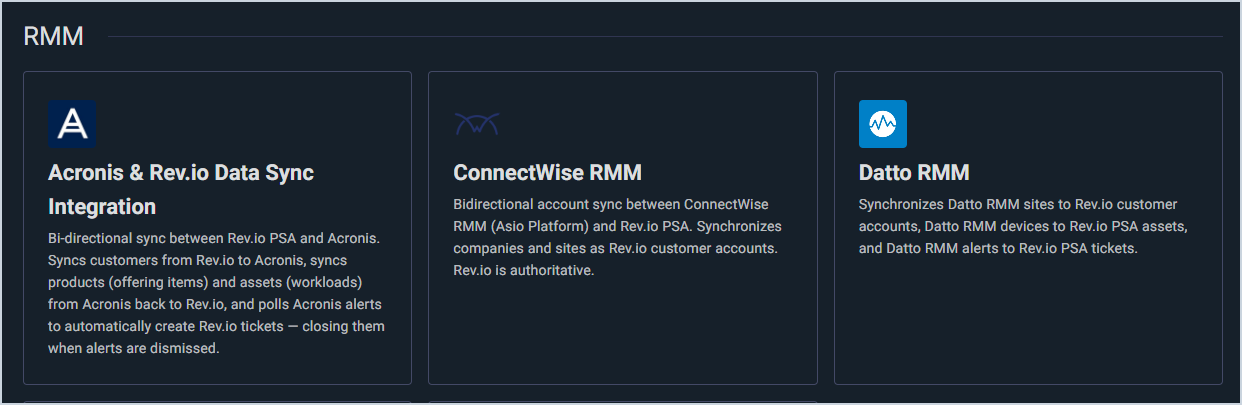
Locate and select the ConnectWise RMM Integration in the RMM section.
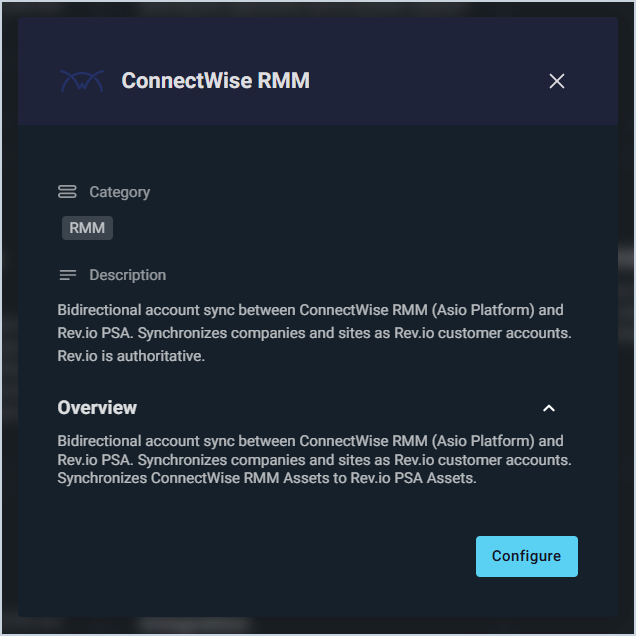
Click the Configure button.
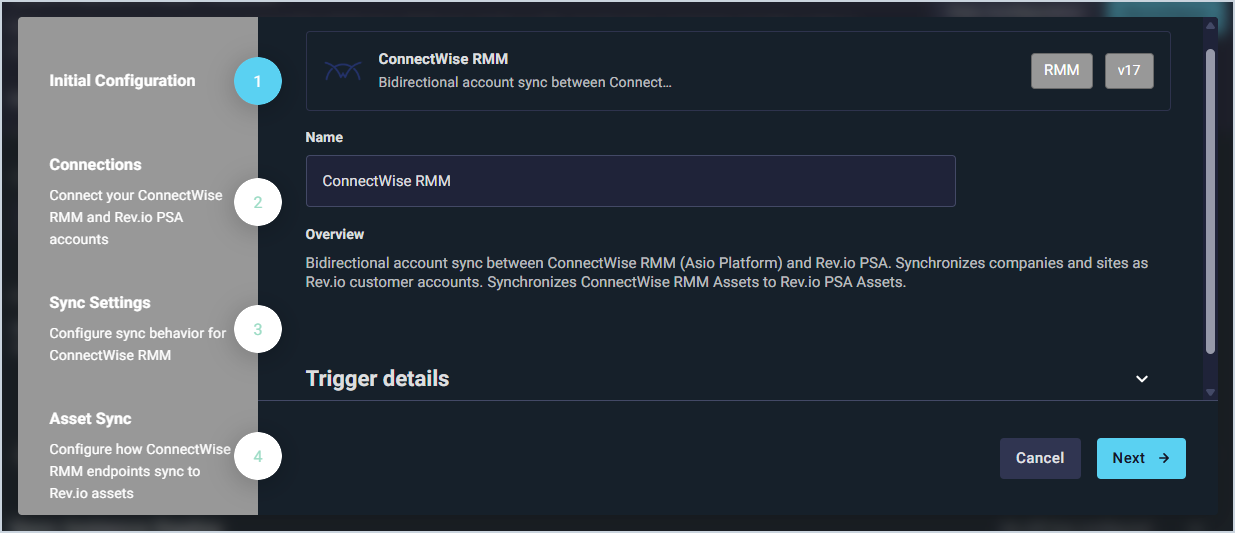
The Initial Configuration section is automatically populated. Click the Next button.
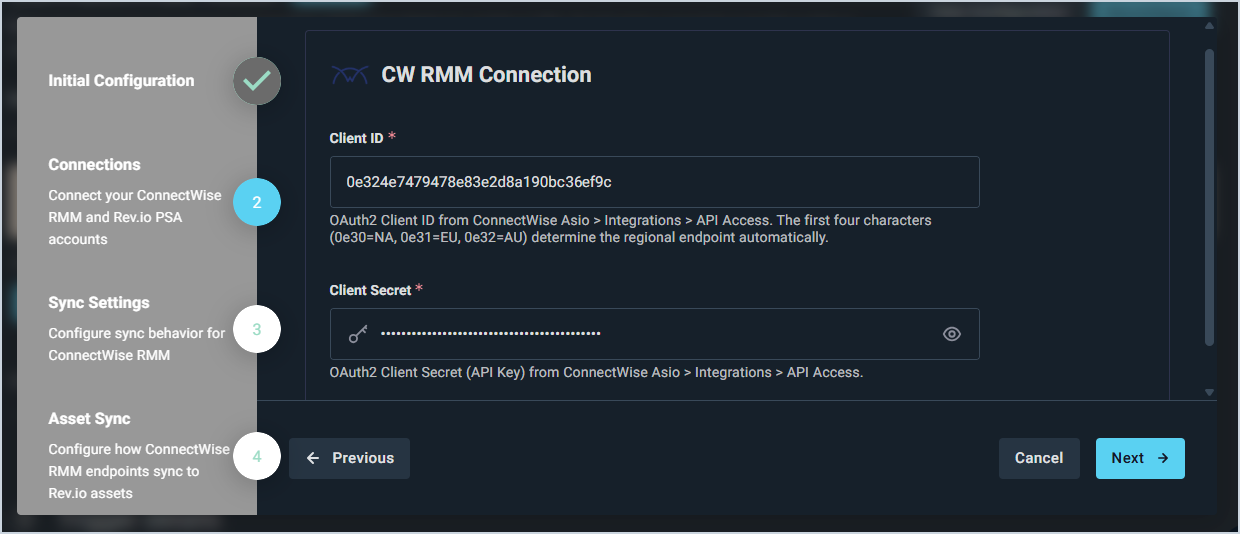
In the CW RMM Connection section, enter your Client ID and Client Secret from ConnectWise and click the Next button.
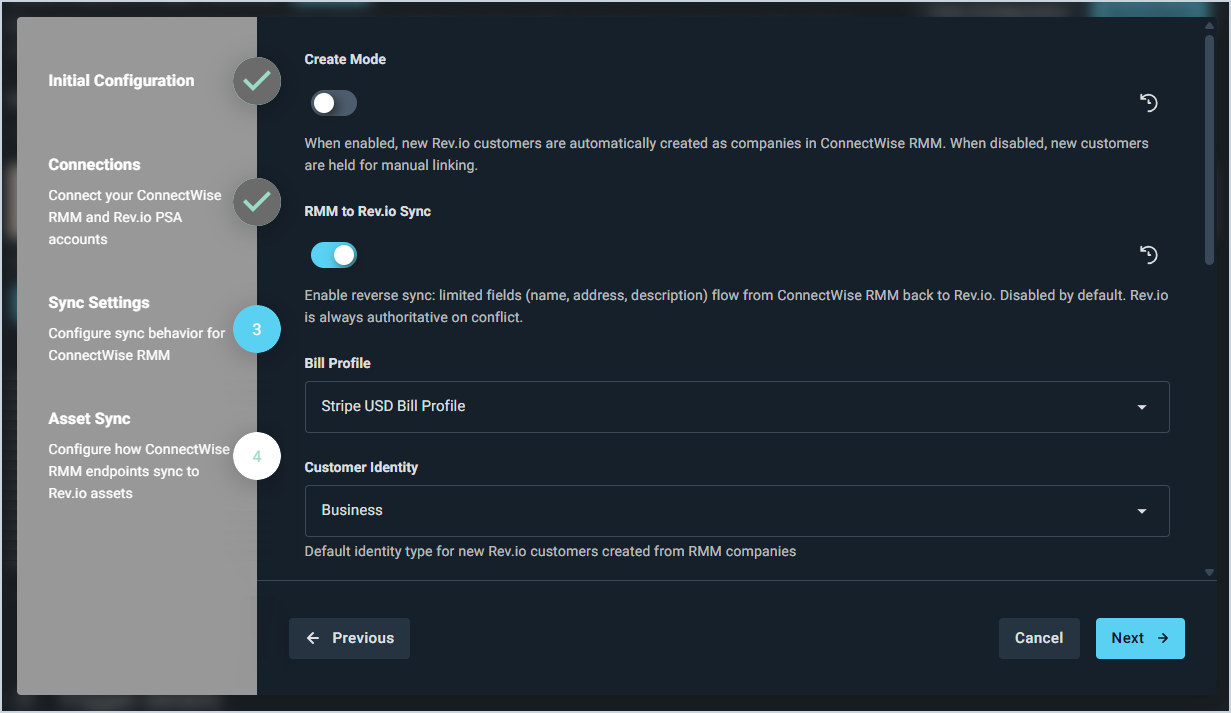
In the Sync Settings section, configure the following options and click the Next button.
Create Mode: When enabled, new Rev.io customers are automatically created as companies in ConnectWise RMM. When disabled, new customers are held for manual linking.
RMM to Rev.io Sync: When enabled, a limited set of fields (name, address, and description) flows from ConnectWise RMM back to Rev.io. Disabled by default. Rev.io is always authoritative on conflict.
Bill Profile: Bill profile assigned to new Rev.io customers created from ConnectWise RMM companies.
Customer Identity: Default identity type assigned to new Rev.io customers created from ConnectWise RMM companies.
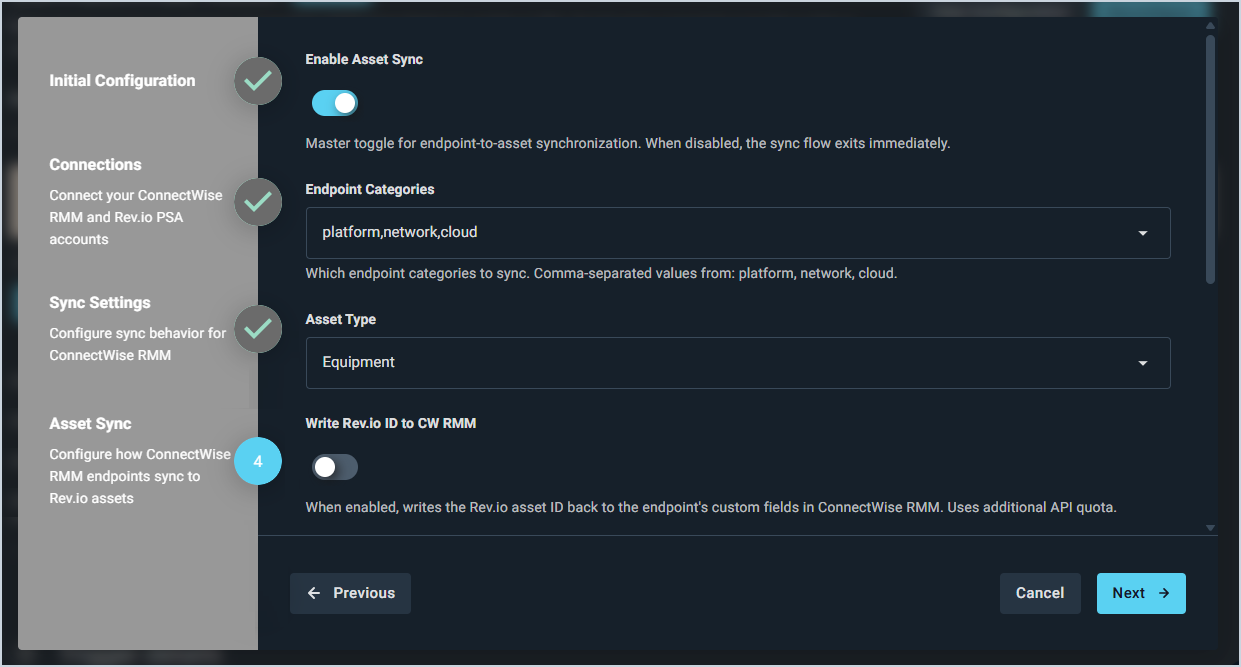
In the Asset Sync section, configure the following options and click the Next button.
Enable Asset Sync: Master toggle for endpoint-to-asset synchronization. When disabled, the sync flow exits immediately.
Endpoint Categories: Endpoint categories to sync from ConnectWise RMM. Enter comma-separated values from the available options: platform, network, and cloud.
Asset Type: Rev.io asset type assigned to assets created from ConnectWise RMM endpoints.
Write Rev.io ID to CW RMM: When enabled, writes the Rev.io asset ID back to the endpoint's custom fields in ConnectWise RMM. Uses additional API quota.
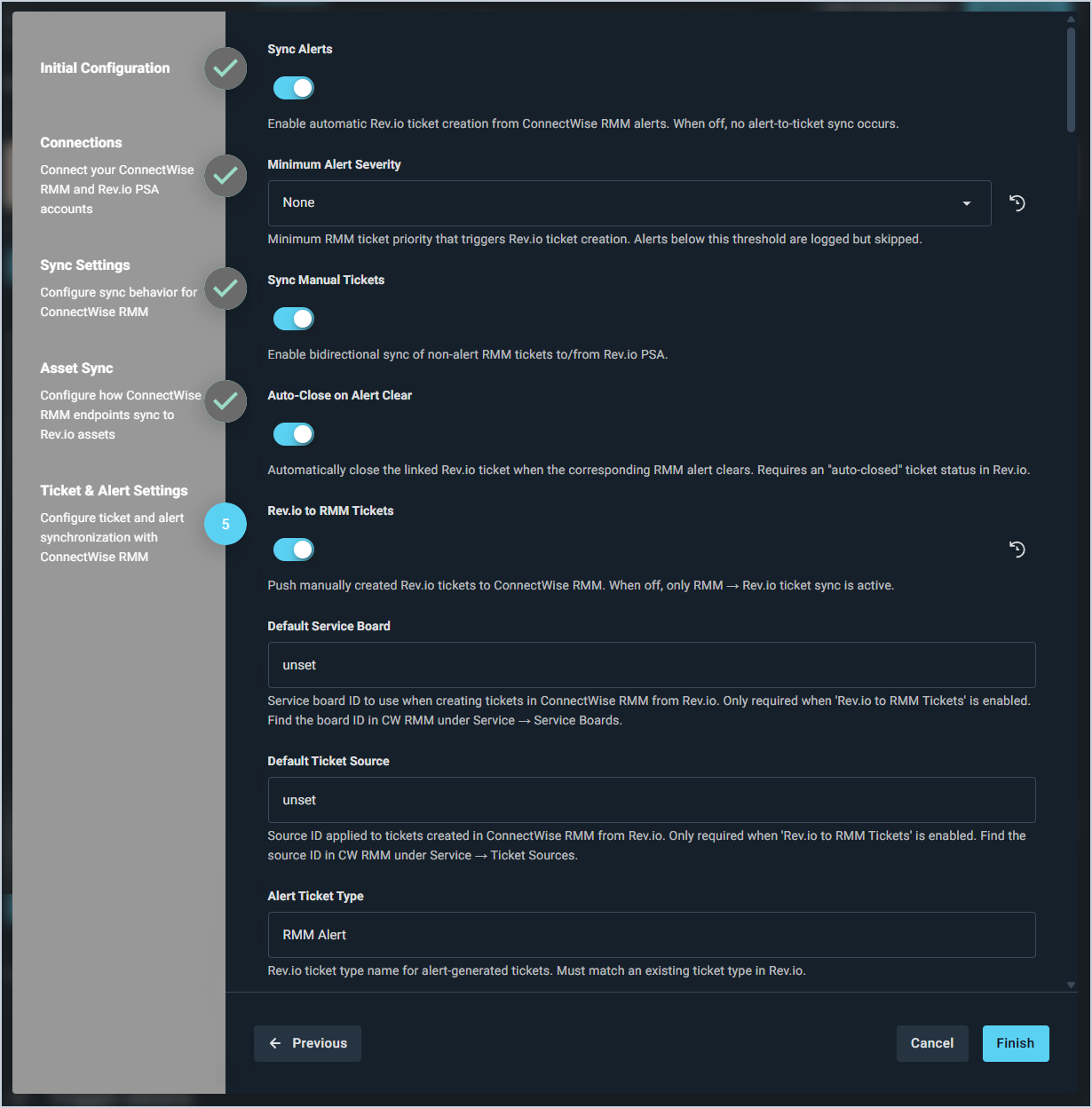
In the Ticket & Alert Settings section, configure the following options and click the Finish button.
Sync Alerts: When enabled, Rev.io tickets are automatically created from ConnectWise RMM alerts. When disabled, no alert-to-ticket sync occurs.
Minimum Alert Severity: Minimum RMM alert severity that triggers Rev.io ticket creation. Alerts below this threshold are logged but skipped.
Sync Manual Tickets: When enabled, non-alert RMM tickets sync bidirectionally between ConnectWise RMM and Rev.io.
Auto-Close on Alert Clear: When enabled, the linked Rev.io ticket is automatically closed when the corresponding RMM alert clears. Requires an "auto-closed" ticket status in Rev.io.
Rev.io to RMM Tickets: When enabled, manually created Rev.io tickets are pushed to ConnectWise RMM. When disabled, only RMM to Rev.io ticket sync is active.
Default Service Board: Service board ID used when creating tickets in ConnectWise RMM from Rev.io. Only required when Rev.io to RMM Tickets is enabled. Find the board ID in ConnectWise RMM under Service > Service Boards.
Default Ticket Source: Source ID applied to tickets created in ConnectWise RMM from Rev.io. Only required when Rev.io to RMM Tickets is enabled. Find the source ID in ConnectWise RMM under Service > Ticket Sources.
Alert Ticket Type: Rev.io ticket type name used for alert-generated tickets. Must match an existing ticket type in Rev.io.
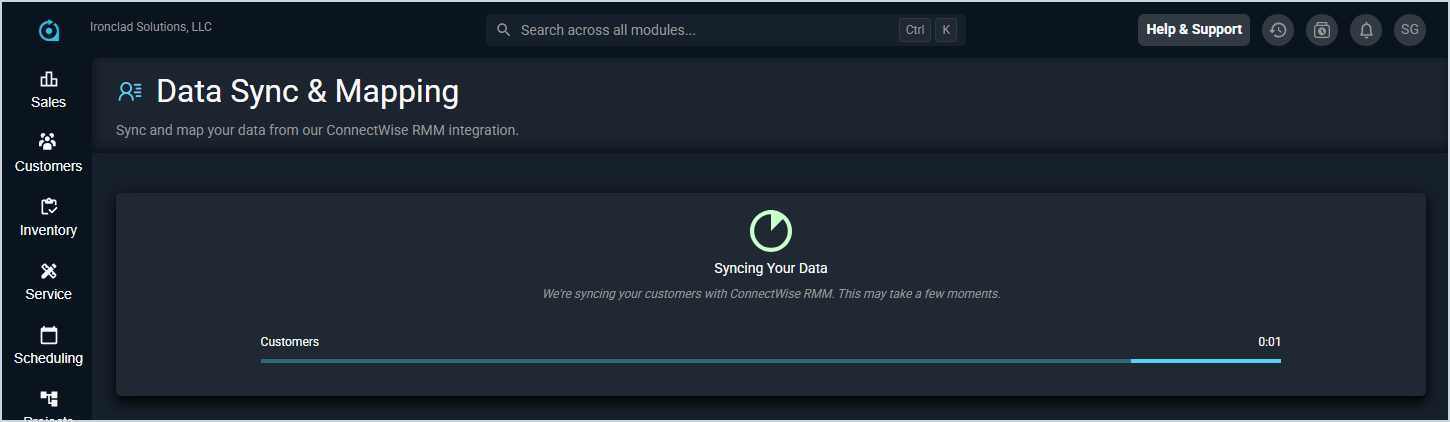
The integration will prepare to sync your information. Do not leave this page while the sync is running. If you need to work on something in the system while the integration syncs, open Rev.io in another tab.
Complete the process to sync your data with ConnectWise. See the Integrations Library: Data Sync & Mapping article for more information about mapping your data for ConnectWise.