Clock In/Out
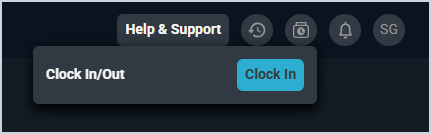
The Clock In/Out icon in the top right toolbar allows you to clock in and out to track your working hours directly from anywhere in Rev.io. When clocked in, the icon displays in blue to indicate that a clock session is active. Click the Clock In/Out icon to open the panel.
Your clock-in status is saved to your account, so you can clock in on the web or in the Rev.io Mobile app and still see your active timer when you return through either one. Your session keeps running if you sign out or close the application until you clock out.
Clocking In
To clock in, click the Clock In/Out icon and click the Clock In button. The timer starts immediately and the icon turns blue to indicate an active session. The panel displays the running timer and the date and time the session started.
Active Session
While clocked in, the panel displays the running timer and the details of the current session.
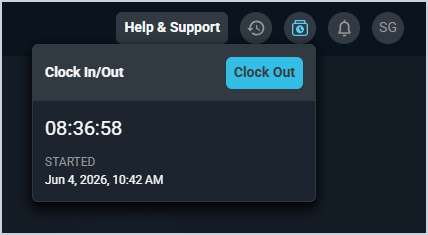
Each field in the active session panel is defined below.
| Label | Definition |
|---|---|
| Timer | Running count of the total time elapsed in the current clock session. |
| Started | Date and time the clock session started. |
| NOTE: If you forget to clock out, your session stays active until you clock out, even if you sign out and return the next day. When you clock out, click Save & Edit to add a note explaining the late clock out. |
Clocking Out
To clock out, click the Clock In/Out icon and click the Clock Out button. The panel will display a summary of the session before saving.
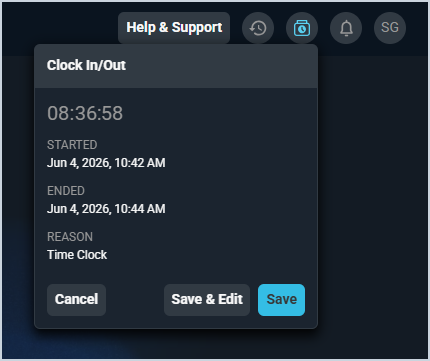
Each field in the clock out summary is defined below.
| Label | Definition |
|---|---|
| Started | Date and time the clock session started. |
| Ended | Date and time the clock session ended. |
| Reason | Time entry reason applied to the session. The Reason defaults to the Time Clock Reason set in the Company category on the System Settings screen. See the System Settings: Company article for more information. |
The following actions are available when clocking out.
- Discard the clock out and return to the active session by clicking Cancel.
- Save the session as shown by clicking the Save button.
- Save the session and open it for further editing by clicking the Save & Edit button.
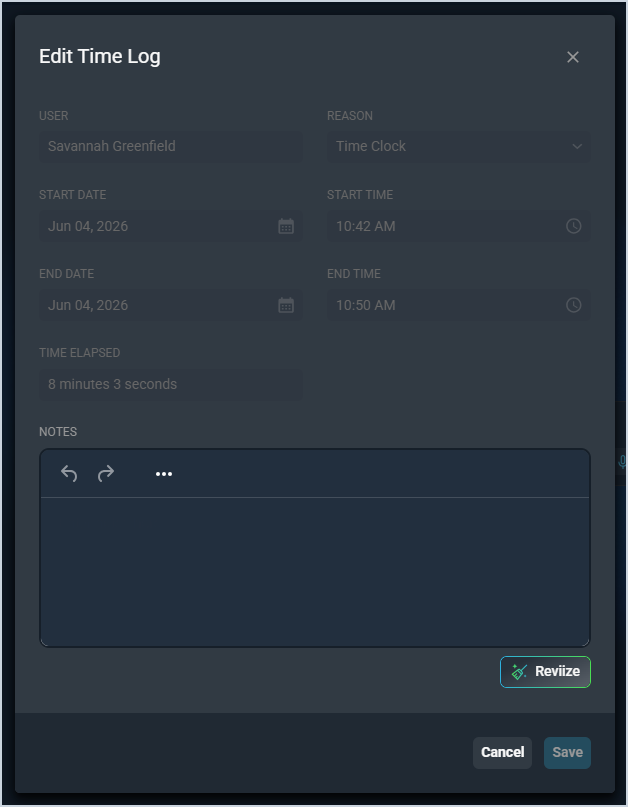
| NOTE: When editing time logs created using the time clock function, users will be unable to edit any of the start/end dates or times and will only be able to add Notes. |