
Merging Tickets on the Customer Profile
The Merge Tickets function allows you to consolidate multiple tickets on a customer account into a single master ticket. You can select which tickets to merge, designate the master ticket, and choose the items to include in the merge. Once the merge is saved, the system combines the selected tickets, ensuring that all relevant information, activity, and records are preserved while voiding the merged tickets to maintain accurate historical data.
Merging Tickets
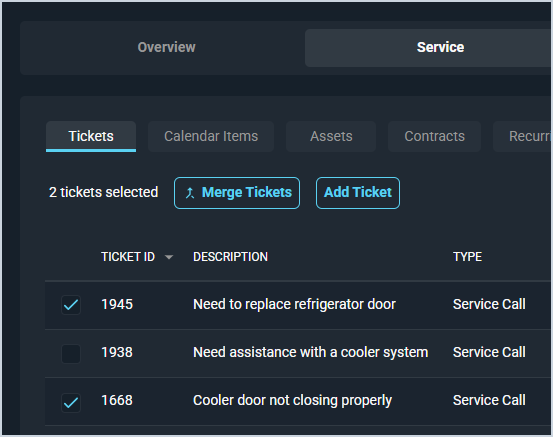
Any tickets in an open, unbilled Status on the same customer account can be merged together from the Tickets tab in the Servicing section of the customer profile screen. On the Tickets tab, select the tickets you want to merge and click the Merge Tickets button to start the merge process.
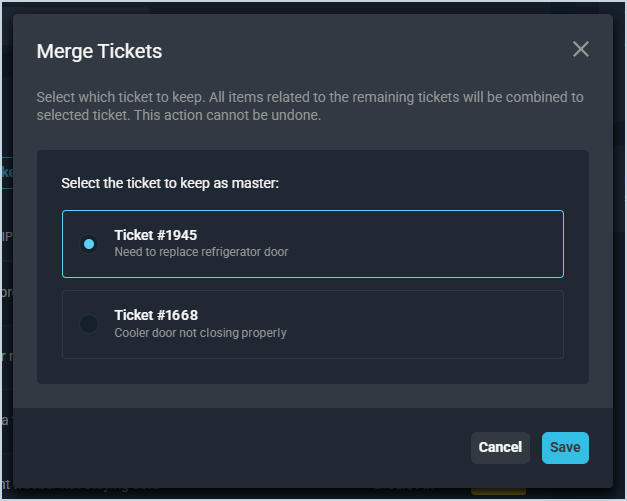
Once you click the Merge Tickets button, the Merge Tickets window displays. From here, simply select the ticket you want to become the master ticket and click the Save button. The remaining tickets merge into the selected ticket and a message displays in the lower right corner of the screen, confirming that the tickets were merged.
Viewing Merged Tickets
When tickets are merged, the system consolidates all relevant information into the master ticket.
- All items serviced, parts and labor, time logs, and purchase orders are merged into the master ticket.
- Work requested and public activity notes from each merged ticket are added to the master ticket with a note indicating the source ticket.
- Internal notes are created on the master ticket and each merged ticket to document the merge and the user performing it.
- All merged tickets are voided with a reason noting they were merged into the master ticket.