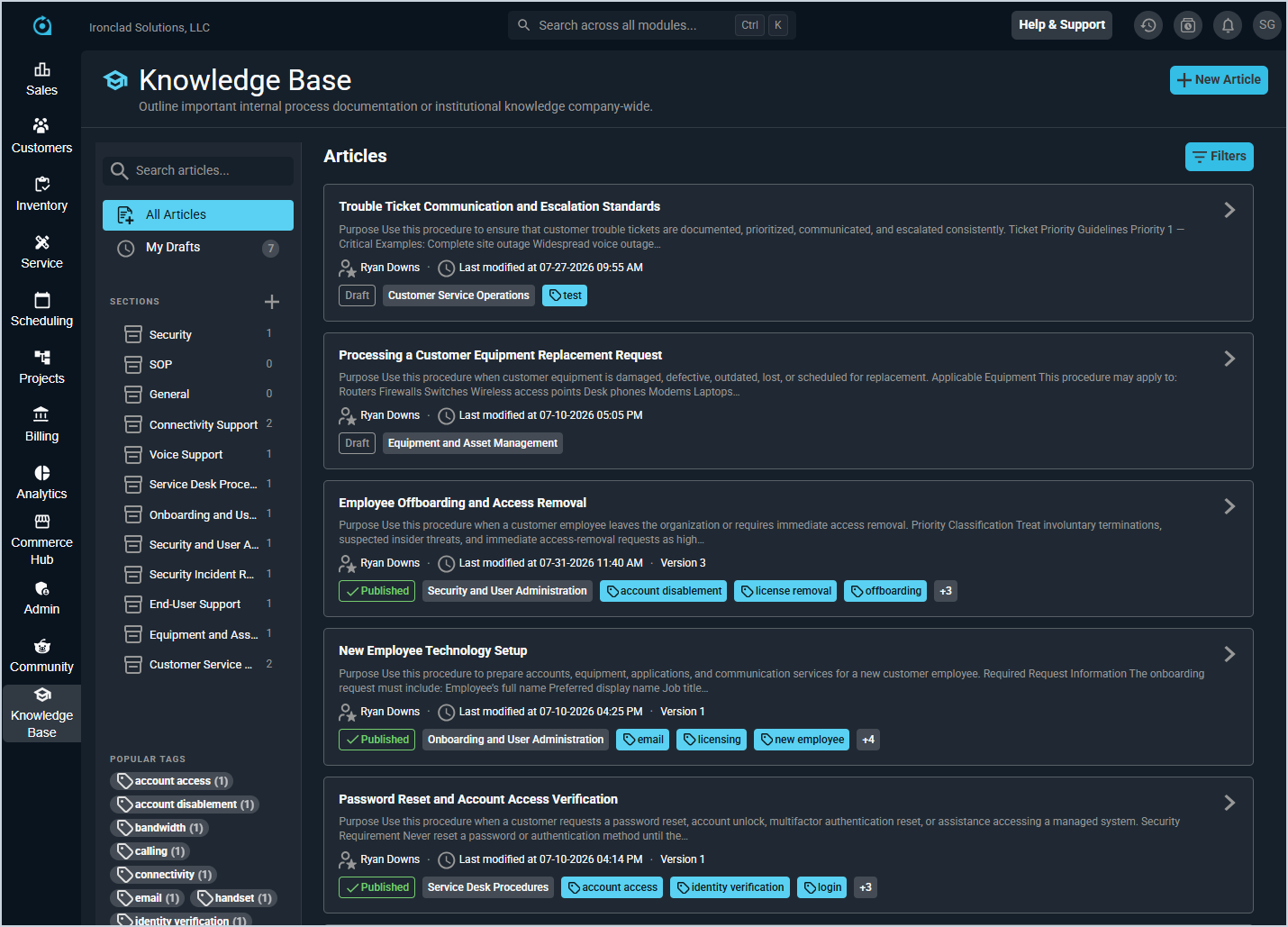
Knowledge Base: Articles List View
The Knowledge Base articles list view displays all published articles and, depending on your permissions, draft articles as well. It is accessible by clicking Knowledge Base in the sidebar menu.
The left panel displays the following navigation options.
- All Articles - displays all published articles and, if you have the appropriate permission, draft articles from all users.
- My Drafts - displays only your own draft articles. The number badge indicates how many drafts you currently have saved.
- Sections - displays articles organized into named sections. Click a section to filter the list to articles in that section. Click the + icon to add a new section.
- Popular Tags - displays frequently used tags. Click a tag to filter the article list to articles with that tag.
Each article in the list displays the article title, a brief excerpt, the author, the last modified date, the version number, the status (Draft or Published), the section it belongs to, and any tags applied.
The following actions are available from the articles list view.
- Create a new article by clicking New Article in the upper right.
- Search for articles by entering text in the Search articles field.
- Filter the list by clicking the Filters button.
- Open an article by clicking its row in the list.