How To Guide: Analytics - Dashboards
1. Introduction
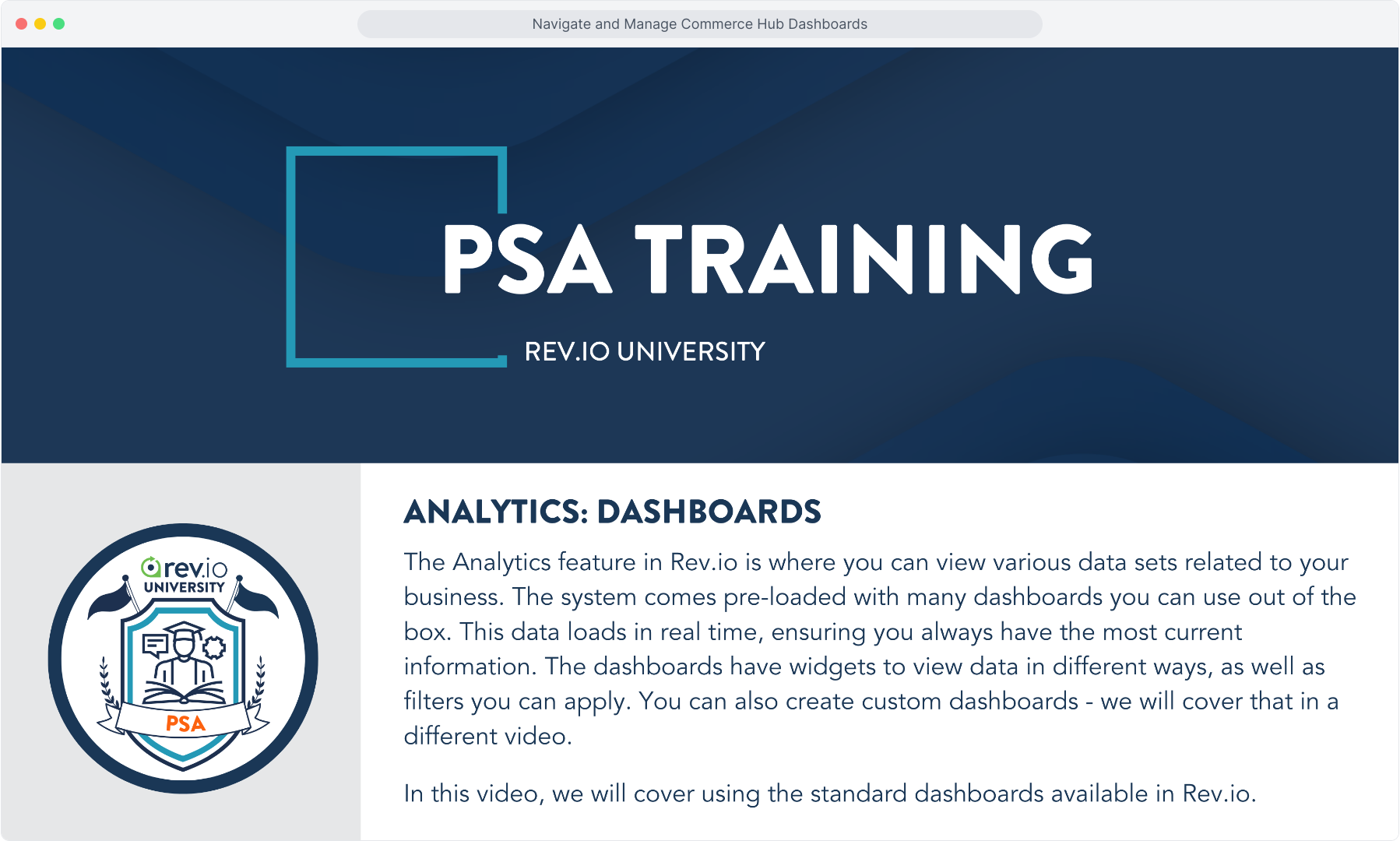
2. From the main Analytics menu, click on Dashboards.
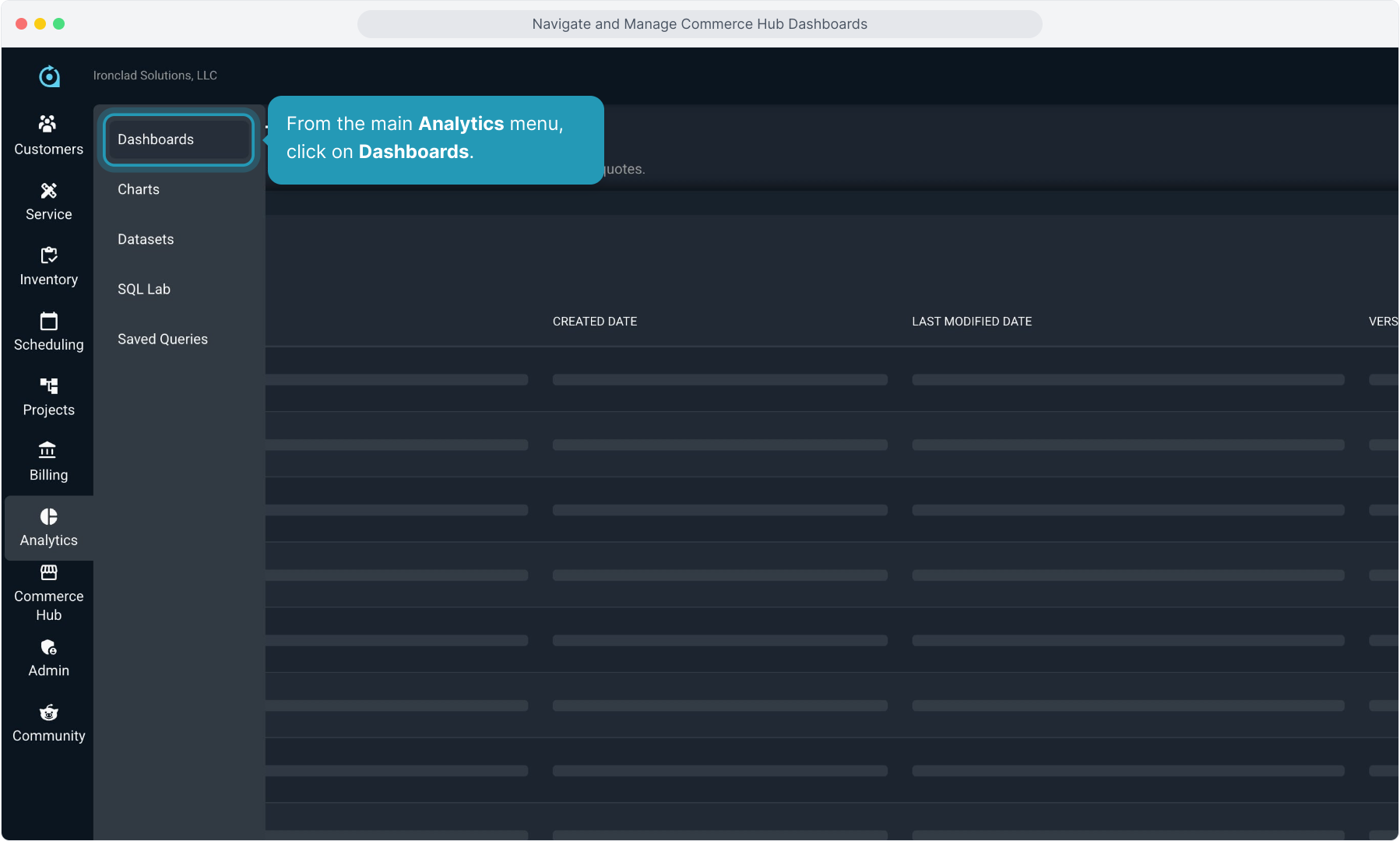
3. You can choose the view here. The system defaults to a list view of the dashboards.
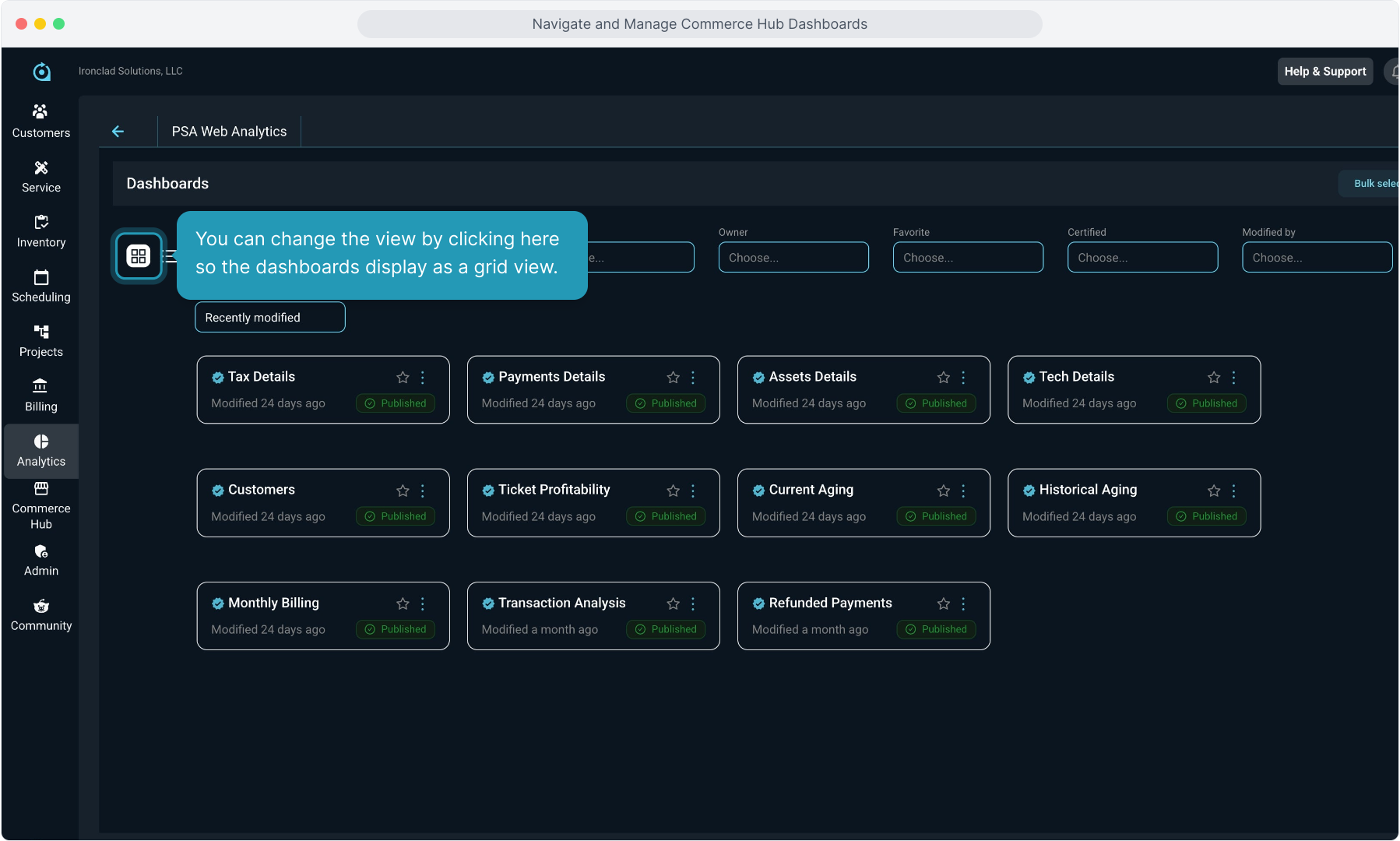
4. You can change the view by clicking here so the dashboards display as a grid view.
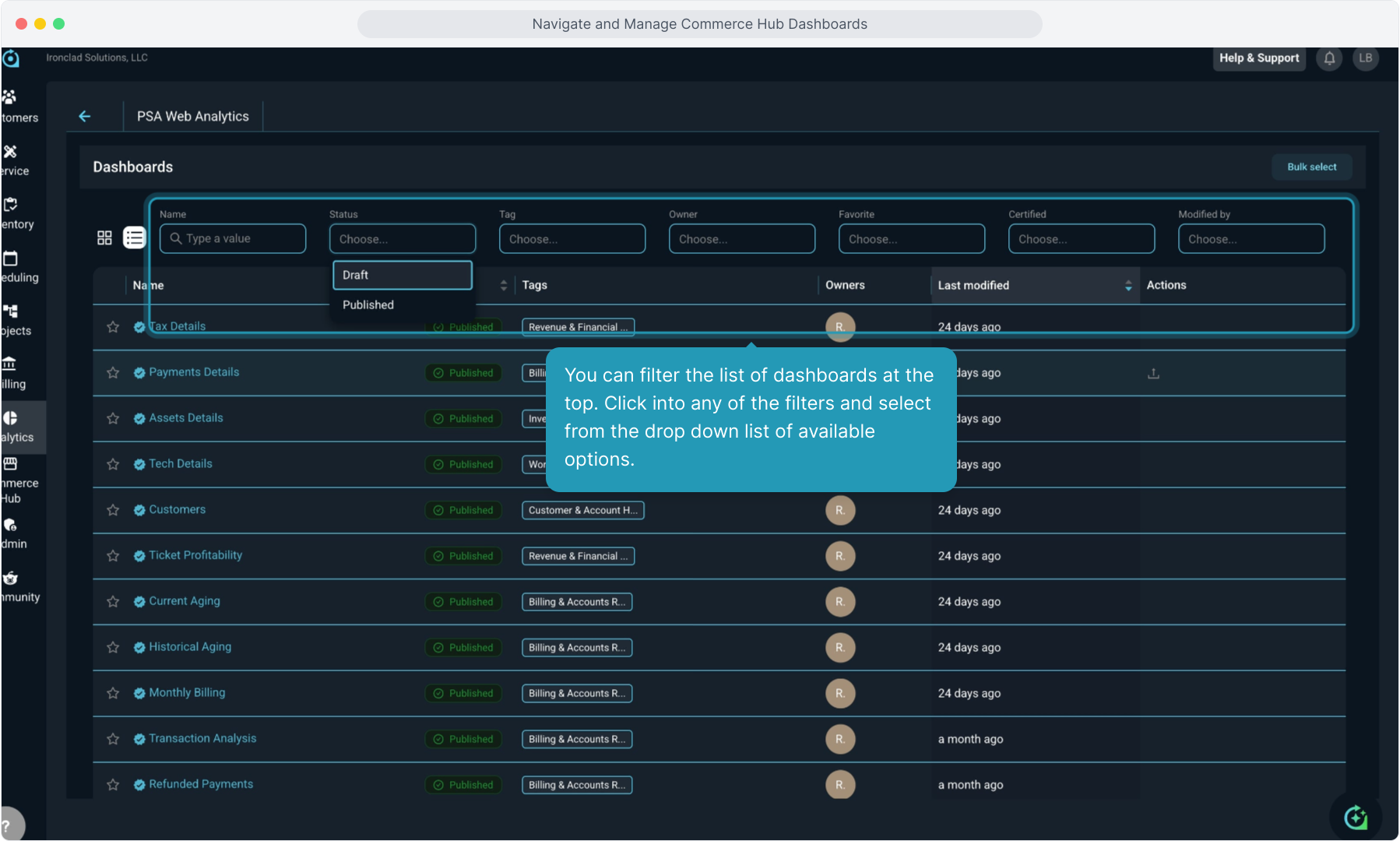
5. You can filter the list of dashboards at the top. Click into any of the filters and select from the drop down list of available options.
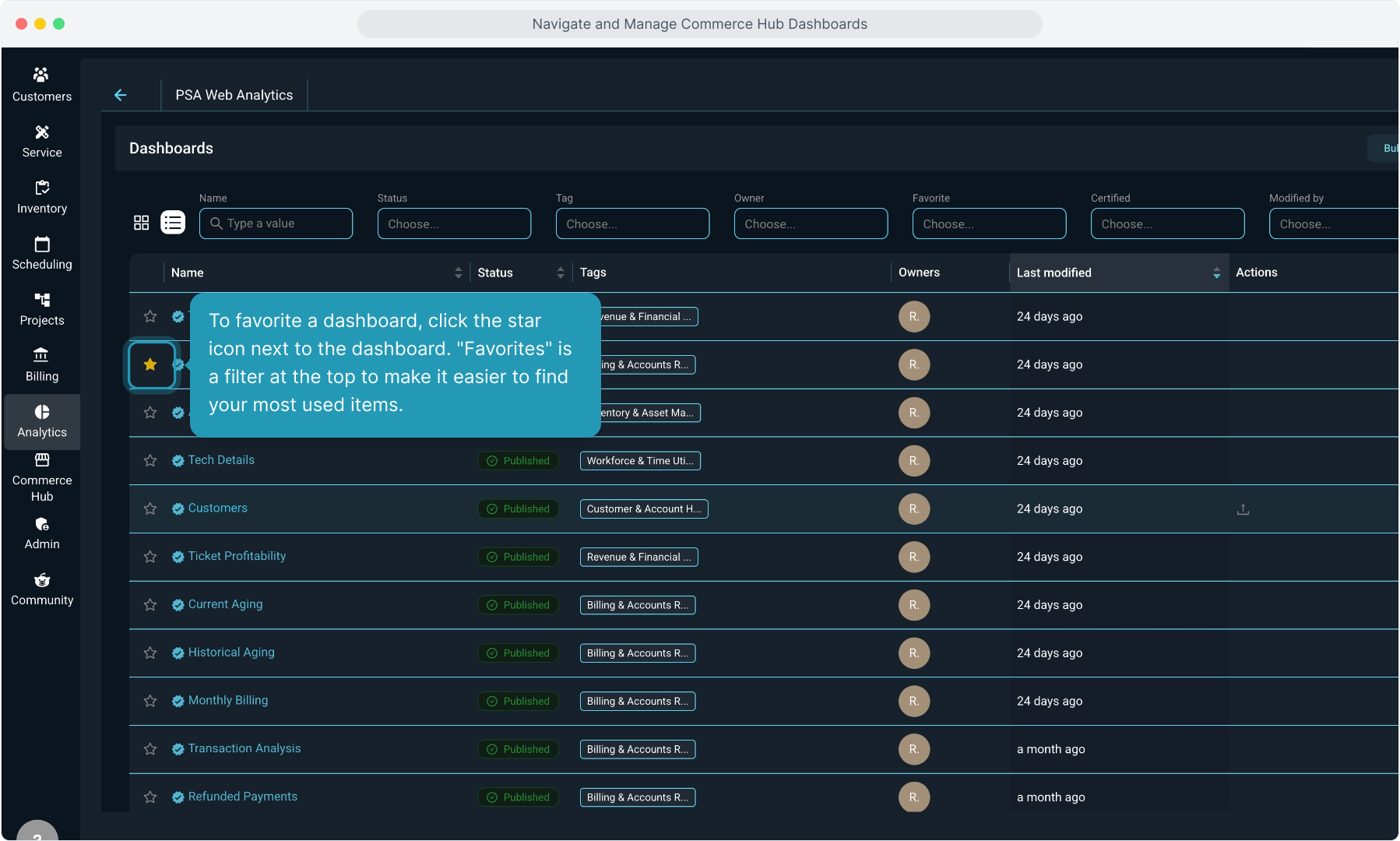
6. To favorite a dashboard, click the star icon next to the dashboard. "Favorites" is a filter at the top to make it easier to find your most used items.
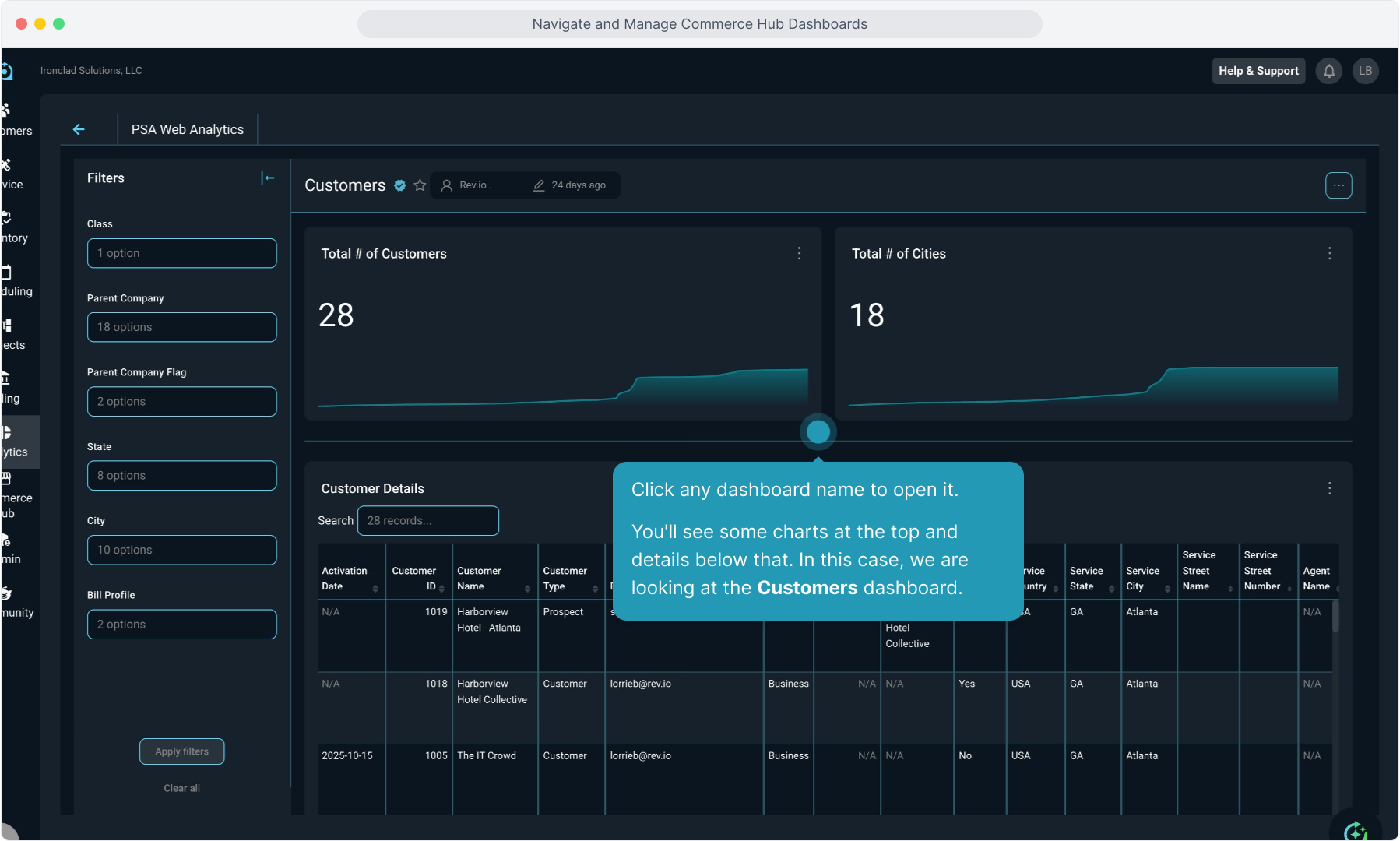
7. Click any dashboard name to open it.
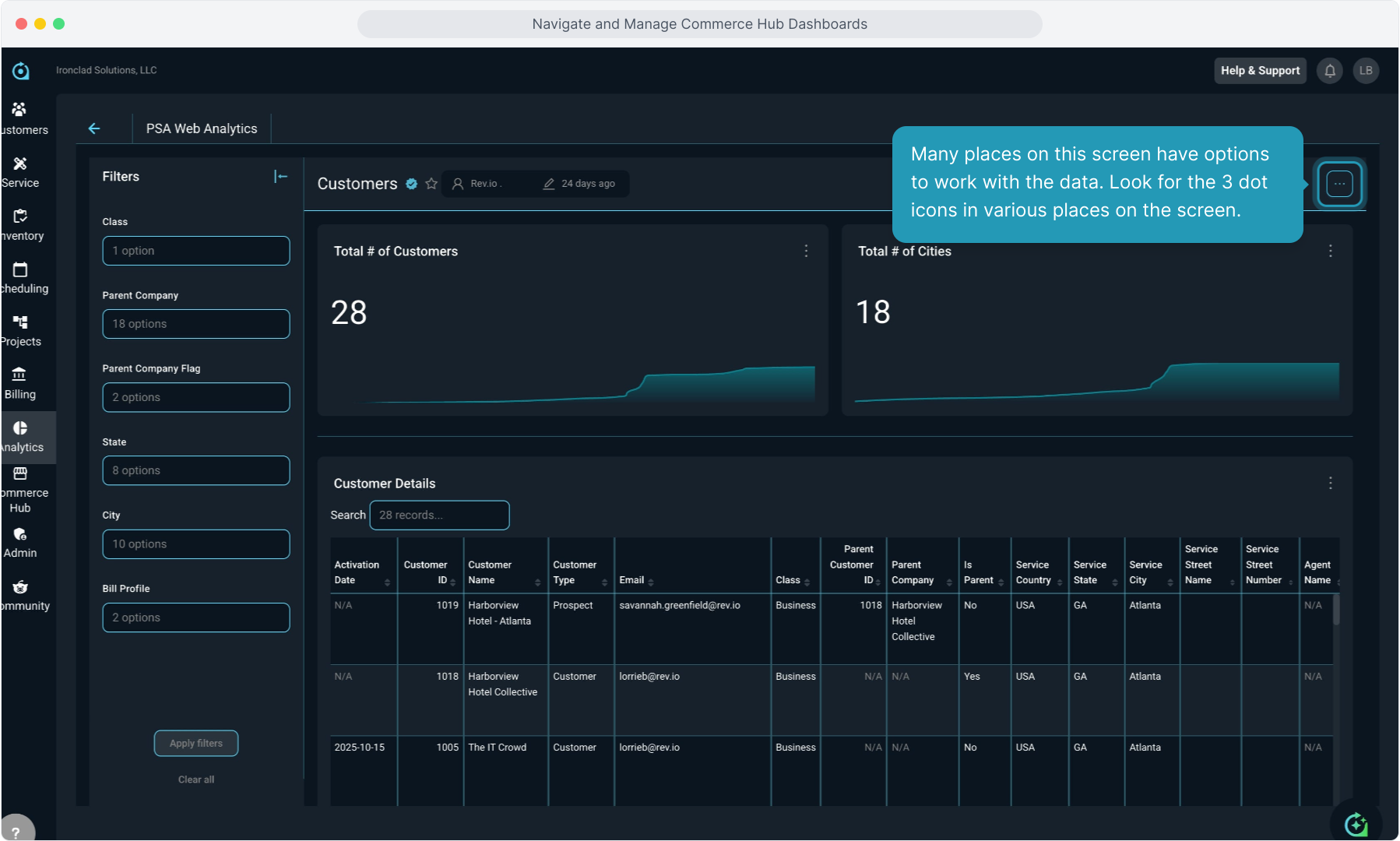
You'll see some charts at the top and details below that. In this case, we are looking at the Customers dashboard.
8. Many places on this screen have options to work with the data. Look for the 3 dot icons in various places on the screen.
9. Click anywhere you see the icon to open more options for viewing data in that area of the dashboard.
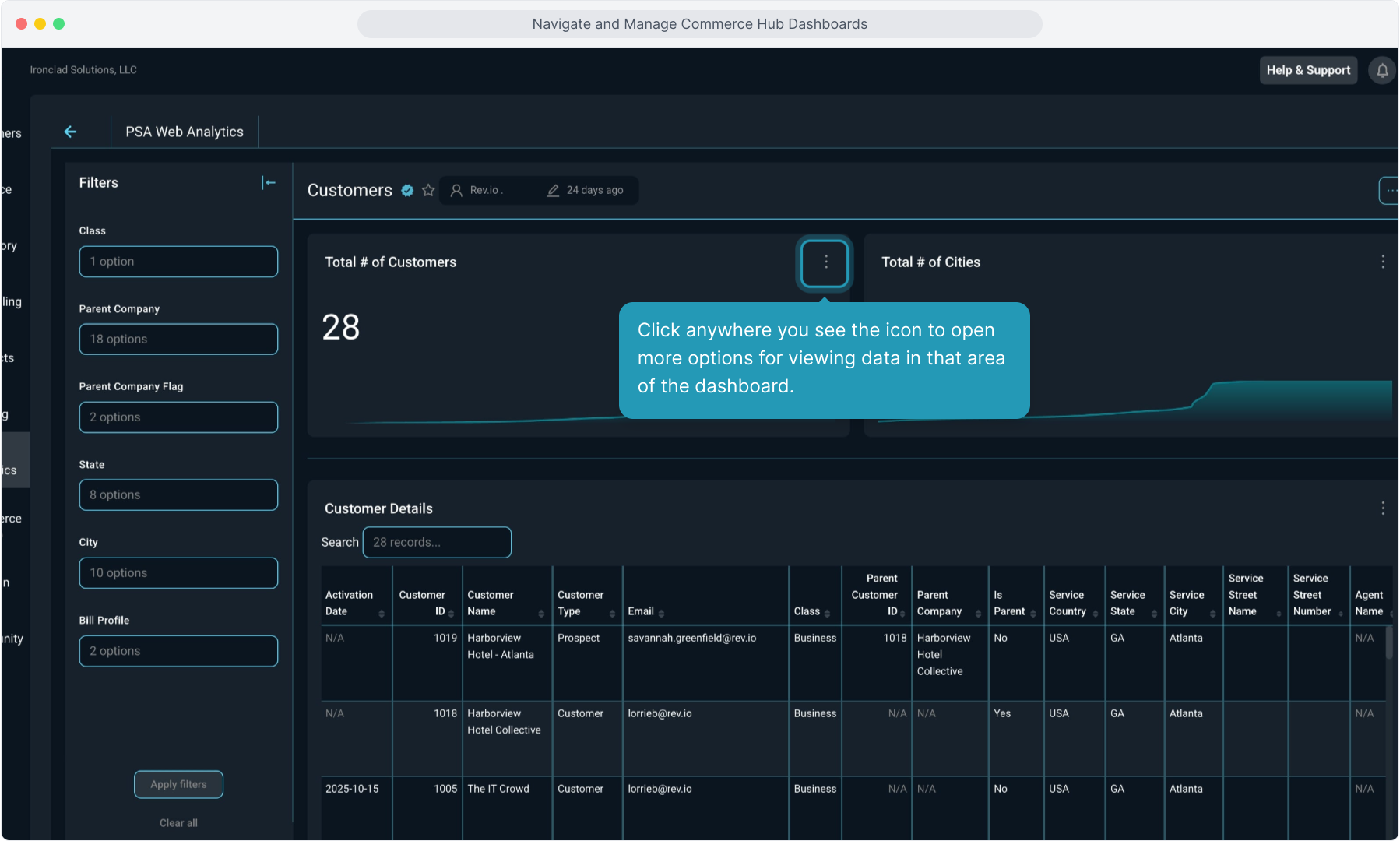
10. You can force a refresh of the real-time data from here. You can also click to enter fullscreen view.
Note that here we are viewing the chart depicting total number of customers.
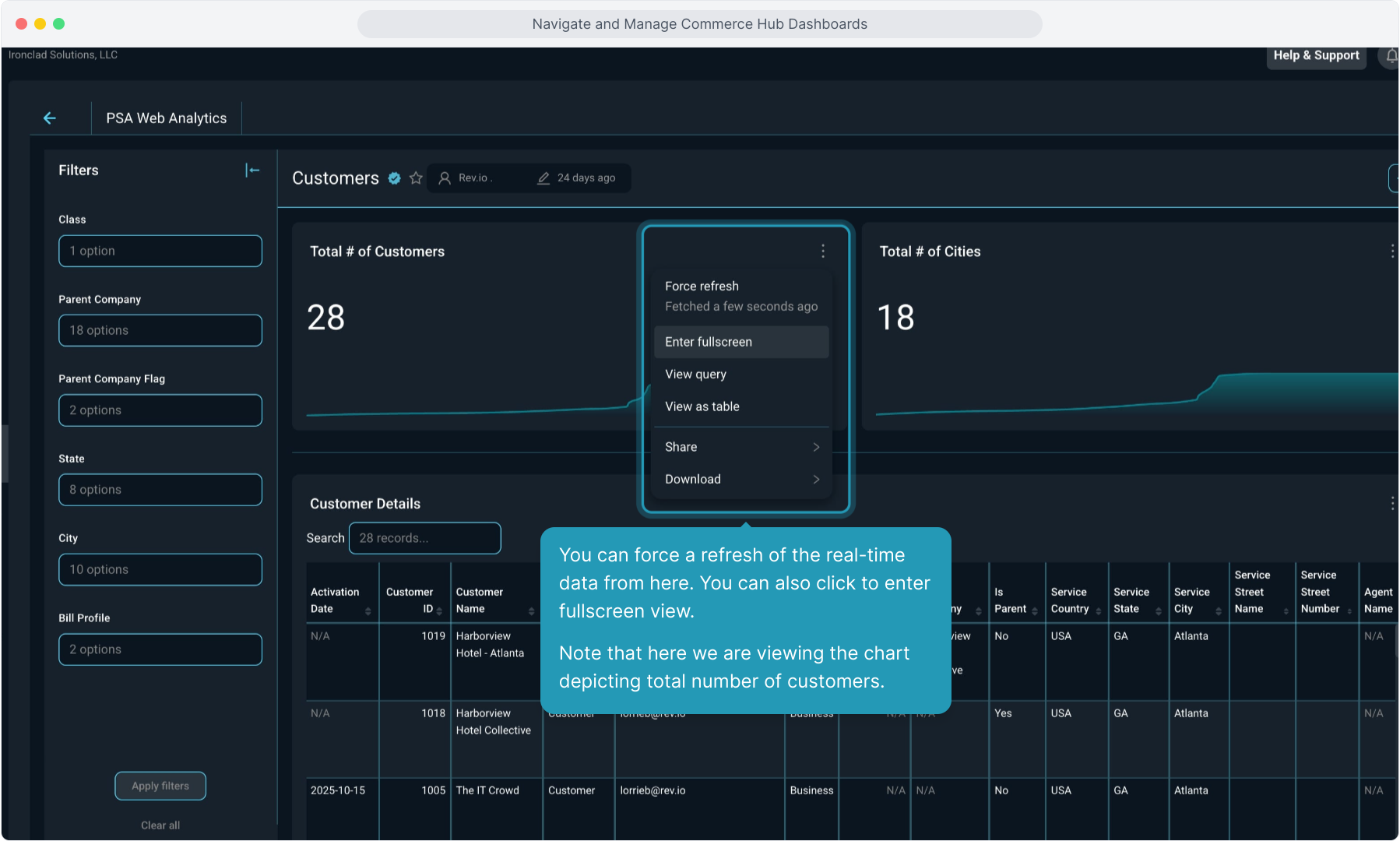
11. Click the icon to exit fullscreen view.
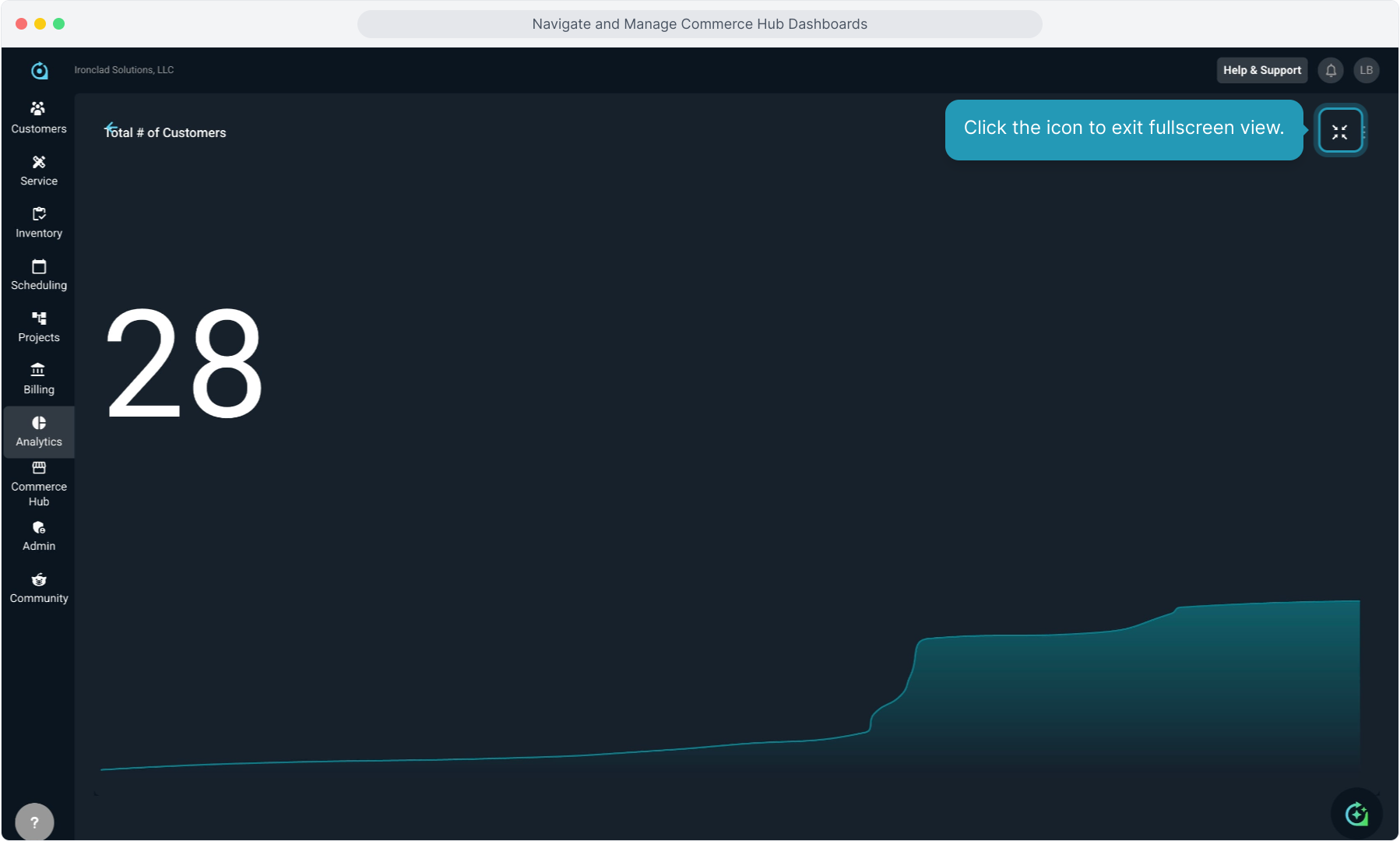
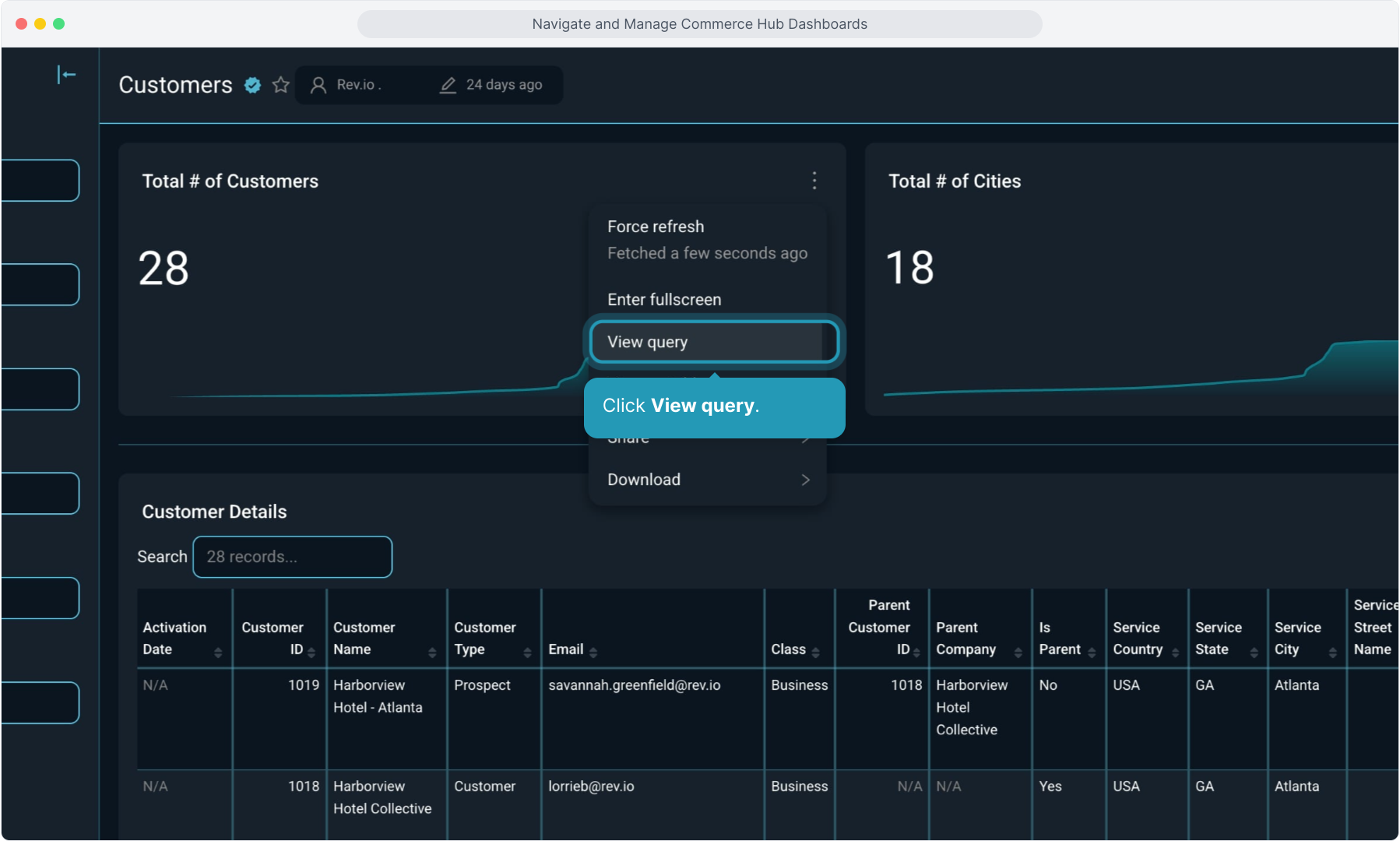
12. Click View query.
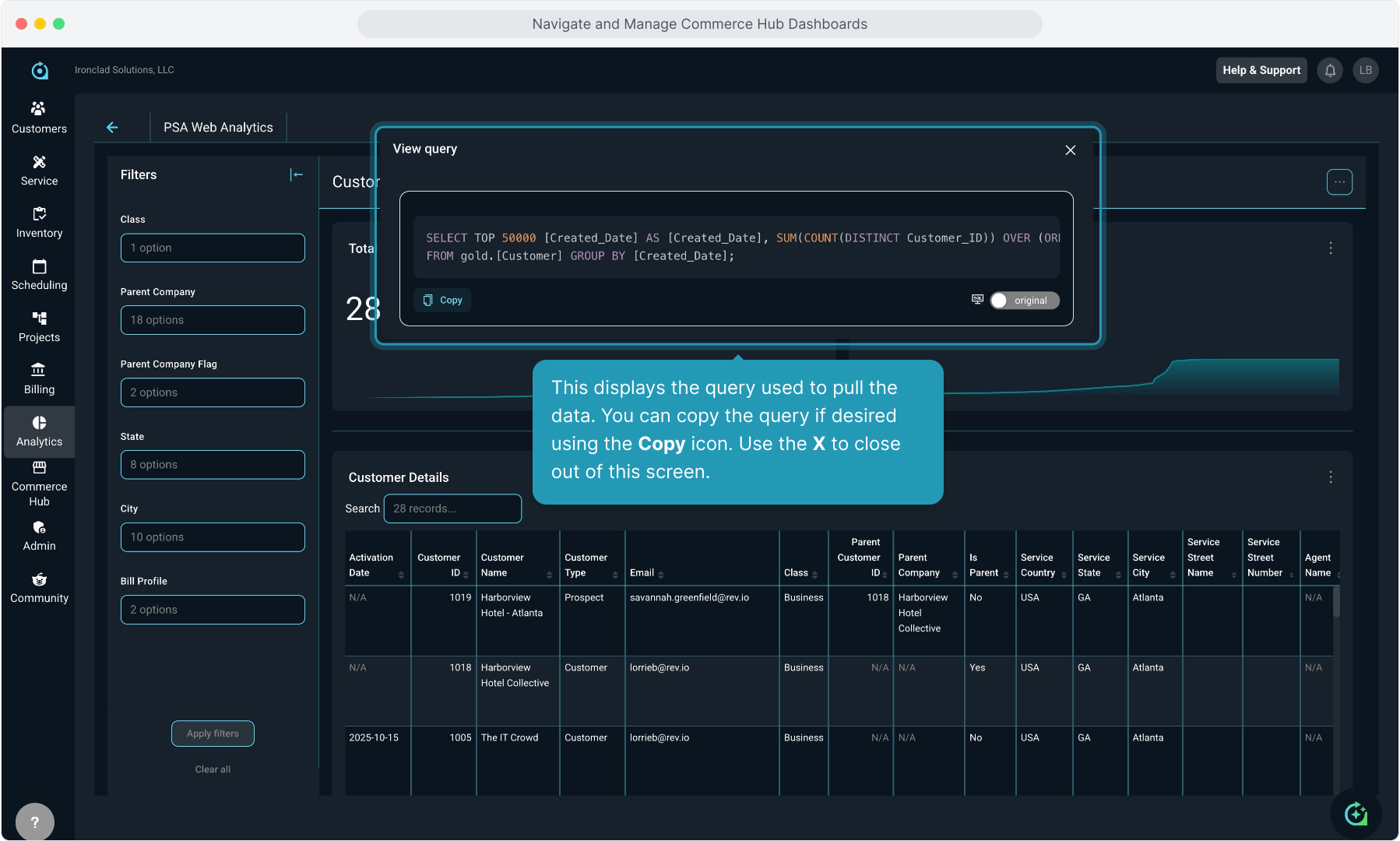
13. This displays the query used to pull the data. You can copy the query if desired using the Copy icon. Use the X to close out of this screen.
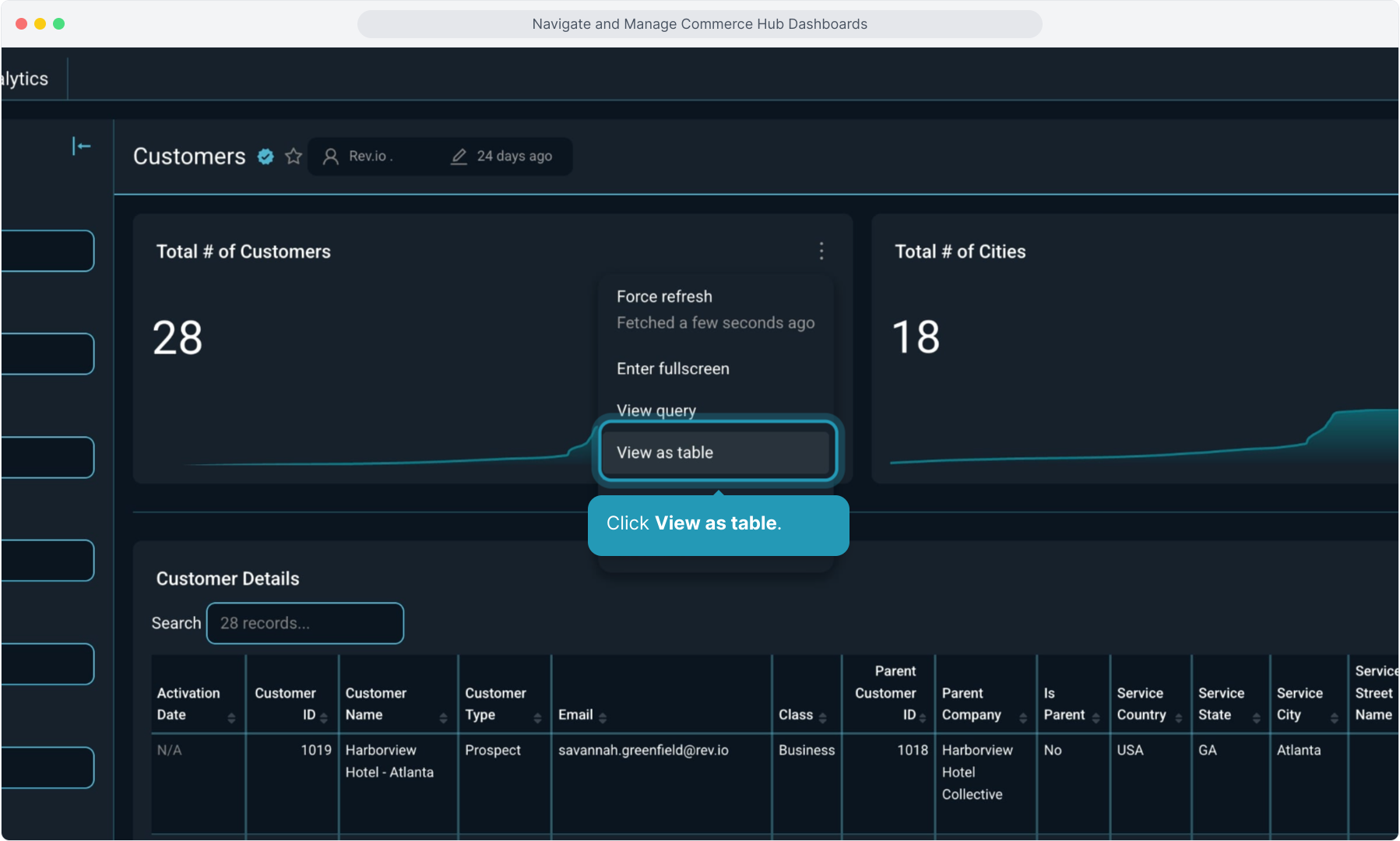
14. Click View as table.
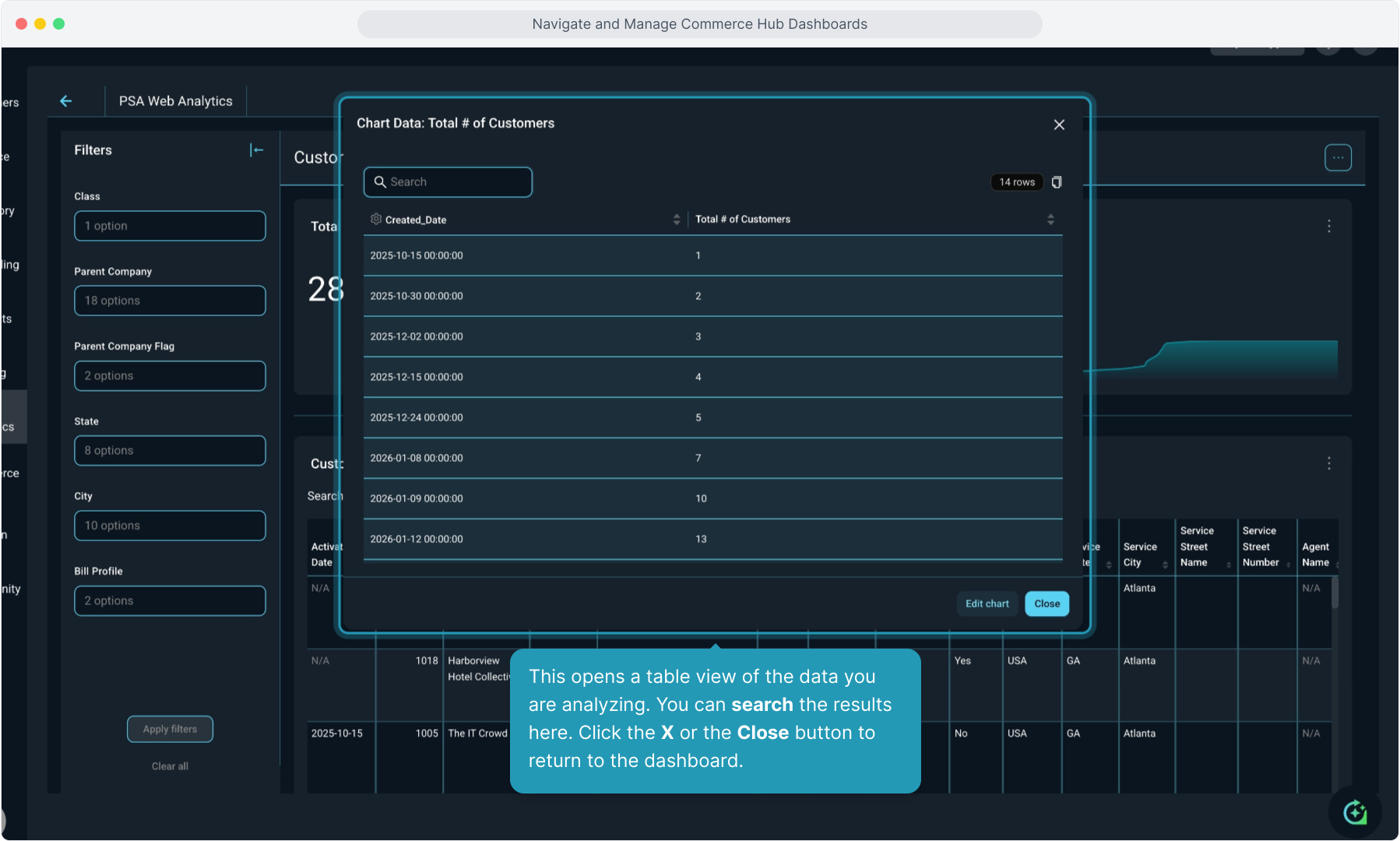
15. This opens a table view of the data you are analyzing. You can search the results here. Click the X or the Close button to return to the dashboard.
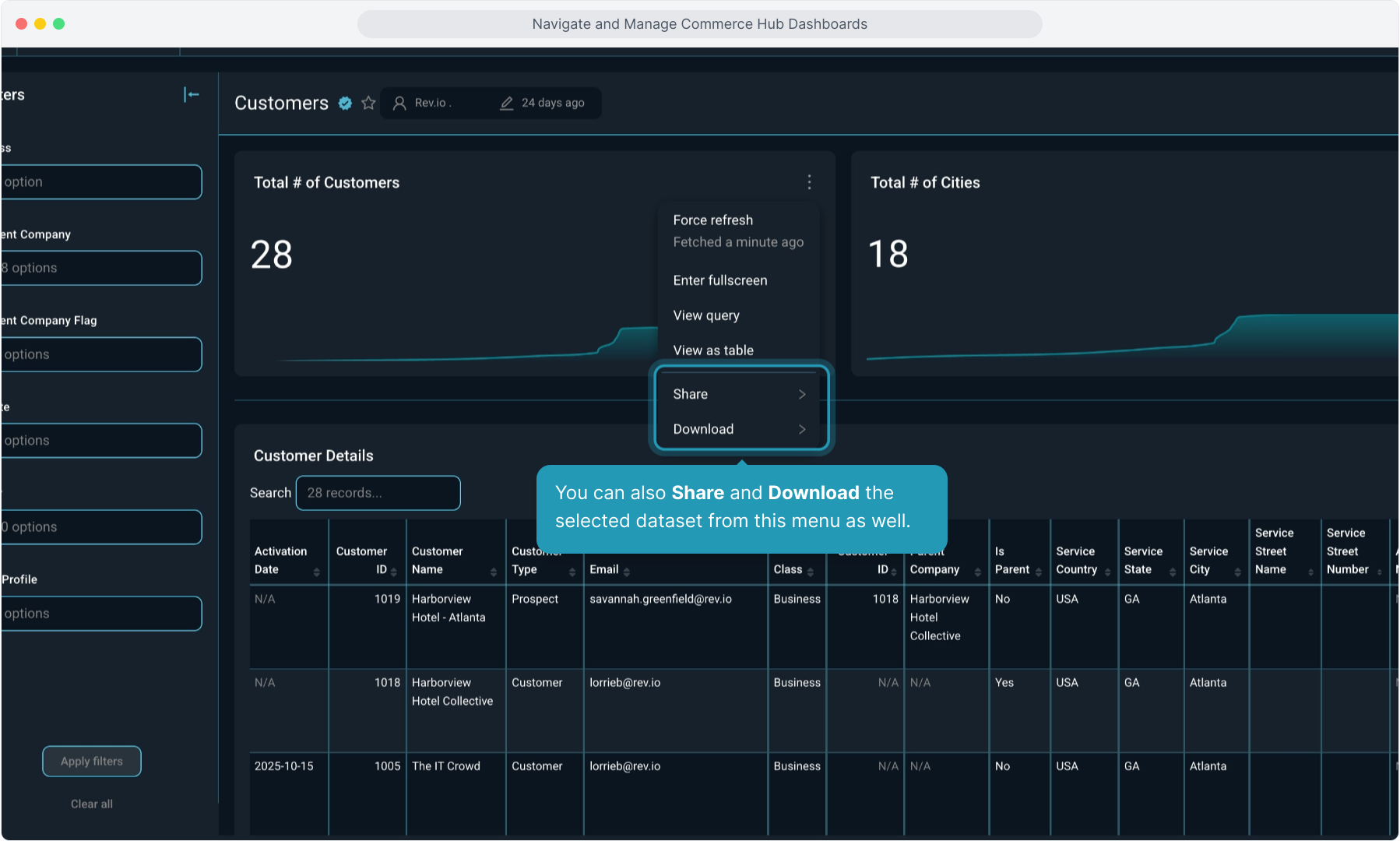
16. You can also Share and Download the selected dataset from this menu as well.
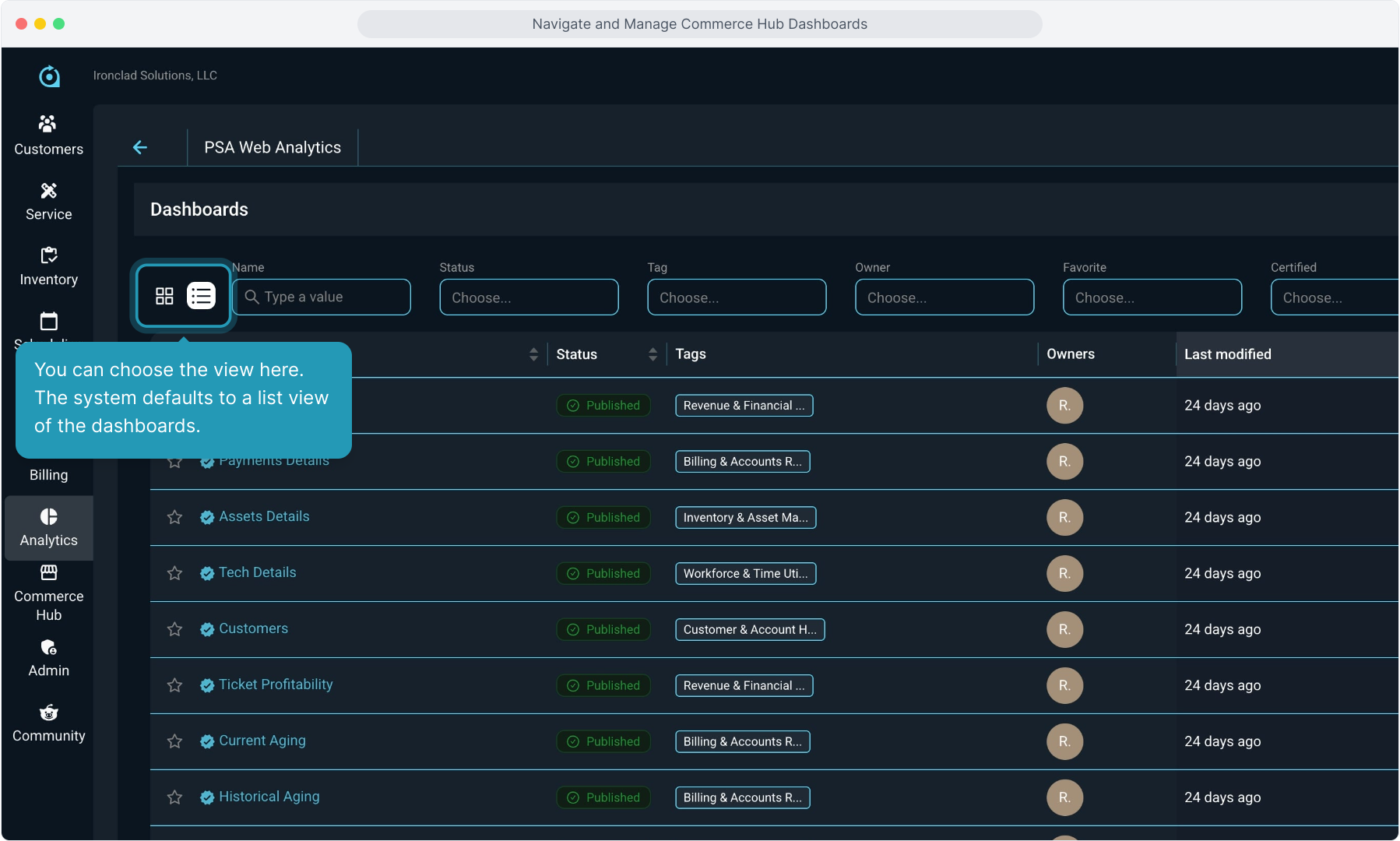
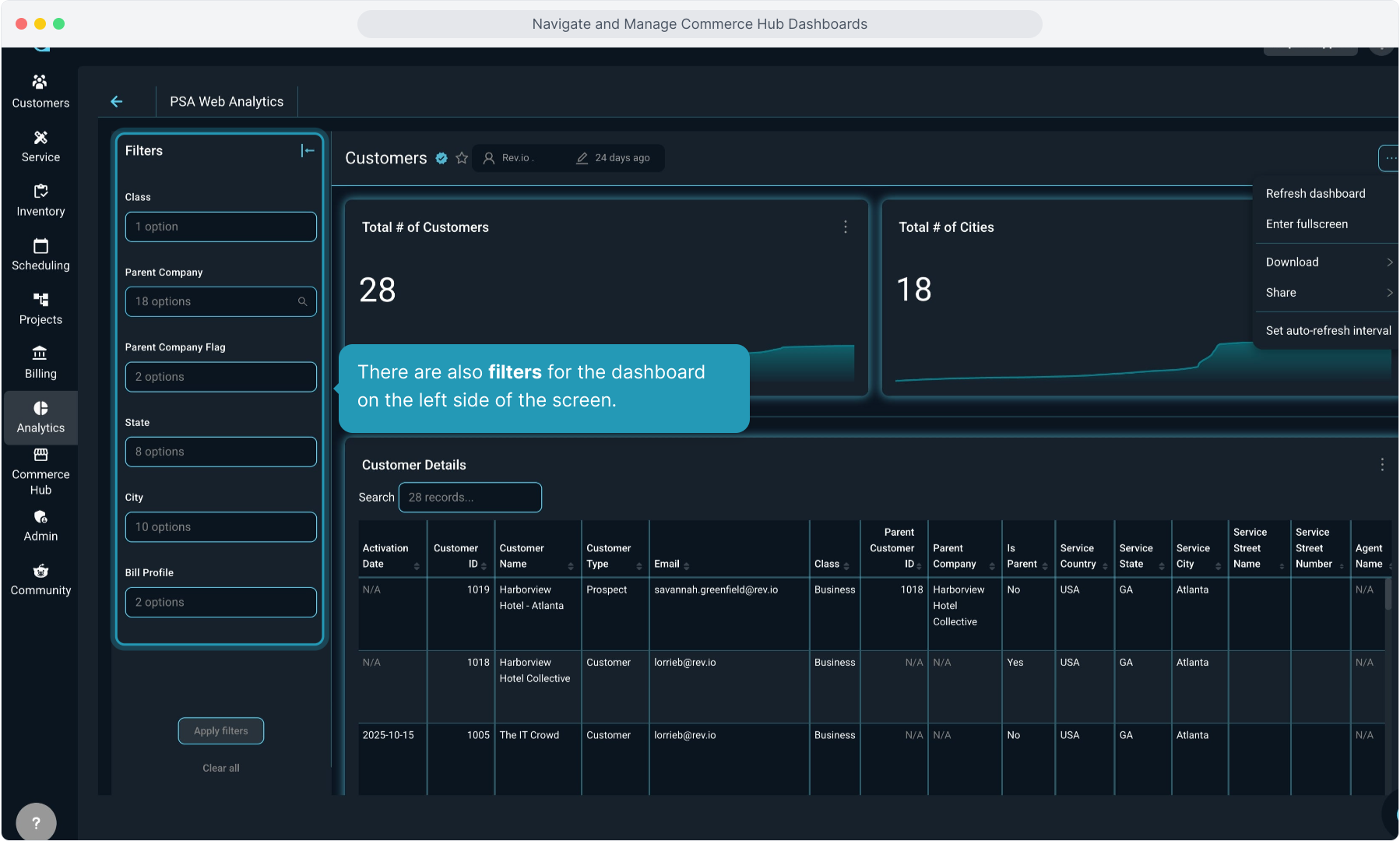
17. There are also filters for the dashboard on the left side of the screen.
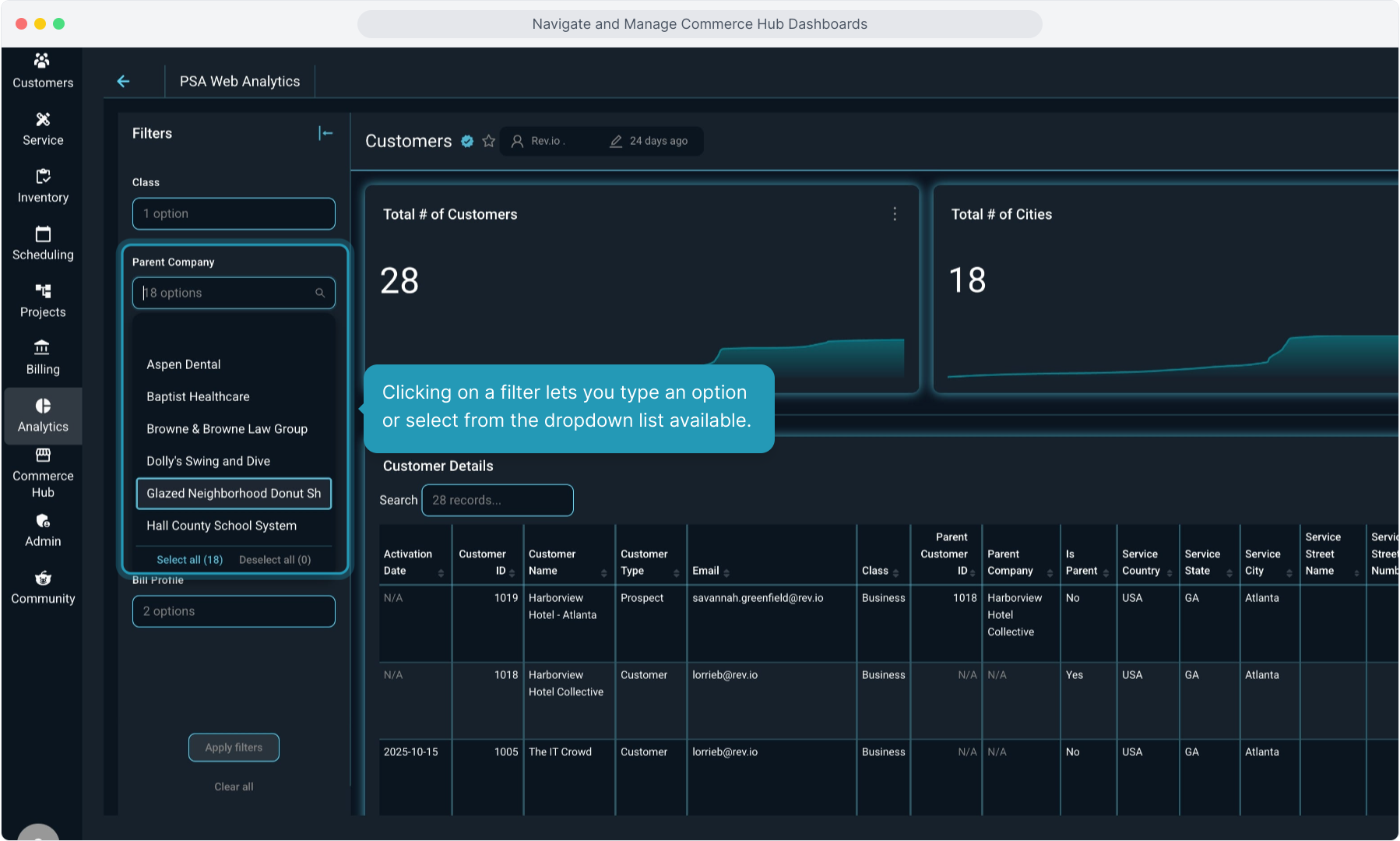
18. Clicking on a filter lets you type an option or select from the dropdown list available.
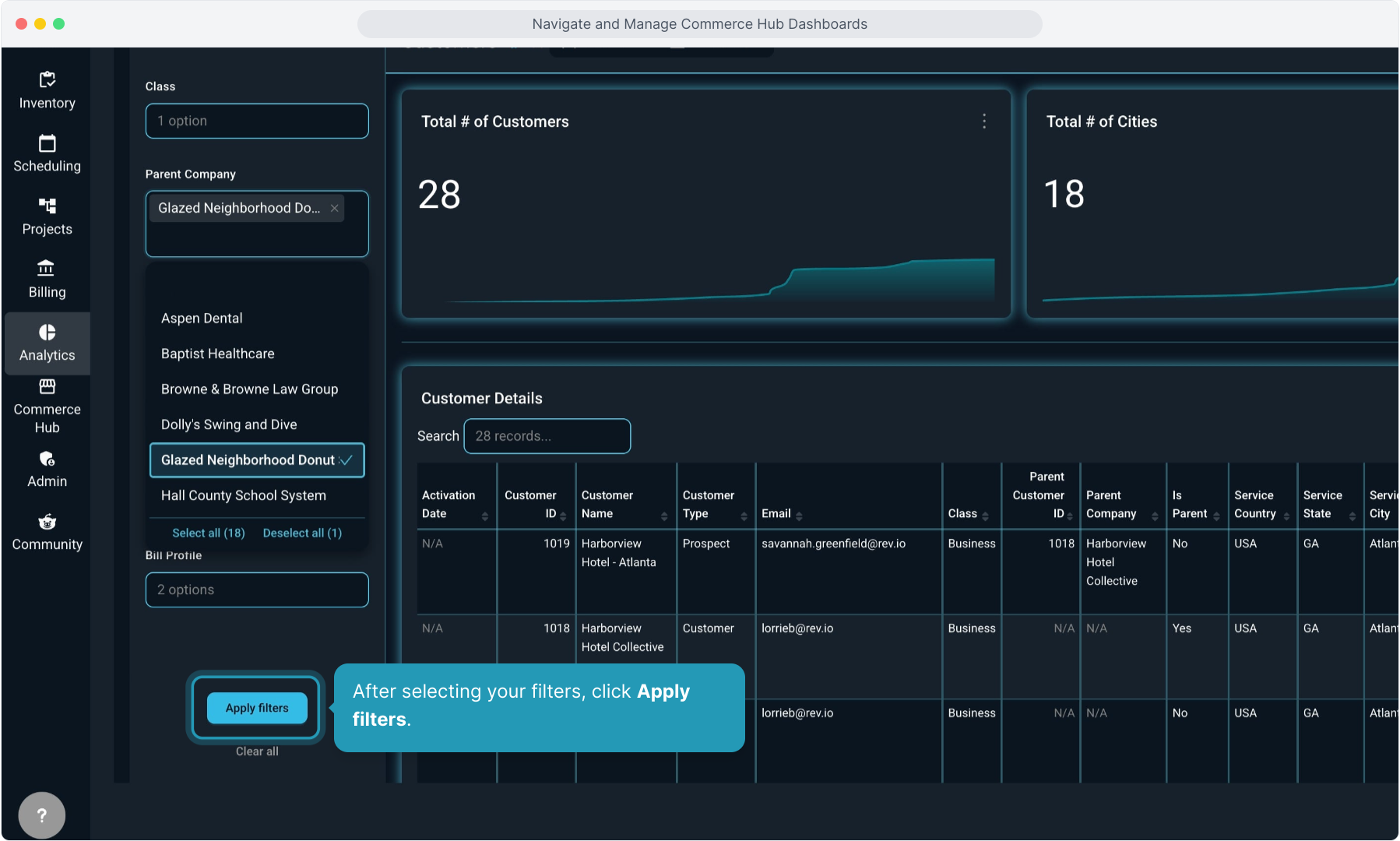
19. After selecting your filters, click Apply filters.
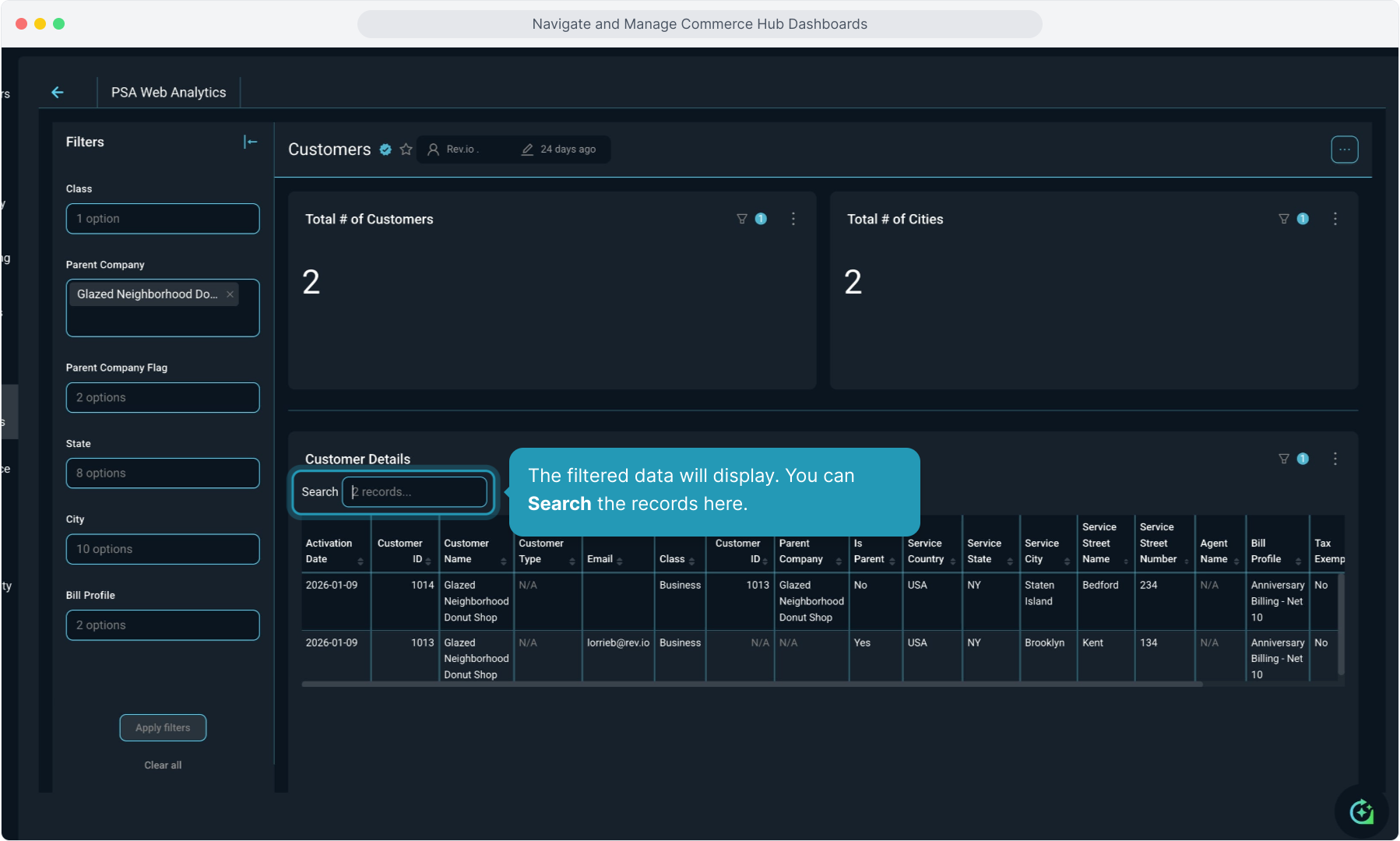
20. The filtered data will display. You can Search the records here.
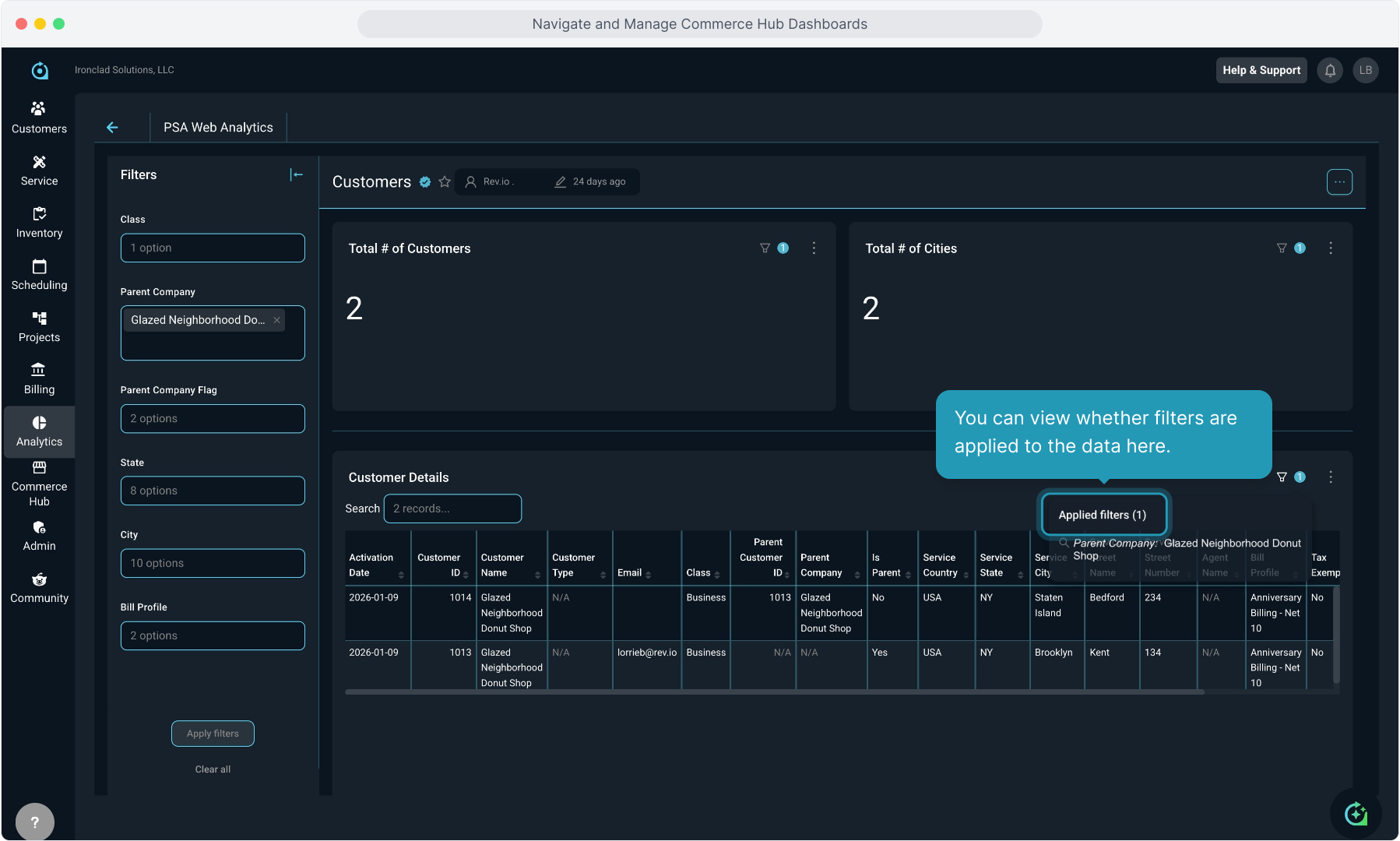
21. You can view whether filters are applied to the data here.
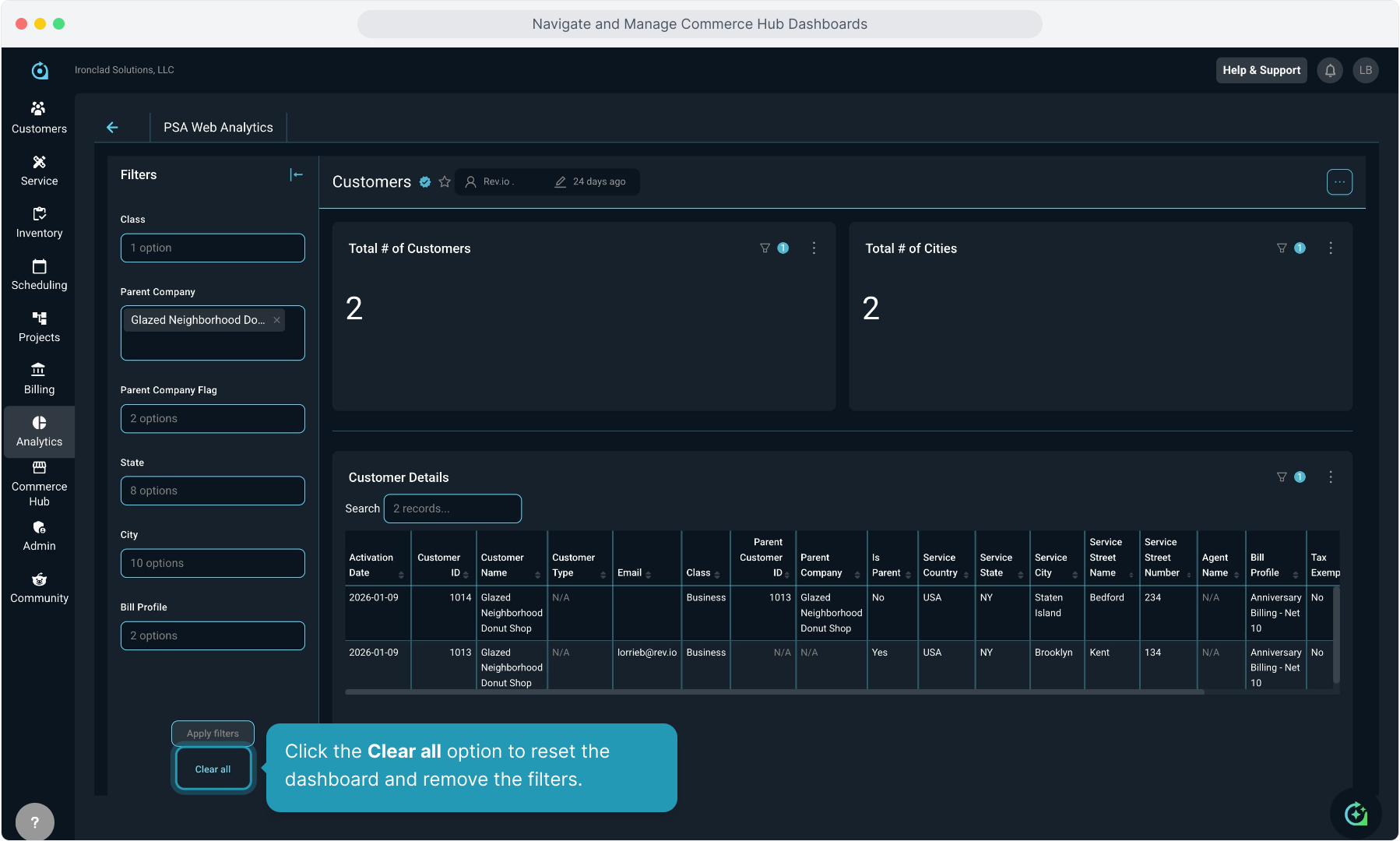
22. Click the Clear all option to reset the dashboard and remove the filters.
23. Click the back arrow to return to the previous dashboard screen at any time.