Reports Dashboard: Core Reports
The Reports Dashboard allows you to view, create, and save various customized dashboards and reports. The Browse tab provides access to all available reports and dashboards in the system, making it easy to locate and run reports. Rev.io also provides 9 core reports, accessible from the Browse tab, which offer insight into key areas of your business.
Accessing Core Reports
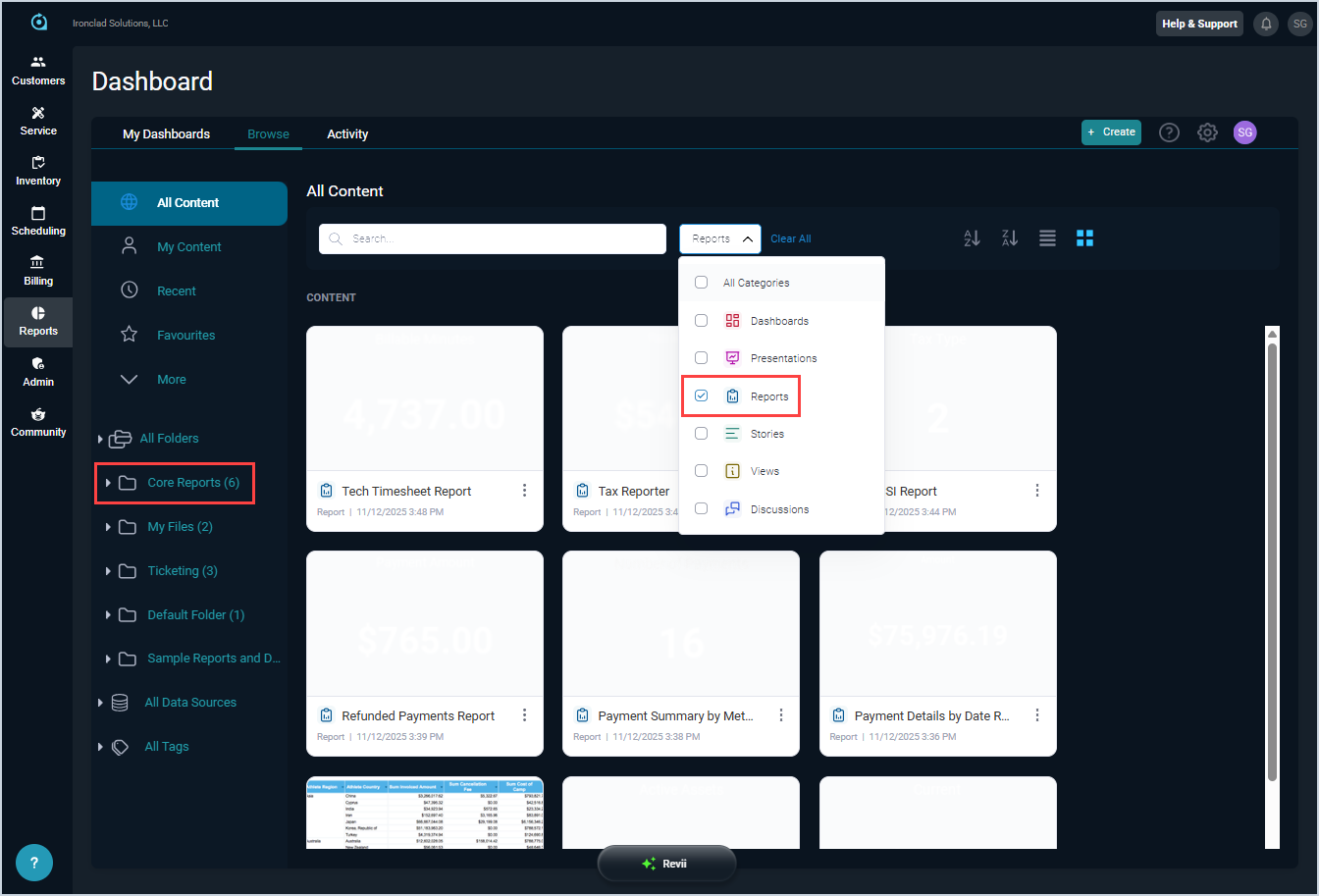
From the Browse tab, select the Core Reports folder in the All Folders section to view the available core reports. You can also access the core reports by using the search filter at the top of the Browse tab. Simply select Reports from the filter options, and you'll see the 9 core reports display in the grid.
| NOTE: If you do not see any core reports listed on the Browse tab, or you receive a Yellowfin error, contact your onboarding team so they can review and verify your reporting configuration. |
Running Core Reports
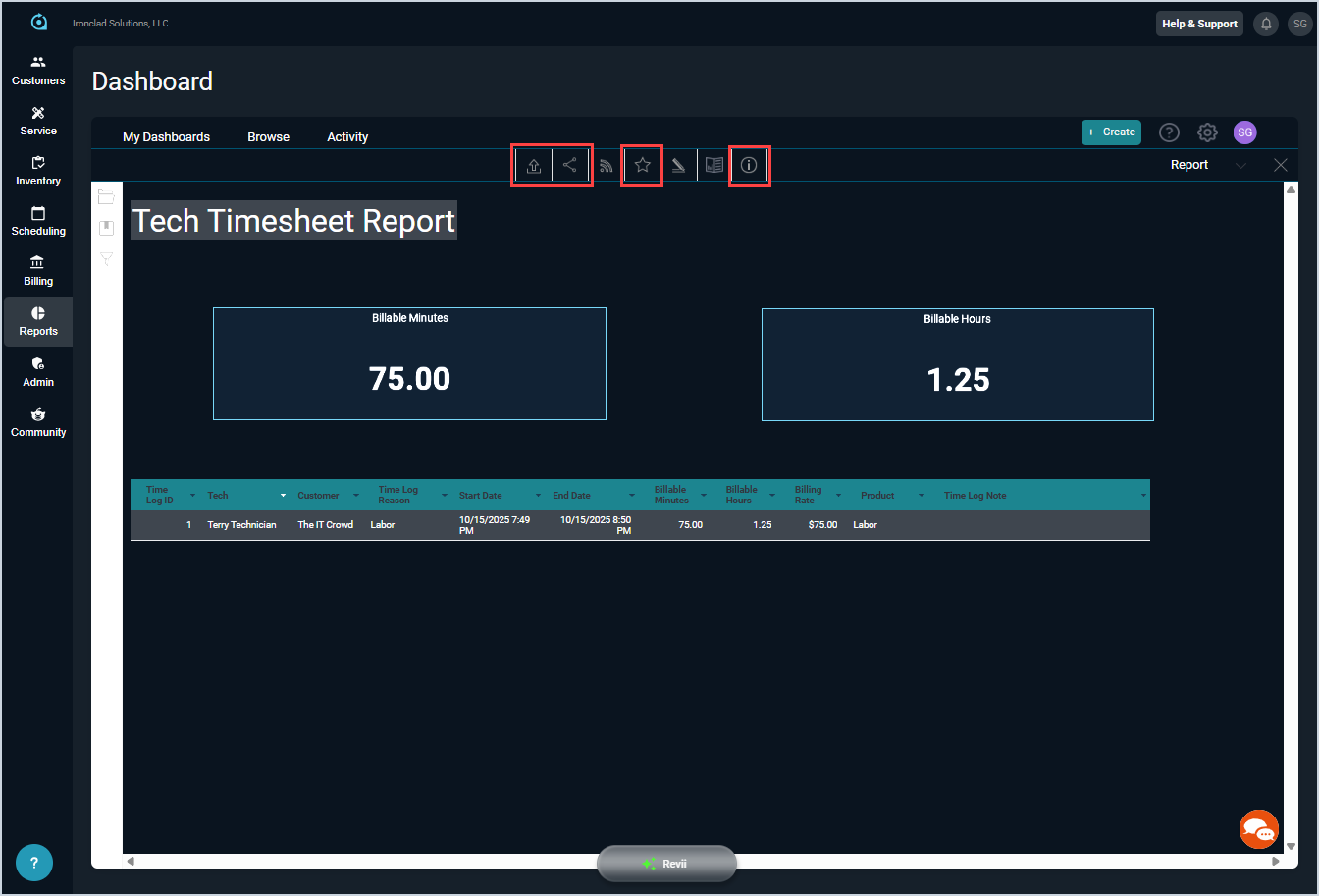
To run any core report provided by Rev.io, simply double click the report on the Browse tab. The report opens in the main viewing area, allowing you to review the information as needed. Several icons display across the top of the report, which provide the following actions.
- Export. Export the report as a .CSV, .DOCX, .PDF, .txt, or .XLSX file.
- Share. Share the report as an email or link. Additionally, you can embed the report using a code snippet.
- Favorite. Save the report as a favorite. Adding a report as a favorite makes it easily accessible in the Favorites folder on the Browse tab.
- Details. View more details for the report.