
Check out the latest updates in Rev.io!
New Features
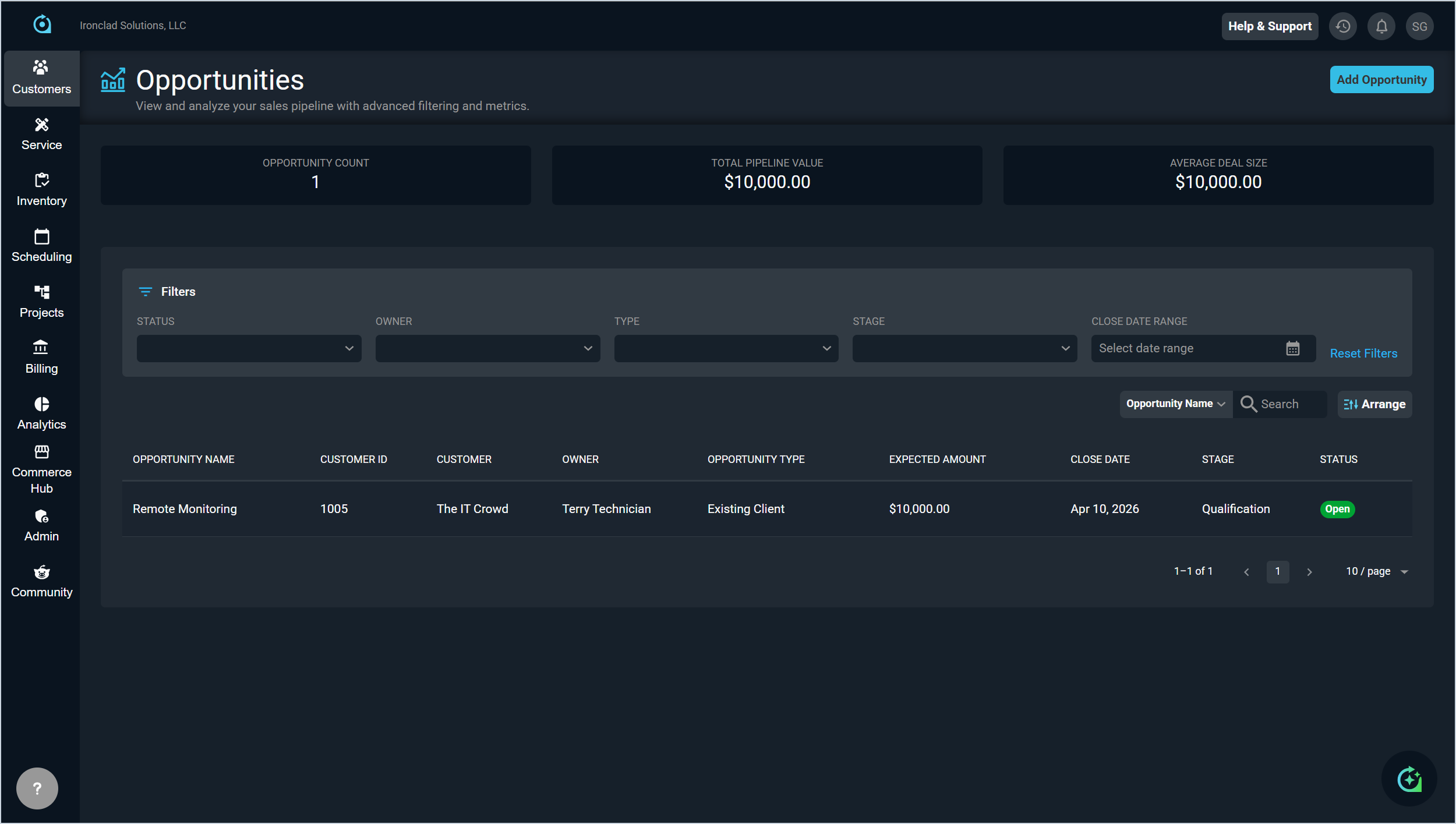
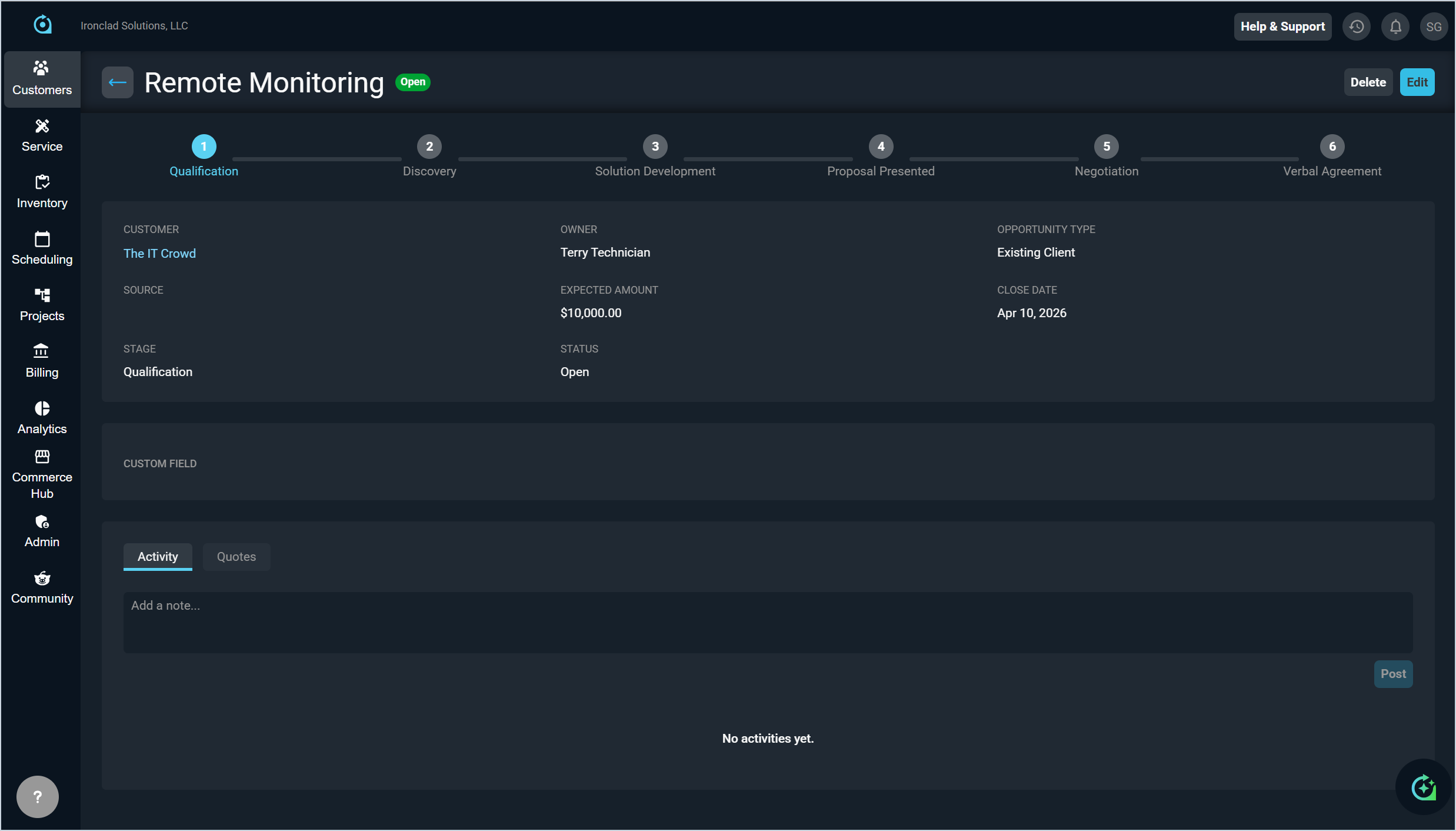
- Opportunities are now available, giving sales teams a dedicated way to track and manage potential deals. Opportunities can be created directly from a customer record and include key details such as Owner, Expected Amount, Close Date, Source, Opportunity Type, Stage, and Status. A visual stage progression indicator and color-coded status badges make it easy to track deal progress at a glance. Opportunities can be closed as Won or Lost and remain visible in your lists for reference. All opportunities are accessible from the new Opportunity List screen under Customers in the sidebar menu, and each customer profile includes an Opportunities tab in the Quotes section showing that account's deal history. [61054-61059]
- The Activity tab on the Opportunity Detail screen lets sales teams log time-stamped notes on opportunities, creating a shared audit trail of interactions, updates, and decisions. Managers can review the full activity history across all users to track deal progress and coach their teams. [61064, 61065]
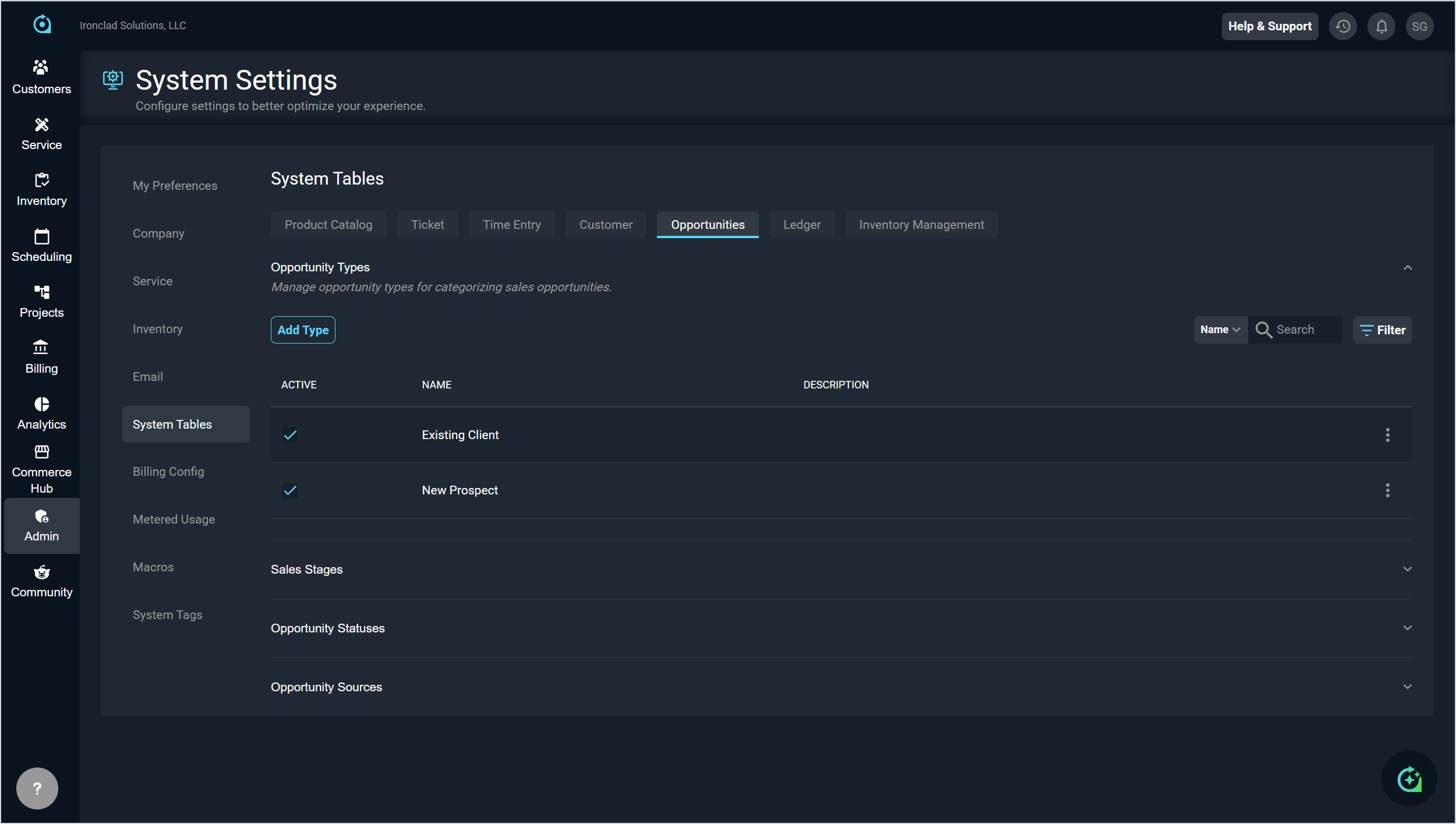
- Administrators can configure opportunities to match their organization's sales process using the new Opportunities tab in the System Tables, including Opportunity Types, Sales Stages, Opportunity Statuses, and Opportunity Sources. Administrators can also create, manage, and arrange custom fields for opportunities through the Custom Field Builder, with configured fields appearing in a dedicated section on the Opportunity Detail screen. [61060-61063, 61069-61072]
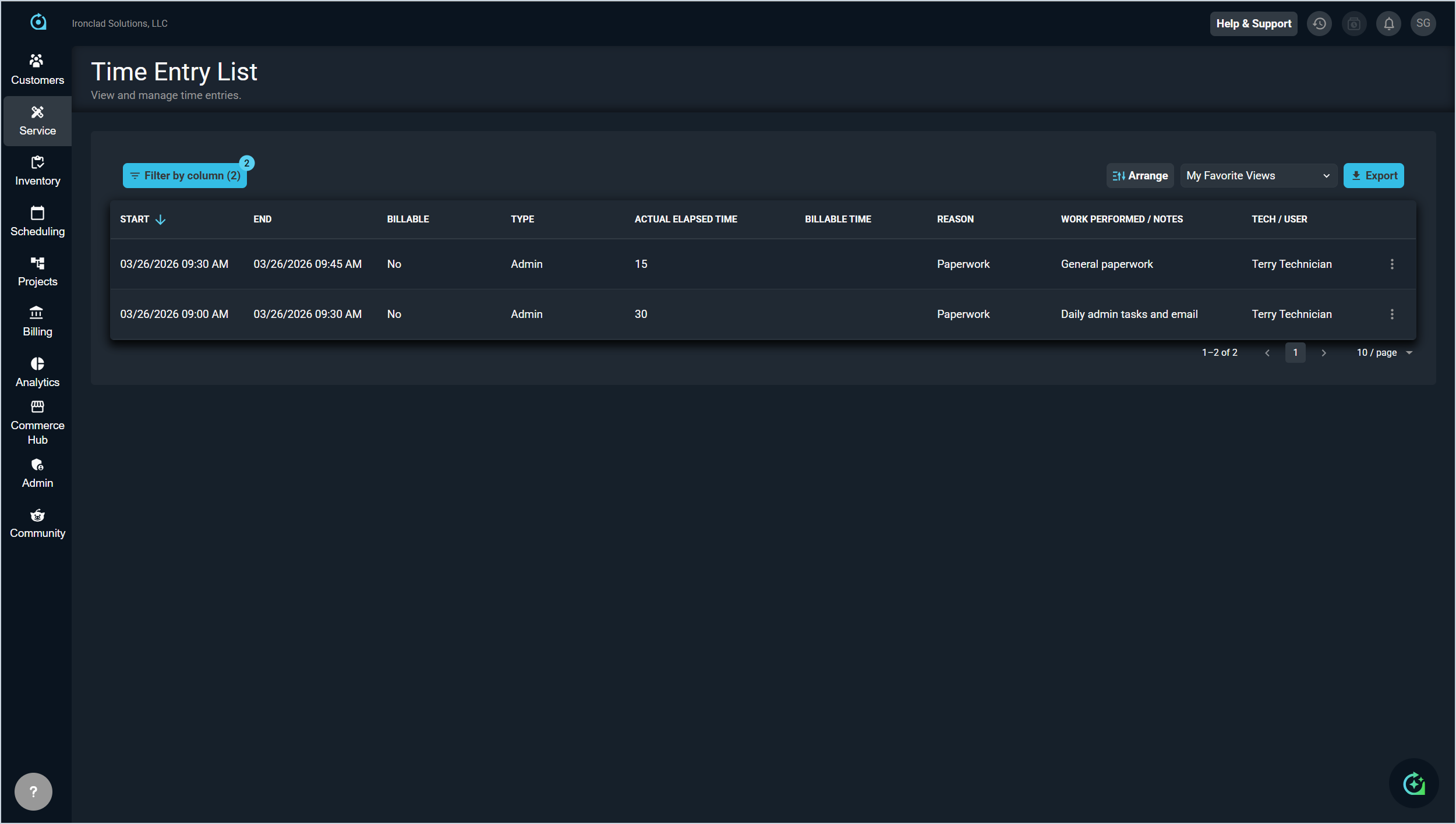
- You can now view and manage all time entries in a centralized Time Entry List from the Service module in the sidebar menu. This list view allows you to filter entries by various criteria such as start and end times, billable status, type, reason, and technician. You can arrange columns, save and share custom views, search across multiple fields, and export data to CSV, Excel, or PDF formats. Time entries can be edited or deleted directly from the list using the kebab menu on each record. [61360]
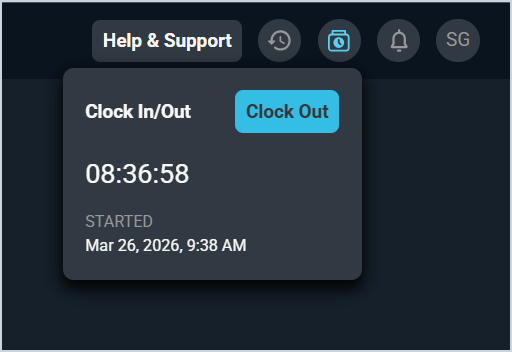
- Users can now clock in and out directly from the main toolbar to track their work hours for payroll, with a running timer that displays the elapsed time and allows them to save time entries with optional notes. [61499]
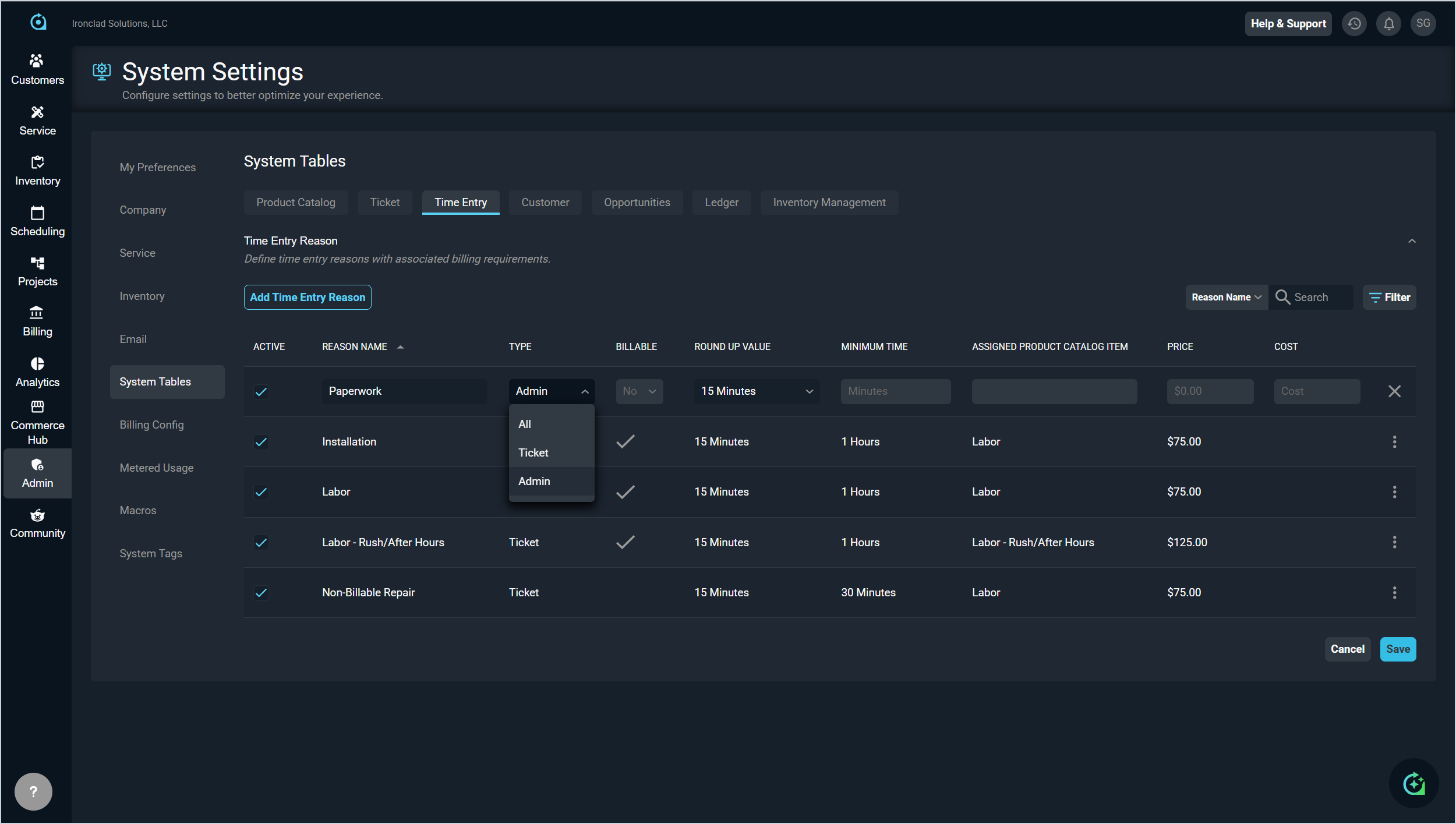
- Time Entry Reasons in the System Tables now include the Type column, allowing administrators to classify each reason as either Ticket, Admin, or All. Admin reasons enable time entries for work not tied to a specific ticket, such as meetings, training, or internal projects. [61347]
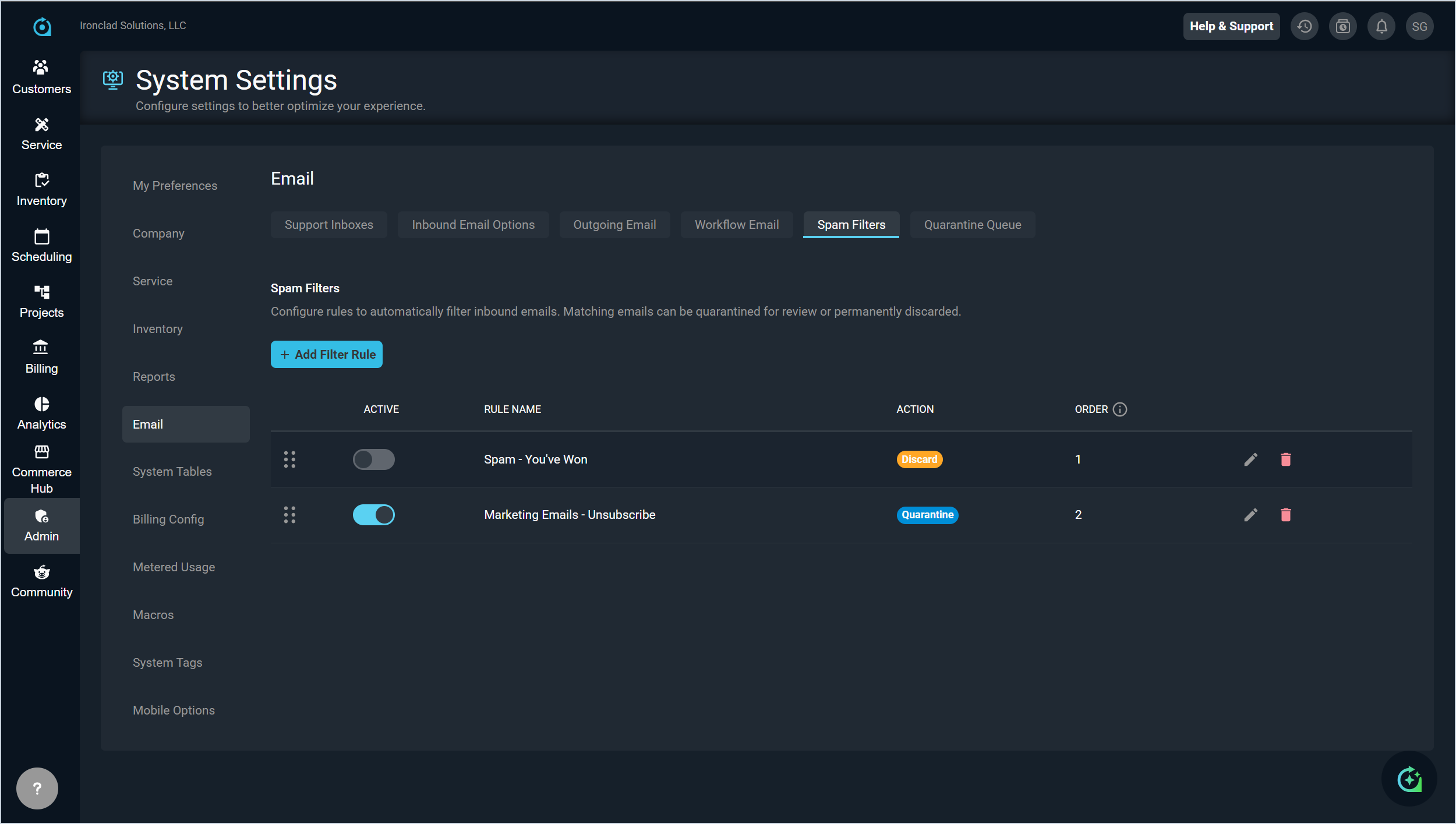
- Using the new Spam Filters tab in the Email category on the System Settings screen, administrators can now configure spam filter rules to automatically discard or quarantine inbound emails before ticket creation, providing enhanced control over unwanted messages and reducing clutter in the ticketing system [61091].
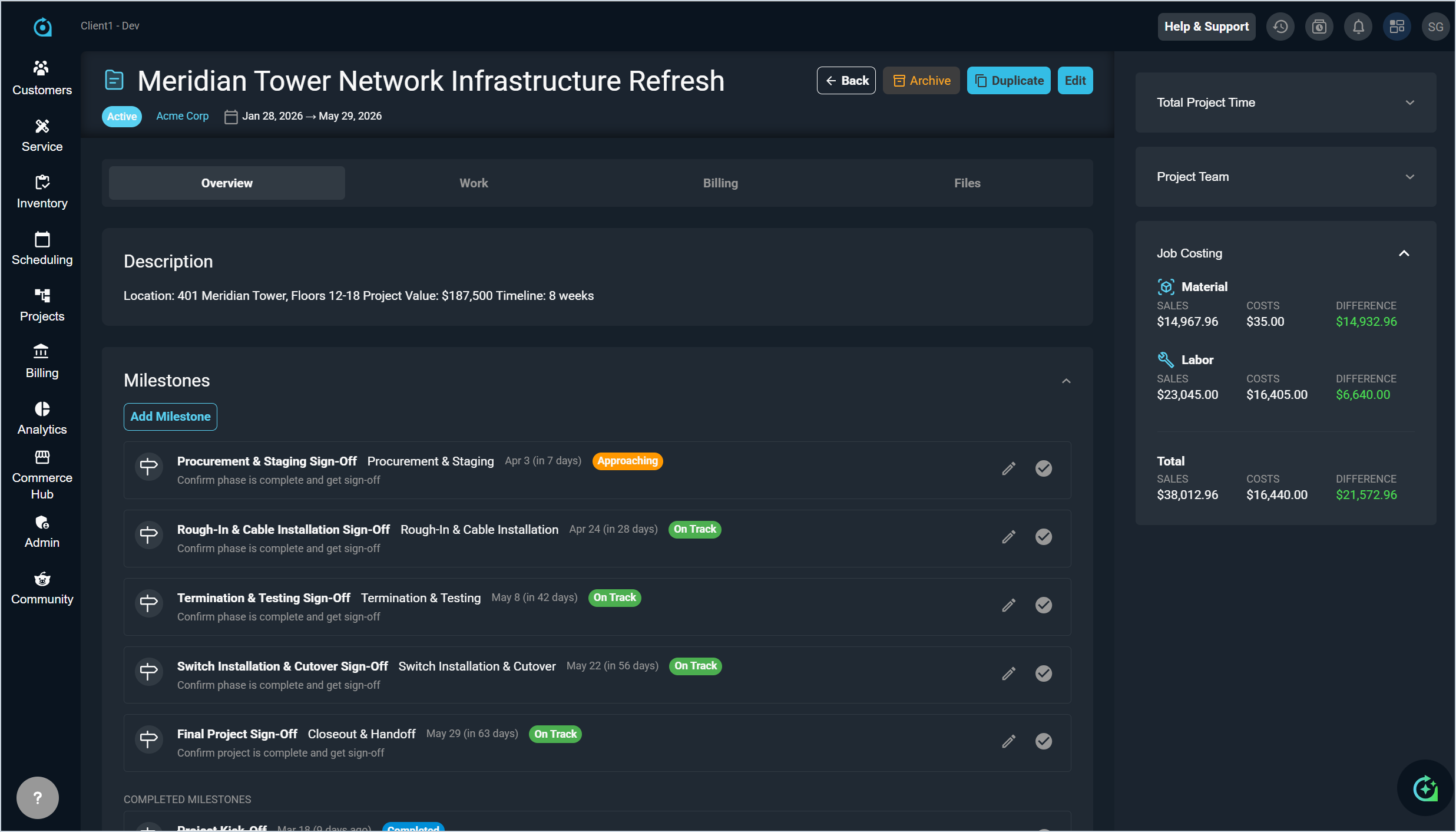
- Projects now include a Job Costing widget on the stage side panel that gives project managers real-time visibility into project profitability, aggregating sales, costs, and the difference between the two as ticket line items change. Costs are broken down by materials and labor, making it easy to identify where margin is being lost.
- You can now control which users can create, edit, and view projects using the new Project Management permissions section. NOTE: Global Administrators are now the only users who can access the Projects module. If you no longer see Projects in the sidebar menu and need to access it, contact your system administrator to update your permissions in Rev.io.
- You can now assign a Default Ticket Type to customer accounts, which will automatically populate when creating new tickets for that customer. Configure the Default Ticket Type on the new Service Information tab on the customer account, and the system will apply this type when tickets are created manually, through email, or via the portal. [61309]
- You can now assign multiple techs to a single task, allowing you to coordinate team assignments more efficiently. When creating or editing a task from tickets, the calendar, the Dispatch Board, or customer accounts, you can select multiple techs in the assigned to field, similar to how you add attendees to calendar events. Tasks with multiple techs assigned will appear on each assigned tech's calendar and in the Dispatch Board. [61335]
- Administrators can now configure custom fields for recurring services in the Custom Fields Manager, allowing service-specific metadata to be captured and managed without custom development. Custom fields can be defined per service type and appear automatically on the Add and Edit Recurring Service screens. [60029]
Bug Fixes
- The Copy button on a workflow once again creates a duplicate of the workflow as expected. [ADO-61015]
- The system now correctly displays all quotes for customers, resolving an issue where some quotes were not appearing in the quote documents list [61695].
- Workflow emails now correctly send to contacts on tickets created by email, ensuring that contacts receive automated notifications immediately when a ticket is generated from an email submission. [61821]