---
title: "QuickBooks Online Integration: Configuration"
url: "https://help.psarev.io/en/article/quickbooks-online-integration-configuration"
language: "en"
last_updated: "2026-08-05T16:22:41.521Z"
---
# QuickBooks Online Integration: Configuration
| **NOTE:** An authorized user account is required to run this integration. To support better security and audit visibility, we recommend creating a dedicated "service account" user. When configuring this integration, sign in using the service account rather than your personal user account to ensure that audit logs reflect the service account running the integration instead of the user who originally installed it. |
| --- |
Complete the steps below to configure the QuickBooks Online integration.
| **NOTE**: Before you begin this configuration, complete the following to ensure you have everything you need to complete the setup.
- Contact Rev.io to ensure you have an **API user created** in your instance.
- Make note of the API user's **Login Name** from their user profile in Rev.io and the password.
- Make note of the following information for product mappings.
*- Rev.io* **Product ID** for unmatched items from QBO.
- *QBO* **Item ID** for unmatched **one-time** products from Rev.io.
- *QBO* **Item ID** for unmatched **recurring** products from Rev.io.
- *QBO* **Tax Code** to use when creating invoices from Rev.io.
- *QBO* **Class** to assign to invoice line items from Rev.io. |
| --- |
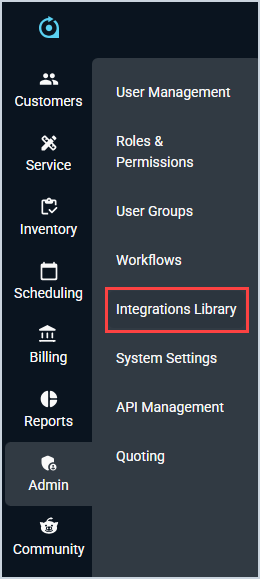
1. Click *Admin o*n the sidebar menu and select **Integrations Library**.
2. Click the *Marketplace* tab.
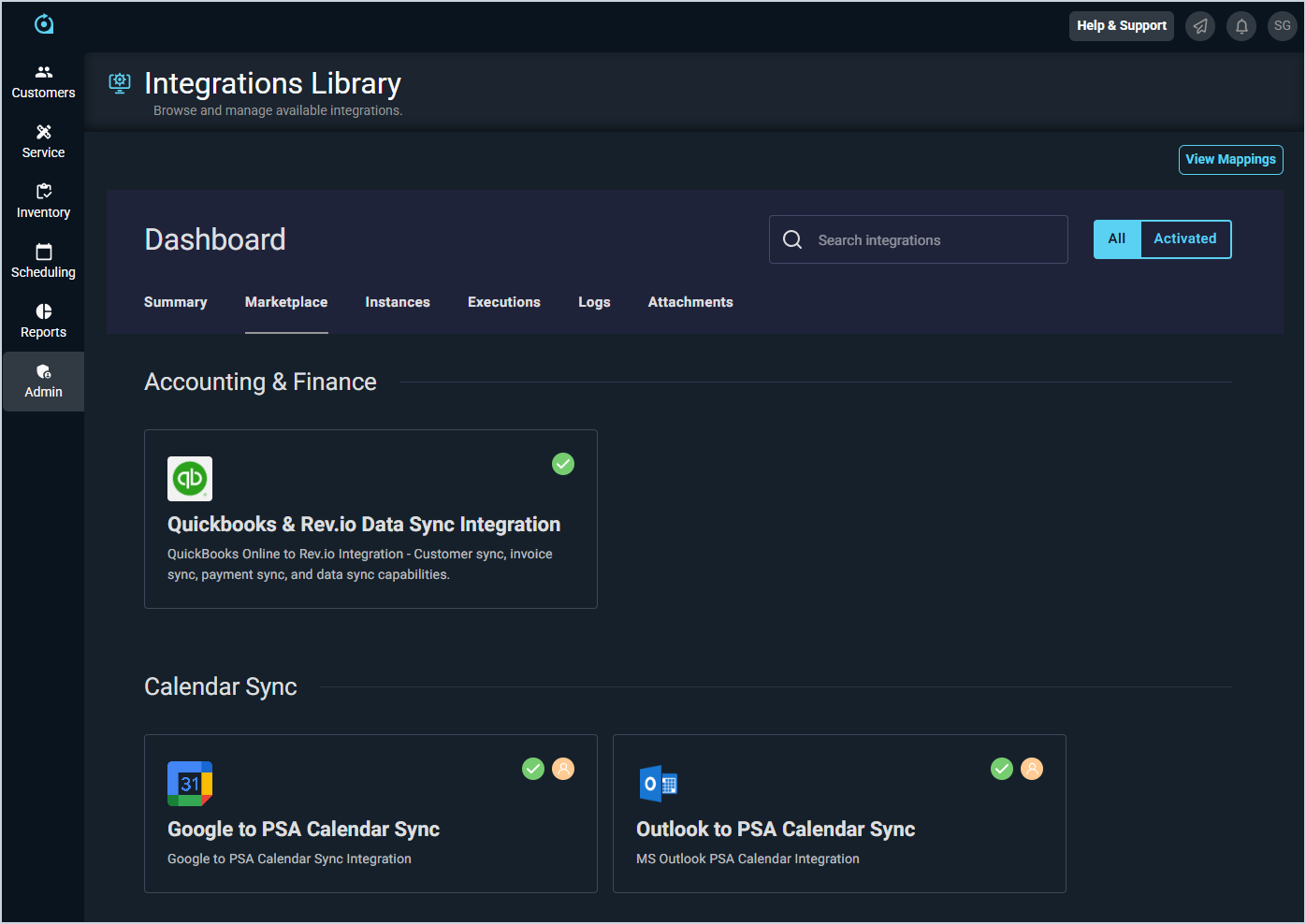
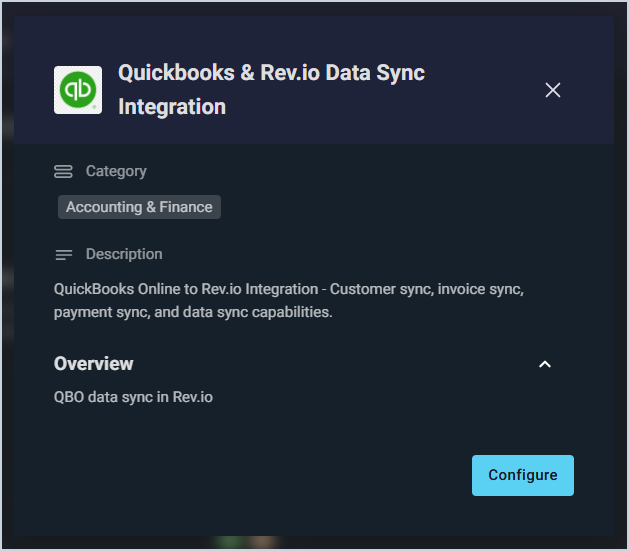
3. Locate and select the **QuickBooks & Rev.io Data Sync Integration** in the *Accounting & Finance* section.
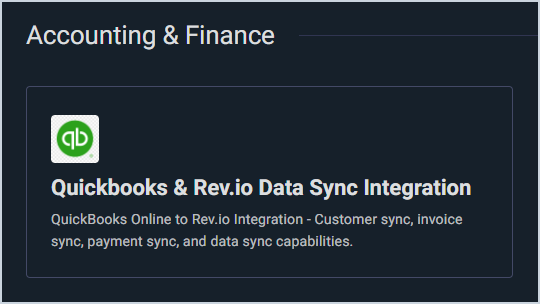
4. Click the **Configure** button.
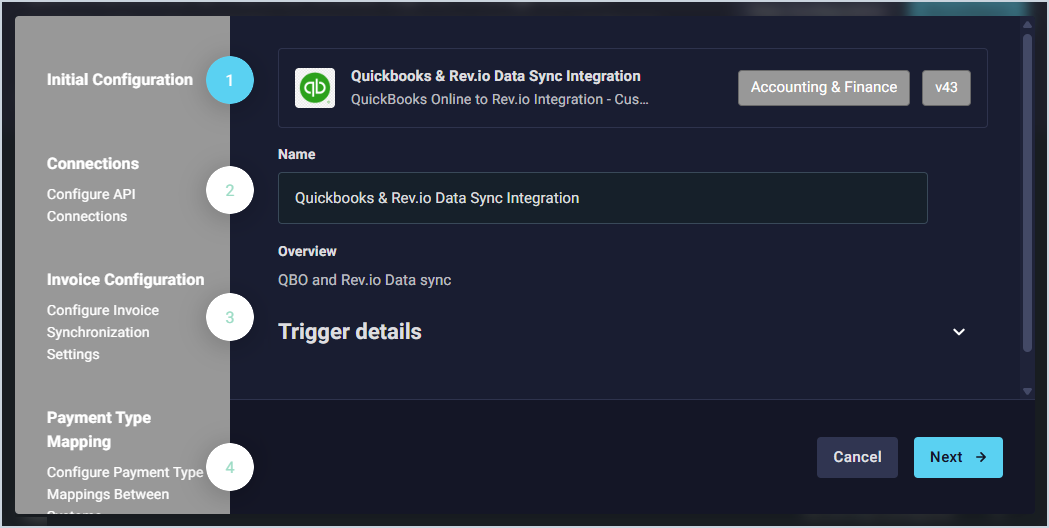
5. The *Initial Configuration* section is automatically populated. Click the **Next** button.
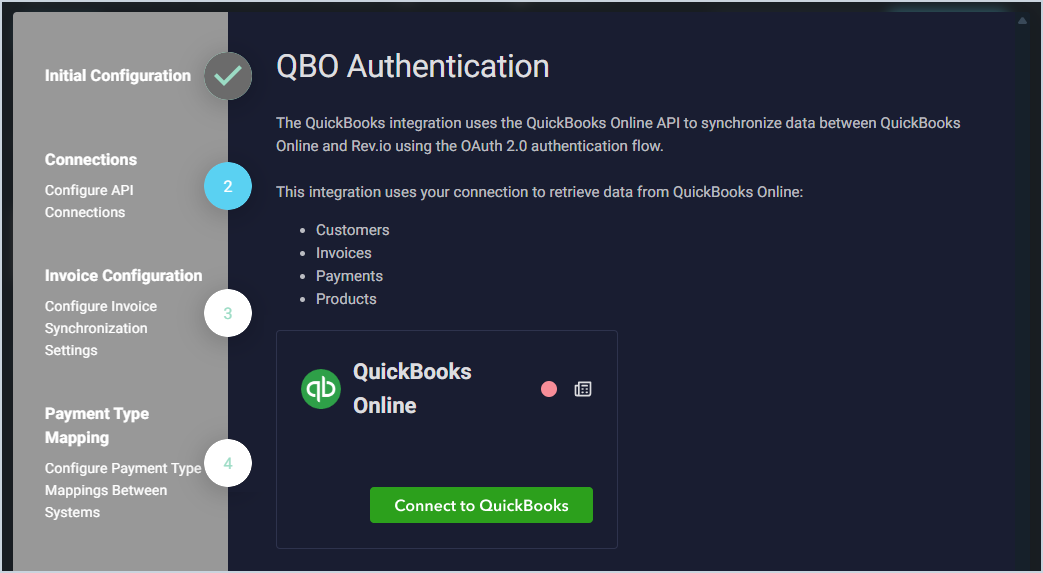
6. Click **Connect to QuickBooks**. You will be redirected to QuickBooks to sign in with your credentials. Once authorization is complete, close the QuickBooks tab and return to Rev.io.
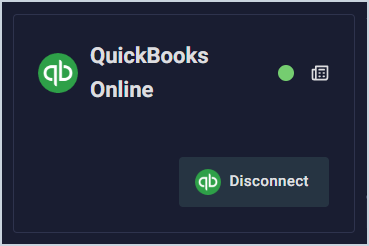
7. If your connection was successful, the status circle in the *QuickBooks Online* section will be green. Click the **Next** button.
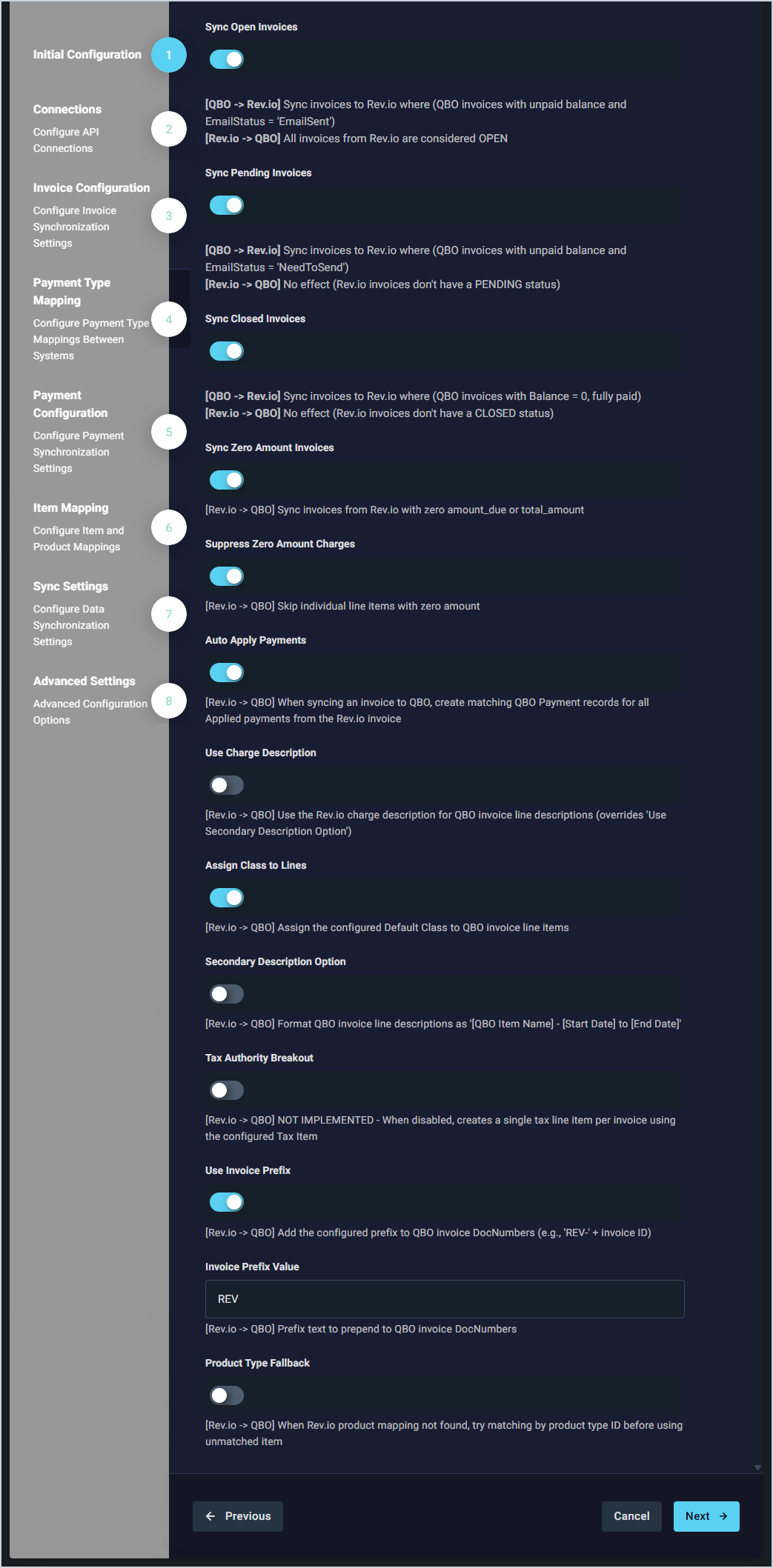
8. Review the invoice configuration options and make any adjustments as needed. We strongly recommend keeping the **Use Invoice Prefix** option enabled to avoid confusion when syncing invoices. Click **Next**.
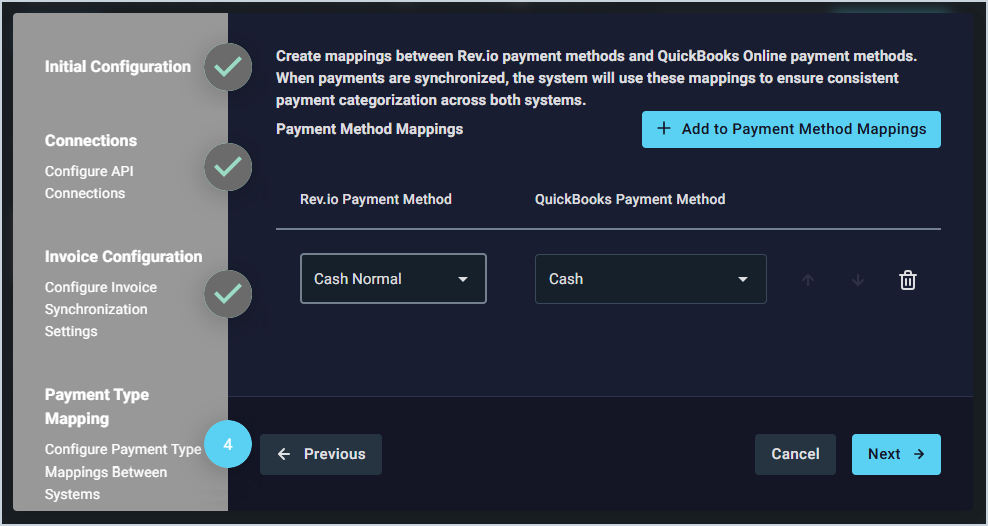
9. Create mappings for your payment methods by selecting a **Rev.io Payment Method** and the corresponding **QuickBooks Payment Method**. Click **Add to Payment Method Mappings** to add additional mappings. Click **Next**.
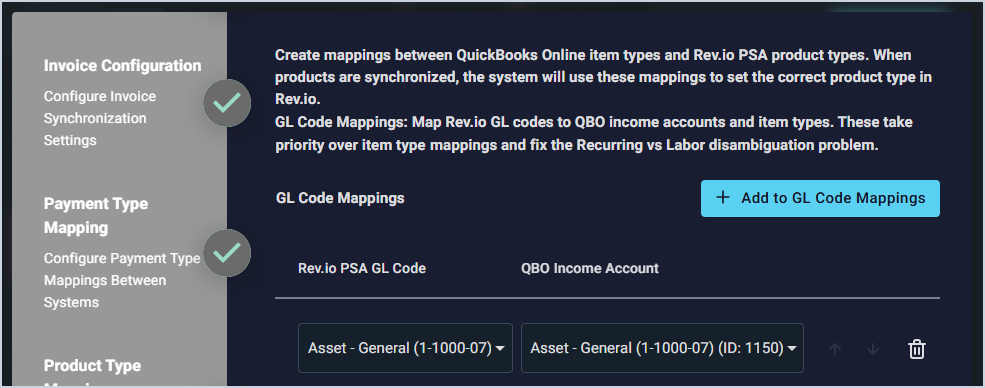
10. Create mappings for your GL codes and income accounts by selecting a **Rev.io GL Code** and the corresponding **QBO Income Account**. Click **Add to GL Code Mappings** to add additional mappings. Click **Next**.
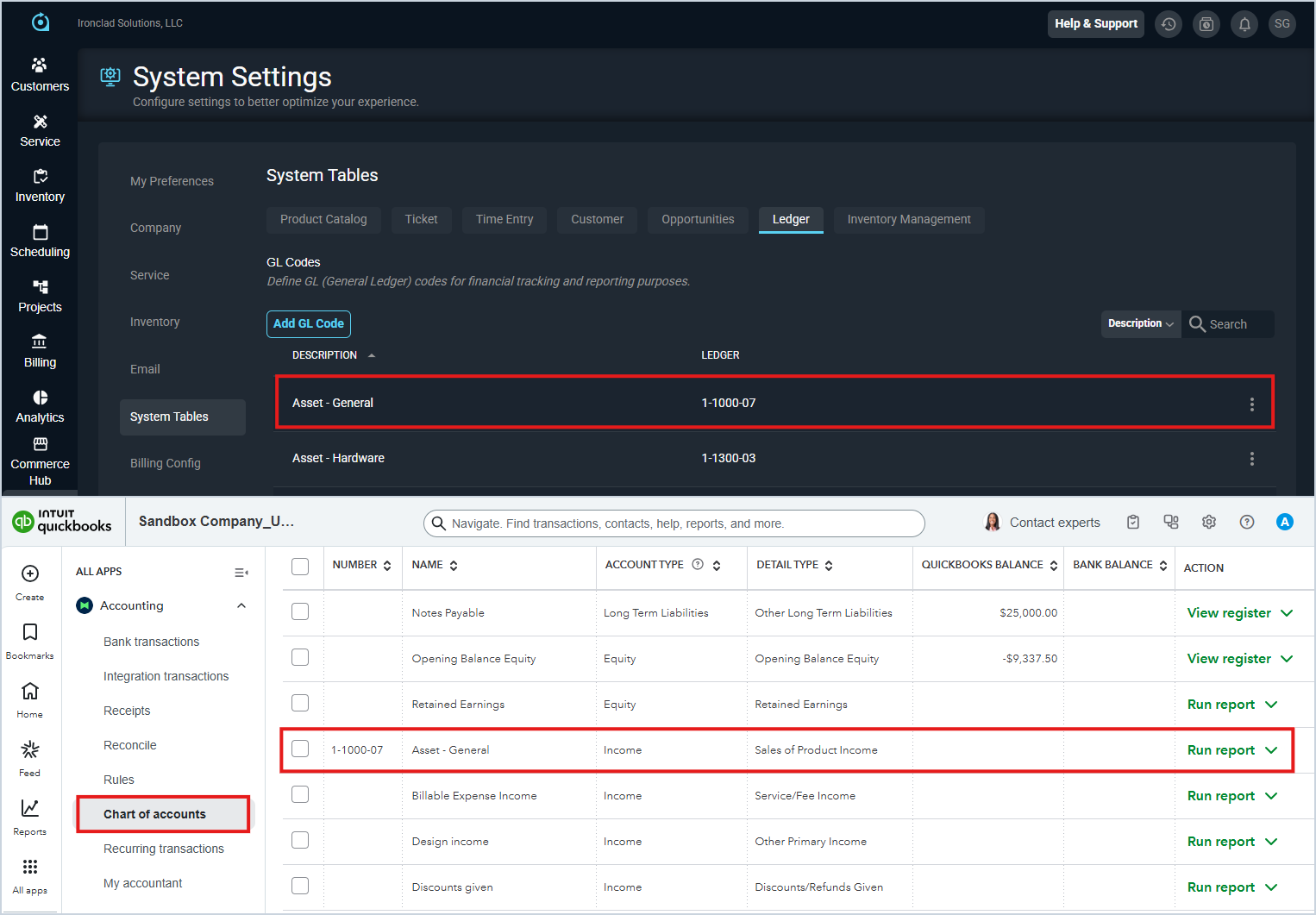
**NOTE:** See below for examples of GL Codes in Rev.io PSA and QuickBooks Online.
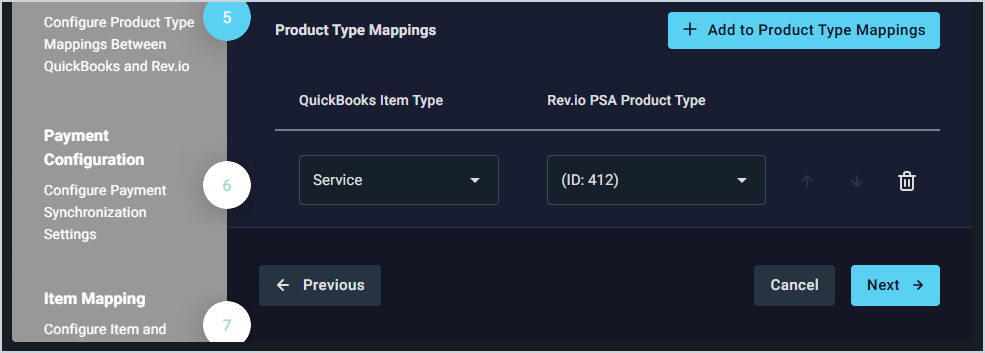
11. Create mappings for your product types by selecting a **QuickBooks Item Type** and the corresponding **Rev.io Product Type**. Click **Add to Product Type Mappings** to add additional mappings. Click **Next**.
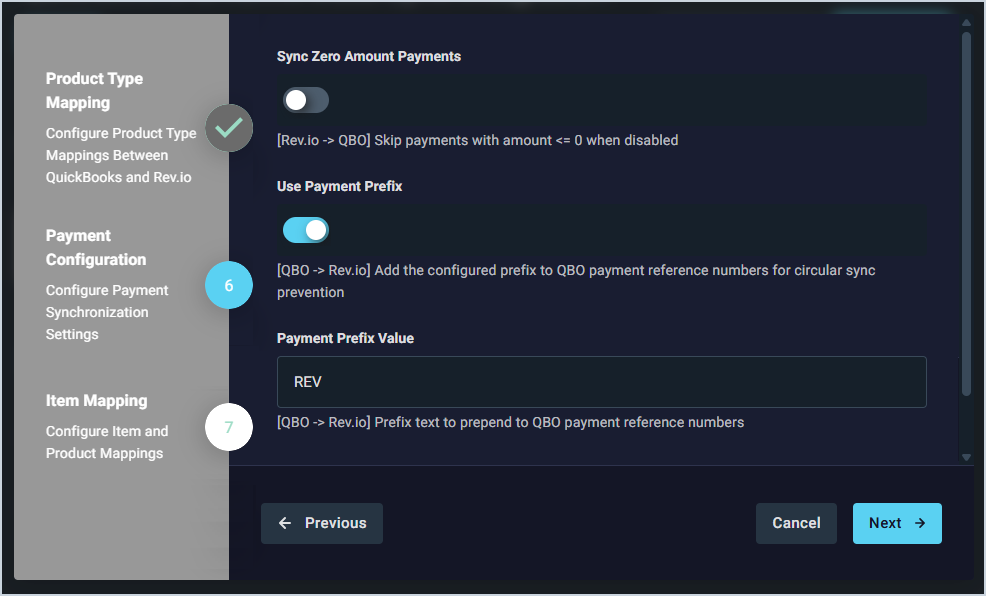
12. Review the payment configuration options and make any adjustments as needed. We strongly recommend keeping the **Use Payment Prefix** option enabled to avoid confusion when syncing payments. Click **Next**.
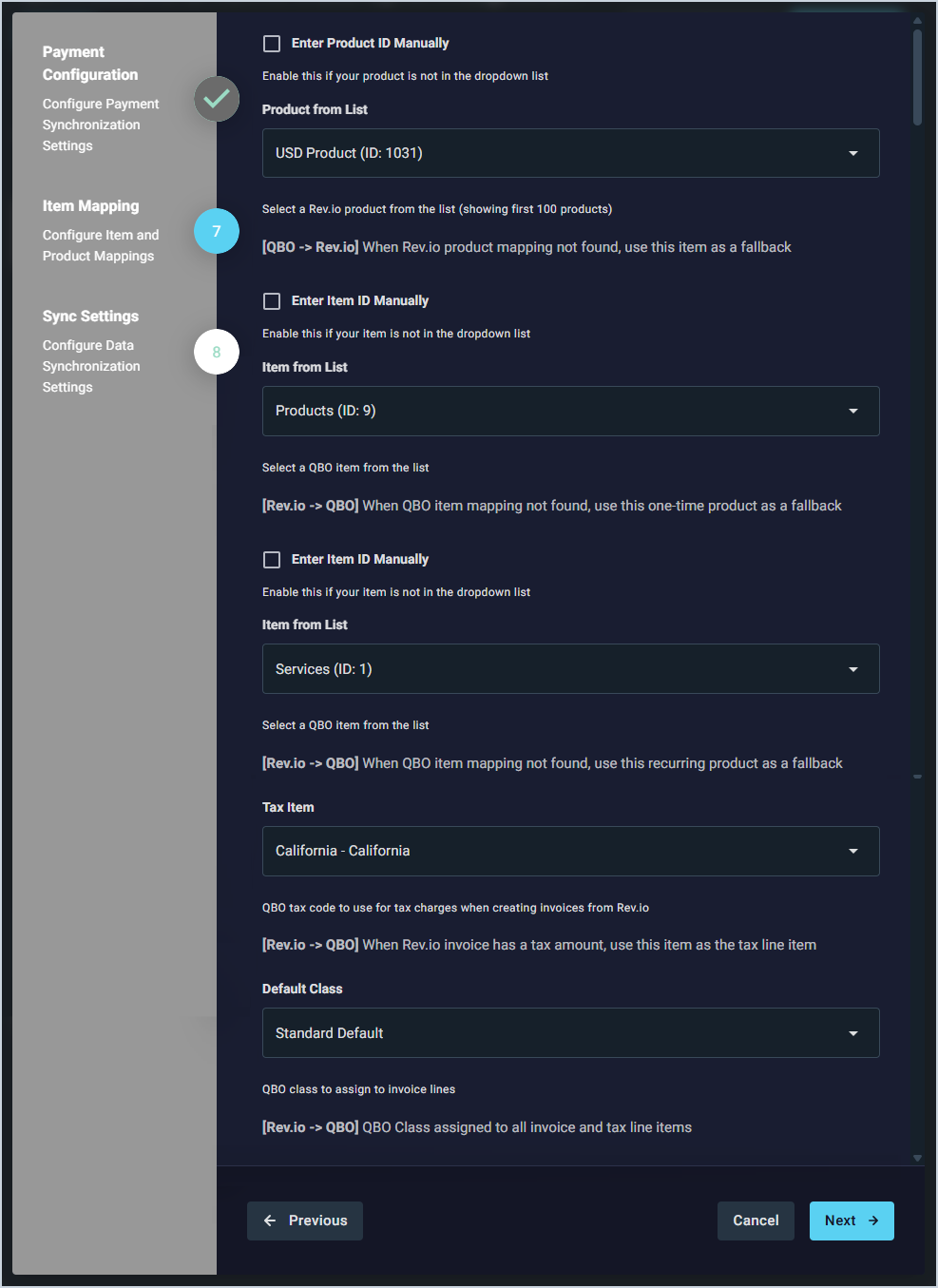
13. Create mappings for unmatched items by selecting the appropriate options from the dropdowns for the following fields and click **Next**.
*- Rev.io* **Product ID** for unmatched items from QBO.
- *QBO* **Item ID** for unmatched **one-time** products from Rev.io.
- *QBO* **Item ID** for unmatched **recurring** products from Rev.io.
- *QBO* **Tax Code** to use when creating invoices from Rev.io.
- *QBO* **Class** to assign to invoice line items from Rev.io.
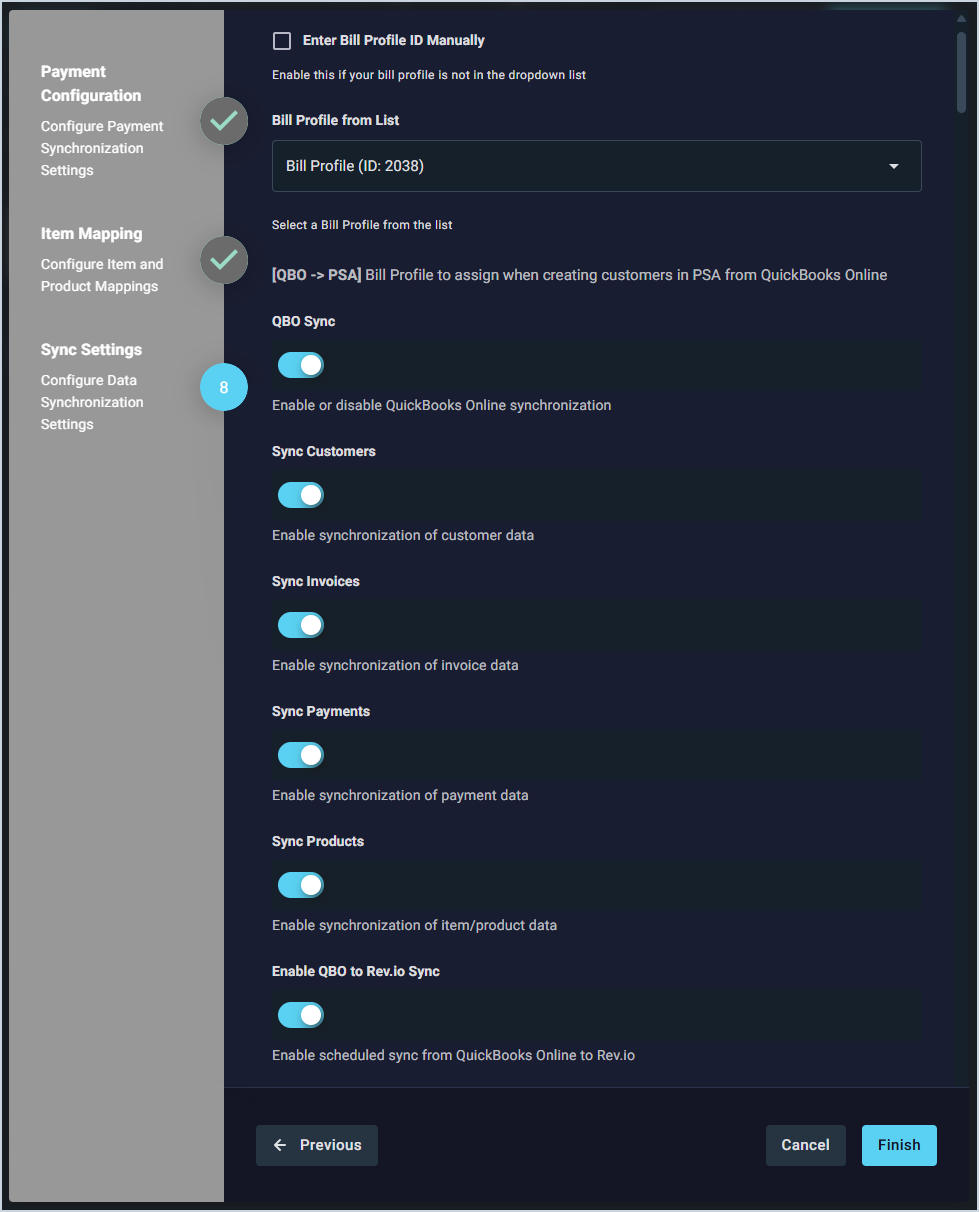
14. Select a **Bill Profile** to assign to new customers created in Rev.io from QuickBooks Online. Review the remaining sync options, select your preferred **Sync Direction**, and click **Finish**.
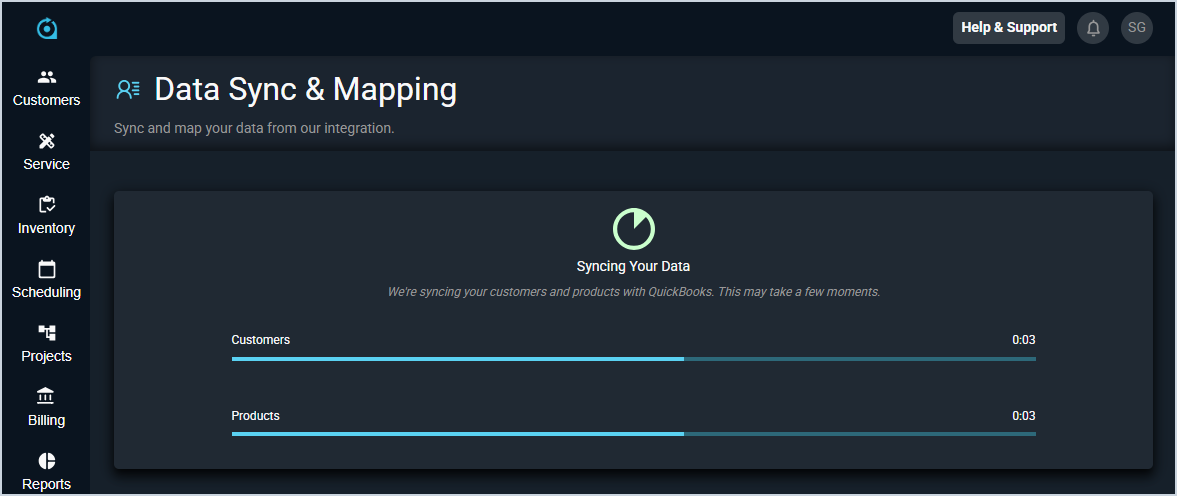
15. The integration will run an initial sync of your customers and products. Do not leave this page while the sync is running. If you need to work in Rev.io during this time, open it in a separate tab. To review and manage customer and product mappings after setup, see the [Integrations Library: Data Sync & Mapping](https://help.psarev.io/en/article/integrations-library-data-sync-mapping) article for more information.